Orders & fulfillment
Every sale — tasting room, storefront, club, phone — becomes an order,
and orders are worked from the Commerce menu: the company-wide list at
/admin/orders and the shipping queue at /admin/shipments
(subtitle: "Track shipments across orders, and manage notification &
carrier health."). Channel routing at /admin/fulfillment-routing is
reached from Settings → Selling → Fulfilment routing. Guests follow
their package on a public tracking page at /track/:token — no
sign-in needed.
Who can use it
- View orders and shipments —
orders.read: Managers, Concierges, Ambassadors, and Wine Associates (and Admins). - Fulfill lines (reserve, pick, ship, pickup) —
orders.fulfill(Managers, Concierges); overriding a pick past inventory needsorders.override_inventory(Managers). - Cancel / refund / edit addresses / returns —
orders.cancel,orders.refund,orders.edit_address, and theorders.returns.*set: Managers and Admins (Concierges can receive returns). - Fulfillment routing — viewing needs
locations.read; changing a channel's default location needslocations.update(Managers, Admins). - Cart profiles —
cart_profiles.readto view; create/update/delete are Manager and Admin only.
The all-orders list
/admin/orders (Orders) lists every order across channels. Columns:
Order #, Channel, Status, Fulfillment, Total, Placed
At. Club orders carry a wine-glass Club badge whose tooltip shows the
shipment, status, and delivery method.
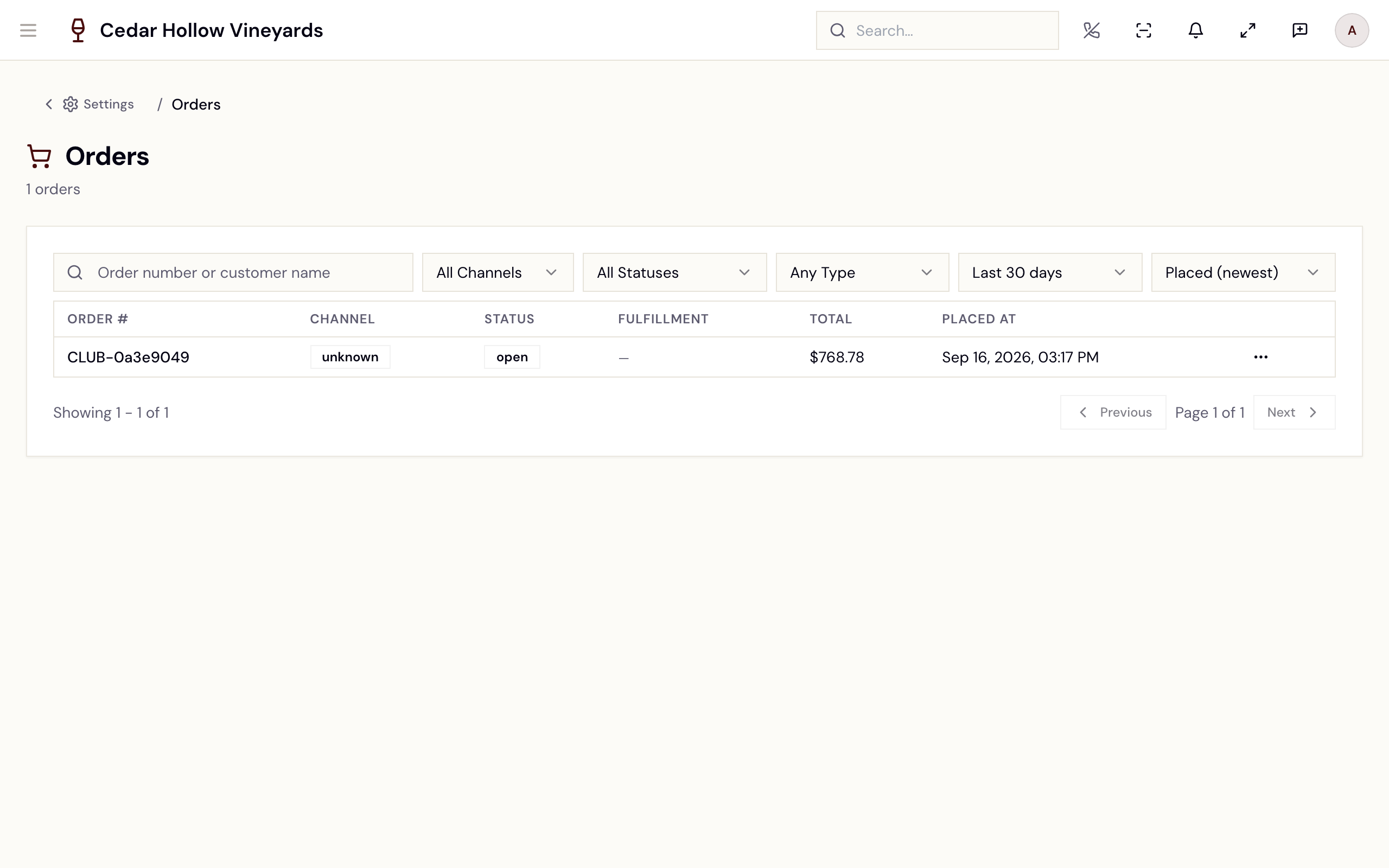
The Orders admin — every channel in one list, with filters.
This picture shows an earlier version of this screen. The steps on this page are current.
Filter and find:
- Search — "Order number or customer name".
- Channel — All Channels, Club, Tasting Room, Web, Inbound. (Tasting Room is the in-person POS channel; Web is the storefront.)
- Fulfillment Status — All Statuses, Pending, Submitted, In Transit, Delivered, Failed, Canceled, and No shipment. These follow the order's shipment.
- Fulfillment Type — Any Type, Shipping, Pickup, Local Delivery, Carry Out, No Fulfillment Required, Unknown.
- A Location filter (only with multiple locations), a date-range picker (defaults to the last 30 days), and sorts from Placed (newest) to Total (high to low).
Rows page 25 at a time (Previous / Next). Each row's menu offers View order and Copy order number (toast: "Copied"). Nothing matching? "No orders found" — "Try adjusting your filters or search term".
/orders (POS Orders) is the location-scoped operational twin —
tabs for Open Carts, Completed, and Closed Checks, plus an
Order Insights drawer. Completed rows link straight into
/admin/orders/:id. For building and settling the carts themselves, see
Take an order (POS).
The order detail
/admin/orders/:id is the whole order on one page. The header shows
the order number, status, channel, and a lock badge — Editable,
Locked, or Shipped — with a Why locked? button that lists the
lock reasons. POS-born orders also show their originating Check number
and the Closed by staff member.
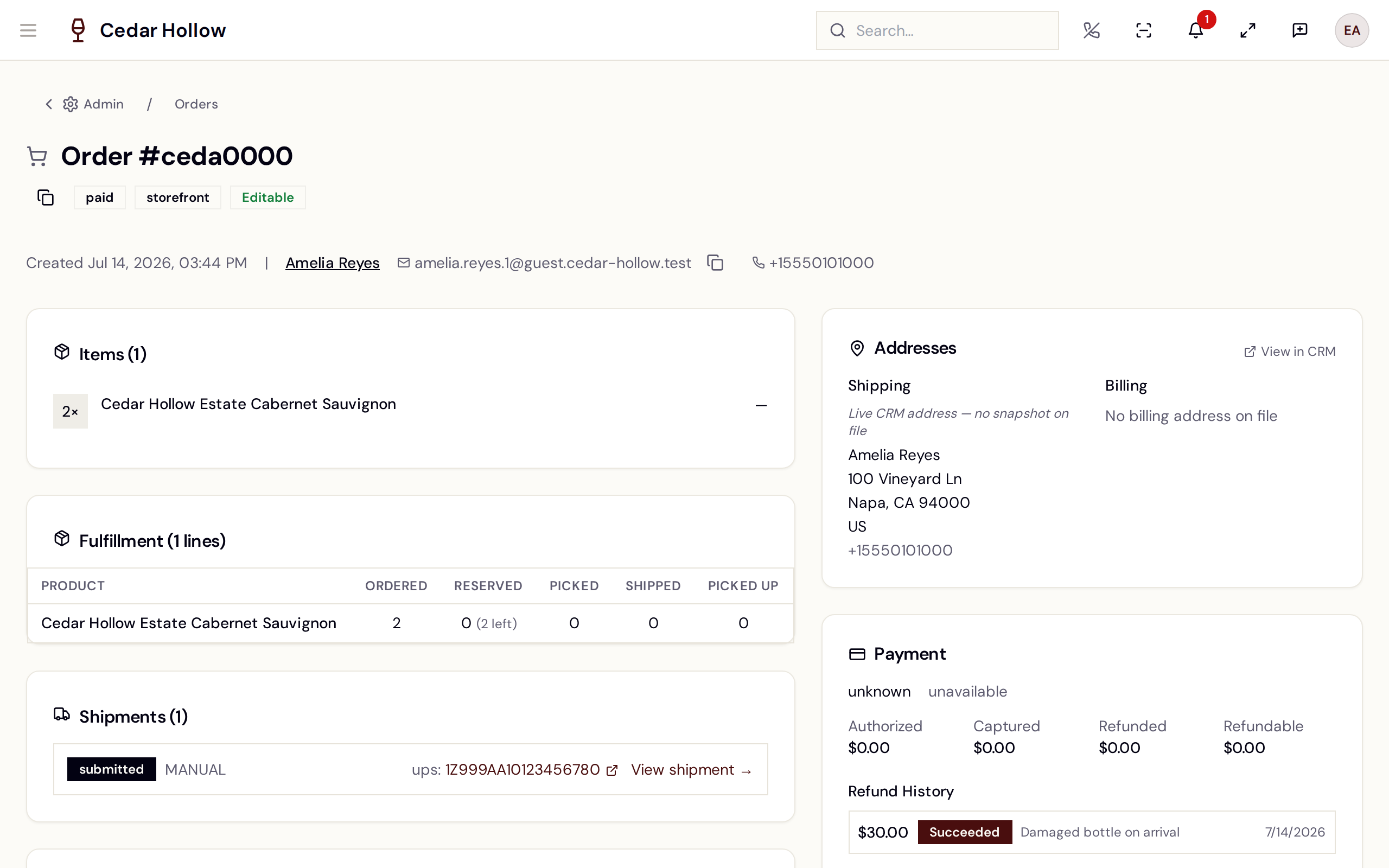
The order detail — items, fulfillment, payment, and the activity timeline.
This picture shows an earlier version of this screen. The steps on this page are current.
- Items — the line items with quantities and prices.
- Fulfillment — a per-line worklist: Product, Ordered,
Reserved, Picked, Shipped, Picked Up, Actions. The
actions (needs
orders.fulfill) are Reserve, Release, Pick, Ship, and Pickup; Override Pick (needsorders.override_inventory) picks past the reservation. Ship stays disabled without an address — "Shipping address required". - Shipments — the order's shipments with provider, carrier, tracking
link, and recent tracking events, plus a View shipment link into
/admin/shipments/:id. Request Shipment hands the order's shipping lines to the shipping pipeline — "Shipment Requested", "Shipment has been created and queued for processing." Lines the guest collects or carries out are left off the shipment. - Returns — Create Return authorizes a return; Receive records the items back with a condition (Restockable, Damaged, Defective); Link Refund ties the return to a refund. Empty state: "No returns for this order".
- Activity — the full timeline, filterable by Fulfillment, Lock, Audit, Order, Payment, Return.
- Addresses — the shipping/billing snapshots with Edit (needs
orders.edit_address). Locked and shipped orders resist edits — "Shipped orders cannot be edited" — unless a Manager flips Override Lock and supplies an Override Reason. - Payment — Authorized, Captured, Refunded, and
Refundable amounts, plus Issue Refund (needs
orders.refund). Stripe-processed orders refund automatically — "This refund will be processed automatically through Stripe." — others are recorded as manual refund requests. The refund history shows each attempt's status (Succeeded, Submitted, Requested, Failed, Manual Action, Canceled) with a Cancel action on Requested and Manual Action rows. If the order sold gift cards, their value cannot be refunded with Issue Refund; use the Gift cards card. - Gift cards — shown when the order sold gift cards. Refund unspent balance returns what is left on a card to the payment that bought it and closes the card.
Cancel Order (needs orders.cancel) asks for a reason and cannot be
undone. Cancelling a paid order refunds it: the toast reads "Order
canceled", or "Order canceled, but the refund failed" if the money did
not go back — check the refund history on the Payment card before
refunding again. A single refund is capped (500 dollars unless your
company's cap has been changed), so cancelling a larger order cancels it
and the refund fails; see Cancel an order. An order that sold gift cards can only be cancelled
while every one of those cards is unused.
The button is disabled once the order carries a shipped lock, or is locked without an override — its tooltip reads "Cannot cancel in current lock state". Check Why locked? first.
The shipments queue
/admin/shipments (Shipments) has three tabs — Shipments,
Rates and Settings & Health. (The old /admin/settings/shipping
address redirects to the Settings & Health tab.)
Rates is where you set what shipping costs: whether you Offer shipping, and your zones, methods and weight tiers. Online checkout refuses a shipping order when no rate covers it, and the tab says so at the top — "Shipping orders are being refused".
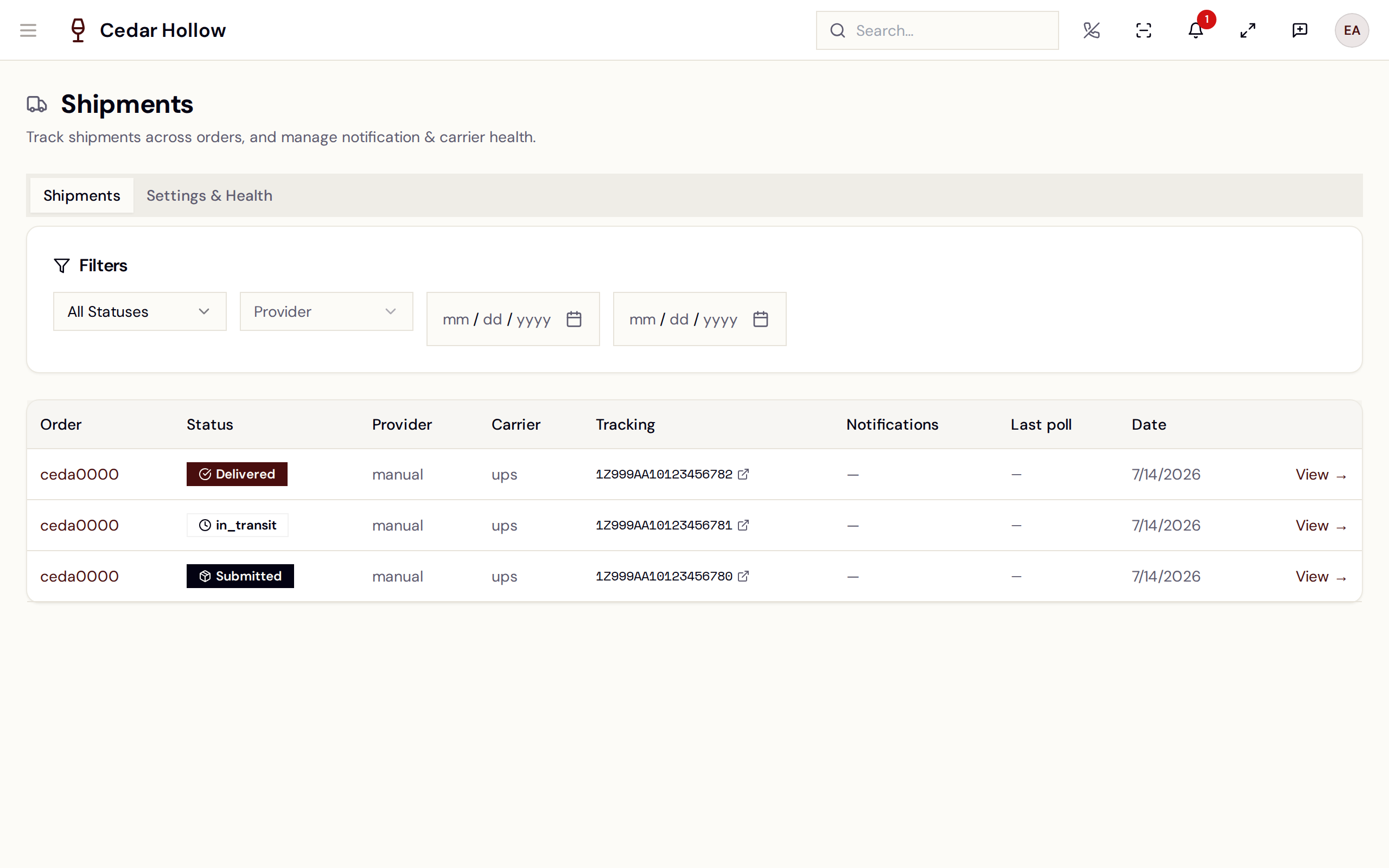
The Shipments queue — status, provider, carrier, and tracking per shipment.
This picture shows an earlier version of this screen. The steps on this page are current.
The worklist filters by Status (Submitted, In Transit, Delivered, Exception), Provider (FORT WMS, ShipStation), and a From / To date range, over columns Order, Status, Provider, Carrier, Tracking, Notifications, Last poll, Date. A shipment moves through Created → Submitted → Picking → Packed → Label Created → In Transit → Delivered, with Exception and Canceled as the off-ramps. The tracking cell links to the carrier's own site.
There are deliberately no manual shipment buttons here — no "create label", "mark shipped", or "assign tracking". A shipment is created from the order detail's Request Shipment (or automatically for club releases), and labels, carriers, tracking numbers, and status updates flow back on their own from the warehouse and carrier feeds.
Each row's View opens /admin/shipments/:id — the status and
provider badges, an Open in carrier button, and three tabs:
Notifications (each customer email event, with failures marked "— re-fires
on the next status change."), Tracking ("Carrier tracking events"),
and Audit (with an "Open full Audit log" link).
Settings & Health shows whether "Customer shipping notifications are ON" (or OFF — the switch is environment-level, read-only here), the last-24h notification counts, the carrier poll worker's recency, and the provider health cards. The notification events are Tracking assigned, Shipped, Out for delivery, Delivery attempted, Exception, and Delivered.
Which provider ships an order is an integration setting, not a per-order
choice: connect and configure FORT at /admin/integrations/fort (map
your SKUs at /admin/integrations/fort/products, watch submissions at
/admin/integrations/fort/health). If FORT is switched off you'll see
"FORT outbound shipping is disabled for this winery (kill switch). Enable
it under Integrations → FORT once sandbox validation has passed."
Fulfillment routing — which location fulfills a channel
/admin/fulfillment-routing (Fulfillment Routing — "Set the
default fulfillment location for each sales channel.") holds one card per
channel: Web ("Online store orders"), Club ("Wine club
shipments"), Inbound ("Phone and email orders"), and Wholesale
("Wholesale and B2B orders"). Pick a Default Location and Save —
the toast confirms, e.g. "Web routing updated".
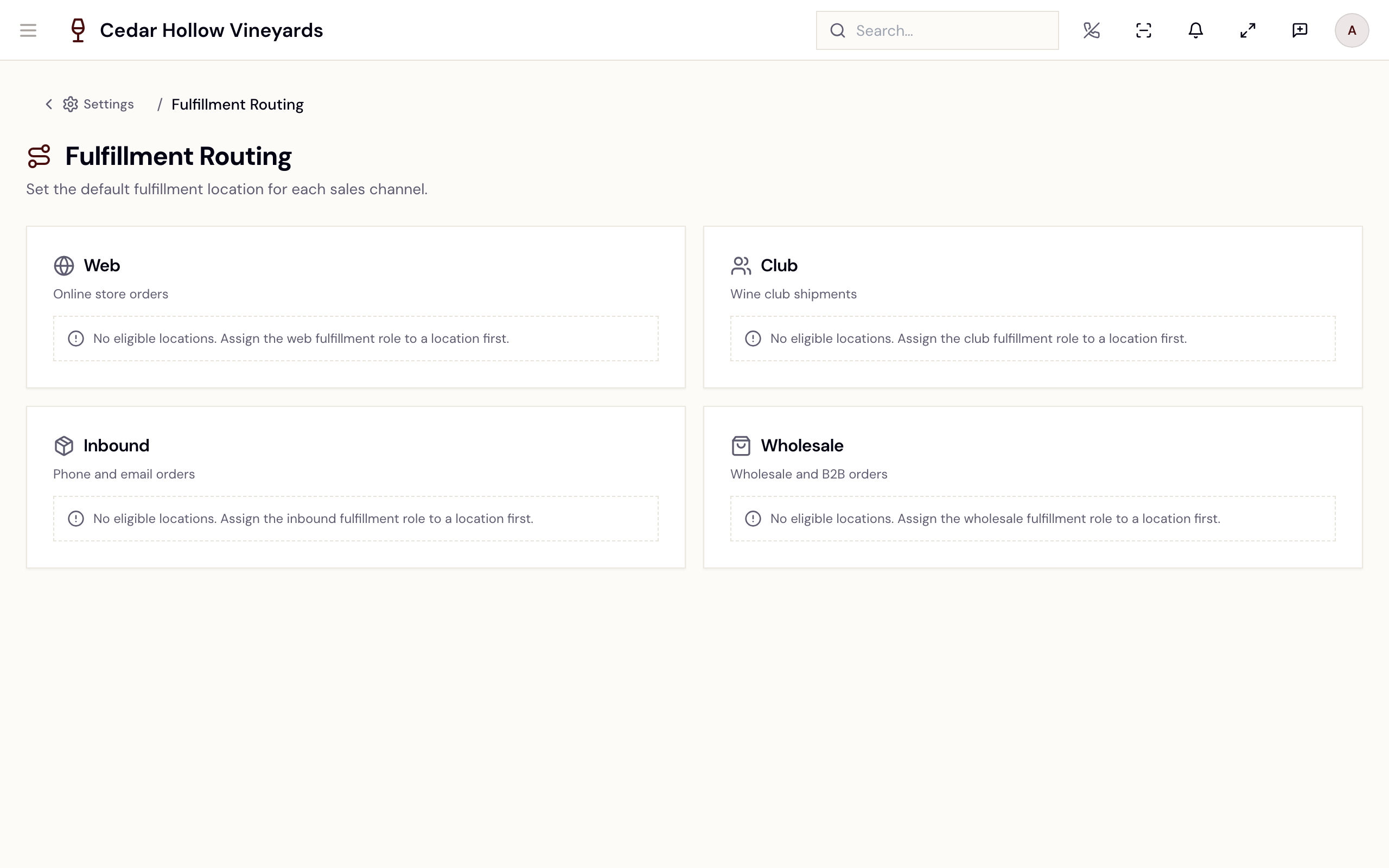
Fulfillment Routing — a default location per sales channel.
Only locations with that channel's fulfillment role qualify — otherwise: "No eligible locations. Assign the web fulfillment role to a location first." (Web additionally requires the location to have shipping or pickup enabled.) Fulfillment roles live on the location's settings under Locations.
That's the whole engine: an order's channel picks the default location you set here, and inventory is drawn from that location. There are no destination- or weight-based rules.
Public tracking for guests
Every shipment gets a private tracking link. When shipping notifications
are on, the customer's email includes "Track your shipment:" with their
link to /track/:token — Track Your Shipment — showing the status
badge, Carrier, Tracking Number, Shipped / Delivered
dates, an estimated delivery line, a "Track on [carrier] website" link,
and the Tracking History timeline. The page needs no account; the link
itself is the key. A dead link shows "Tracking Not Found" — "The
tracking information you requested could not be found. Please check the
URL and try again."
Collections — where each product sells
A collection is a group of products, and it is the collection that says
where those products can be bought. /admin/collections lists them
with Sells on as the spine, so you can see at a glance which
collections reach a register, which reach the web shop, and — the one worth
looking for — which sell nowhere.
That last case matters more than it sounds. A product reaches a customer through a collection; a collection that sells nowhere strands everything inside it, silently.
Collections — the Sells on column is the spine; a collection selling nowhere strands everything inside it.
New collection opens a four-step wizard: Basics, Products, Sells on, Review & commit. Add products in bulk rather than one at a time, set placement on the Sells on step, and nothing is written until you press Create collection on the last step.
The wizard's Sells on step — nothing is written until you commit.
/admin/cart-profiles still exists and still does its job of matching
a Channel, Location and Surface, with Priority breaking
ties and only Active profiles applying.
What changed is which screen decides what a profile carries. The collections on a cart profile are now shown read-only, with a link through to Collections — placement is set on the collection itself, in one place, so the two screens cannot disagree about where something sells.
If you are following an older runbook that says to tick collections inside a cart profile, that step now lives on the collection's Sells on step.
Reference
| Control | Where | What it does |
|---|---|---|
| View order | Orders row menu | Opens the full order detail. |
| Why locked? | Order detail header | Lists the reasons an order resists edits. |
| Reserve / Pick / Ship / Pickup | Fulfillment card | Moves a line through fulfillment (needs orders.fulfill). |
| Request Shipment | Order detail | Creates the shipment and queues it with the shipping provider. |
| Issue Refund | Payment card | Refunds up to the refundable amount, less gift card value. |
| Refund unspent balance | Gift cards card | Refunds what is left on a gift card the order sold. |
| Create Return | Returns card | Authorizes a return; Receive books items back by condition. |
| Cancel Order | Order detail header | Cancels an unshipped, unlocked order and refunds it. |
| Rates tab | Shipments | Sets shipping zones, methods and weight tiers. |
| Open in carrier | Shipment detail | Jumps to the carrier's own tracking page. |
| Default Location | Fulfillment Routing card | Which location fulfills that channel's orders. |
| Create Profile | Cart Profiles | Scopes sellable collections by location, surface, and channel. |
Troubleshooting
- "No orders found" — widen the date range first; it defaults to the last 30 days.
- Ship is disabled with "Shipping address required" — add the address on the Addresses card, then ship.
- "Cannot cancel in current lock state" — the order is shipped or locked; open Why locked? for the reasons.
- "Order lock prevents this change. Check lock reasons." — an address edit raced the lock; use Override Lock with a reason if you must.
- "No eligible locations. Assign the … fulfillment role to a location first." — give a location that channel's fulfillment role in its location settings, then pick it here.
- "FORT outbound shipping is disabled for this winery (kill switch)…" — re-enable FORT under Integrations → FORT once it's been validated.
- A guest's tracking page says "Tracking Not Found" — the link is wrong or stale; resend the tracking URL from the shipment's carrier details.
Related
- Your online storefront — where Web orders come from, and the collections cart profiles use.
- Products & inventory — the stock that fulfillment reserves and picks.
- Releases & shipments — club releases; their shipments land in this same queue automatically after charging.
- Payments & refunds — where the refunded money lives.
- Take an order (POS) — the register side, and the checks that become orders.