Floor & seating
Your layout is made of surfaces — tables, zones, and areas like "Main
Tasting Room," "Patio," or "VIP Lounge." You build them once, then work the
room from the live floor map at /floor: seat arriving parties, open
their carts, and settle their checks without leaving the page.
Build your layout
- Floor plan editor —
/admin/locations/:locationId/floorplan(also reachable from Settings → Floor Management). Drag surfaces into place and name your rooms. - Surfaces —
/admin/locations/:locationId/surfaces— manage tables and zones, set seat counts, and organize sections.
Name sections the way your team says them out loud — those names appear on the floor, the POS, and in reporting.
Work the floor
The live floor map is at /floor. Tables show their status at a glance:
- Available — open and ready.
- Reserved — held for a booking.
- Occupied — a party is seated (has an active visit/check).
- Blocked / dirty — temporarily unavailable.
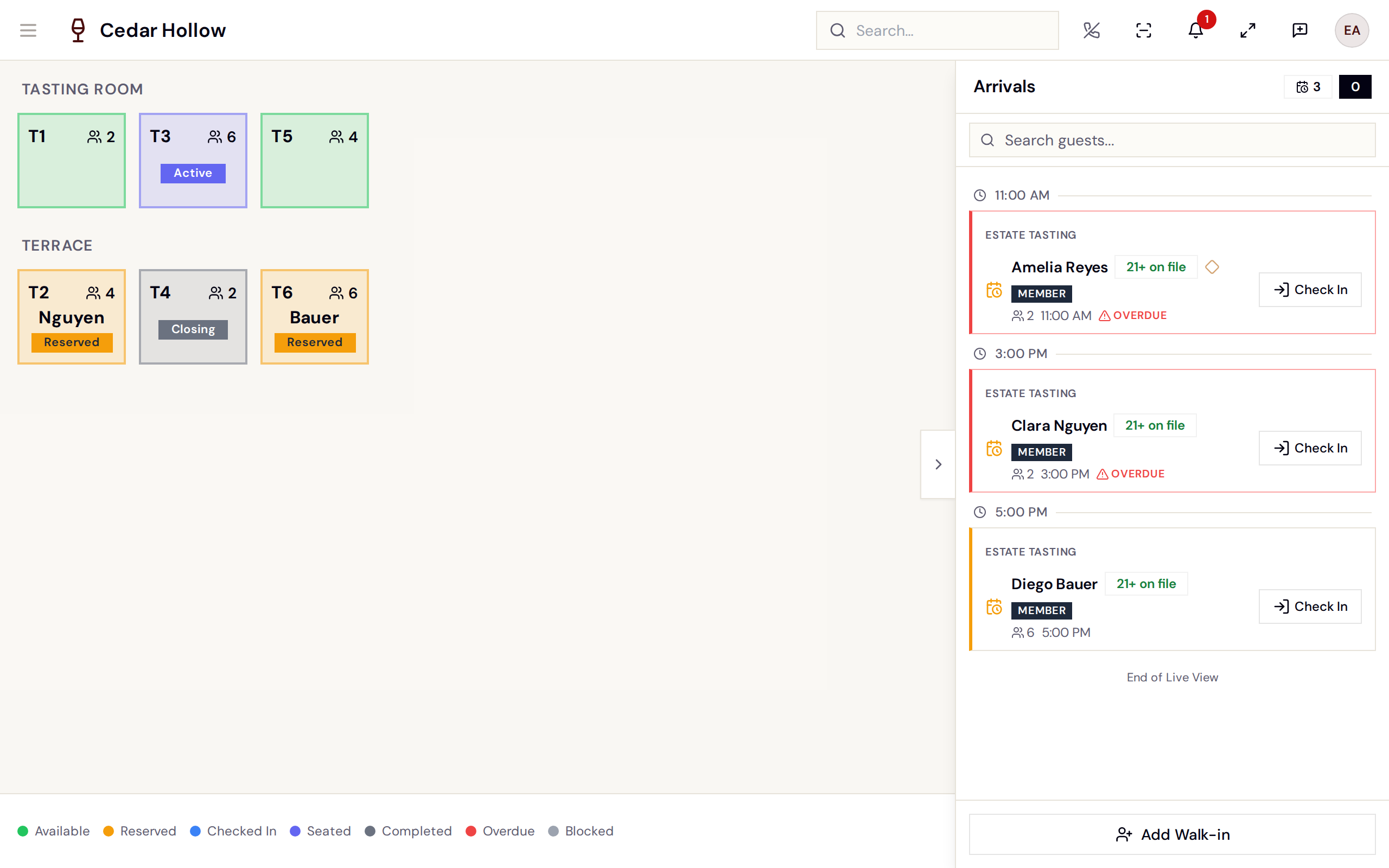
The live floor map — table status at a glance.
On the right edge of the floor sits the Arrivals drawer — the same queue of checked-in reservations and walk-ins you manage on the Visitors page, with an Add Walk-in quick check-in at the bottom.
Seat a guest
From either list, find the party and tap Seat:
- On the floor — tap Seat on a party in the Arrivals drawer.
- From Visitors (
/visitors) — tap Seat; Avero opens the floor.
Either way the floor enters Seating Mode with a banner — "Seating: Tap a table for [Guest] (Party of N)" — and you tap an available table to seat them. Cancel in the banner exits without seating.
Seating Mode — tap a table to seat the selected party.
A reservation must be checked in before it can be seated — checking in adds the party to the queue. See Walk-ins & waitlist.
Seating is a separate permission (floor.seat.assign), held by Host,
Ambassador, Wayfinder, and Manager roles (and Admins). Roles
without it can still view the floor and run the POS.
Table detail — seats and carts
Tap an occupied table to open its detail panel. The left side lists the party's seats (grouped by reservation or walk-in party); the right pane has three tabs: Schedule, Guest, and Checks.
Each seat has its own cart — tap the cart icon on a seat's row to open the cart view for that guest. In the cart, a left rail shows a pip per seat (G1, G2, …) so you can hop between guests, and a Swap Carts button moves carts between seats. It's the same product grid, Fire, Split, and Settle as the Sale page — details in Take an order (POS).
The Checks tab
The Checks tab lists every open or submitted check on the table — who it belongs to ("Seat 2 · Jordan"), item count, how long it's been open, the total, and a state badge.
The Checks tab — the table's open checks, with Collapse (merge) and per-check Settle.
- Collapse (merge) — select checks with the checkboxes and tap Collapse to merge them into one: pick an existing check as the target, or "Create new payer check". This is the "just put it all on one bill" move — the opposite of splitting.
- Settle — the card icon on any row opens the Settle Check sheet: the same checkout panel used everywhere (tiles, gratuity, split), documented in Settle a check & take payment. A Split button in the sheet's header splits before paying.
Related
- Take an order (POS) — carts, firing, and splitting checks.
- Settle a check & take payment — the settle panel, tile by tile.
- Discounts at the register — comps and codes on any check.
- Walk-ins & waitlist — the queue that feeds the floor.
- Daily operations — the Operations hub that watches the floor (bottlenecks, surface leads, the Daily Sheet).