Invite your team
Staff and roles live in People and Access (/admin/users — the
page is titled User Management, "Manage team members and their
access"). Invite people by email, pick a role, and they sign in through
your winery's staff app after accepting at /accept-invite.
Who can use it
User administration is Manager/Admin work: users.invite,
users.update_role, users.deactivate, users.reactivate, and
users.set_pin are all held by Manager and Admin. Every role
holds users.read, so staff can look up colleagues.
Invite someone
- On
/admin/users, click Invite User. - In Invite New User, enter the Email Address and pick a Role (the "What can each role do?" link opens the role guide).
- Send Invite. The person gets a 7-day invite link and appears under Invite History.
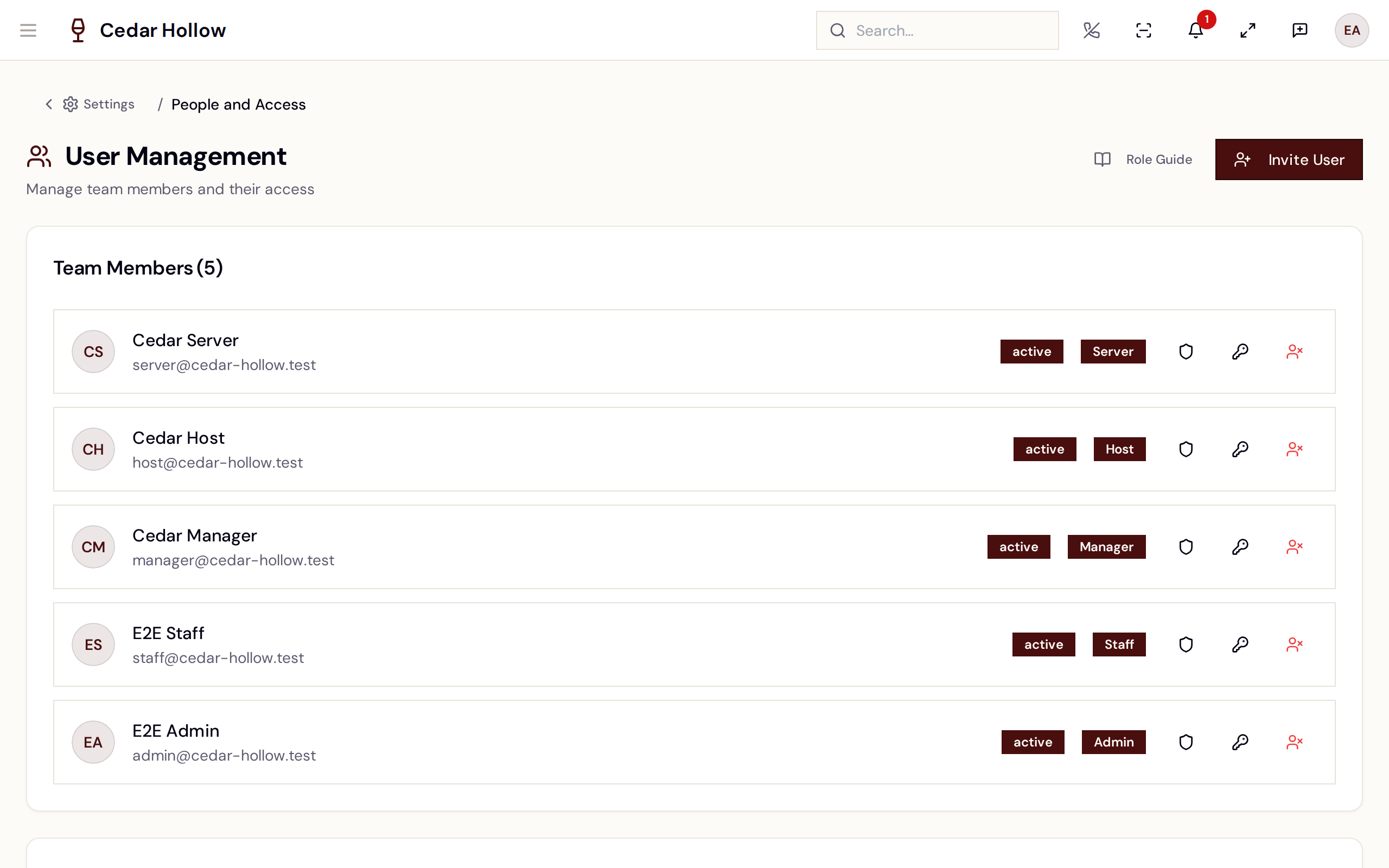
People and Access — invite staff by email and assign a role.
Invite History tracks each invite as Pending, Sent, Accepted, Expired, Revoked, or Delivery Failed, with Resend ("A fresh 7-day invite link has been sent.") and revoke actions. Existing members are listed under Team Members, where you can change a role (Change Role → New Role → Update Role), Reset device PIN, or deactivate/reactivate — both of which require a Reason.
The roles
Avero ships nine role templates. The Role Guide
(/admin/users/role-guide — Role Capability Guide, "Compare
what each role can do before assigning it to a team member.") shows the
full capability grid; this is the short version:
| Role | Tagline (from the guide) | In practice |
|---|---|---|
| Admin | "Full access" | Everything, including settings, users, billing, reports, audit, and integrations. |
| Manager | "Operations lead" | Staff, floor, POS, products, wine club, events, company settings, and the operational reports. No audit log, KPI catalog, or data export. |
| Concierge | "Guest & reservations specialist" | Reservations, walk-ins, POS, guests, cash drawer; read-only on company settings. No user admin. |
| Wayfinder | "Floor coordinator" | Queue, seating, guest intake, POS checks, payment links. |
| Host | "Front-of-house greeter" | Reservations, seat assignment, walk-in queue, guest intake. No full POS. |
| Ambassador | "Full-service floor staff" | Reservations, queue, seating, POS checks, and wine-club enrollment — the whole floor without admin surfaces. |
| Server | "Table service" | Opens and runs checks, views the floor and queue. No seat assignment. |
| Wine Associate | "Wine sales specialist" | POS sales and wine-club enrollment. No floor management or queue. |
| Viewer | "Read-only observer" | Views the floor, reservations, and products; can create a reservation and search guests. |
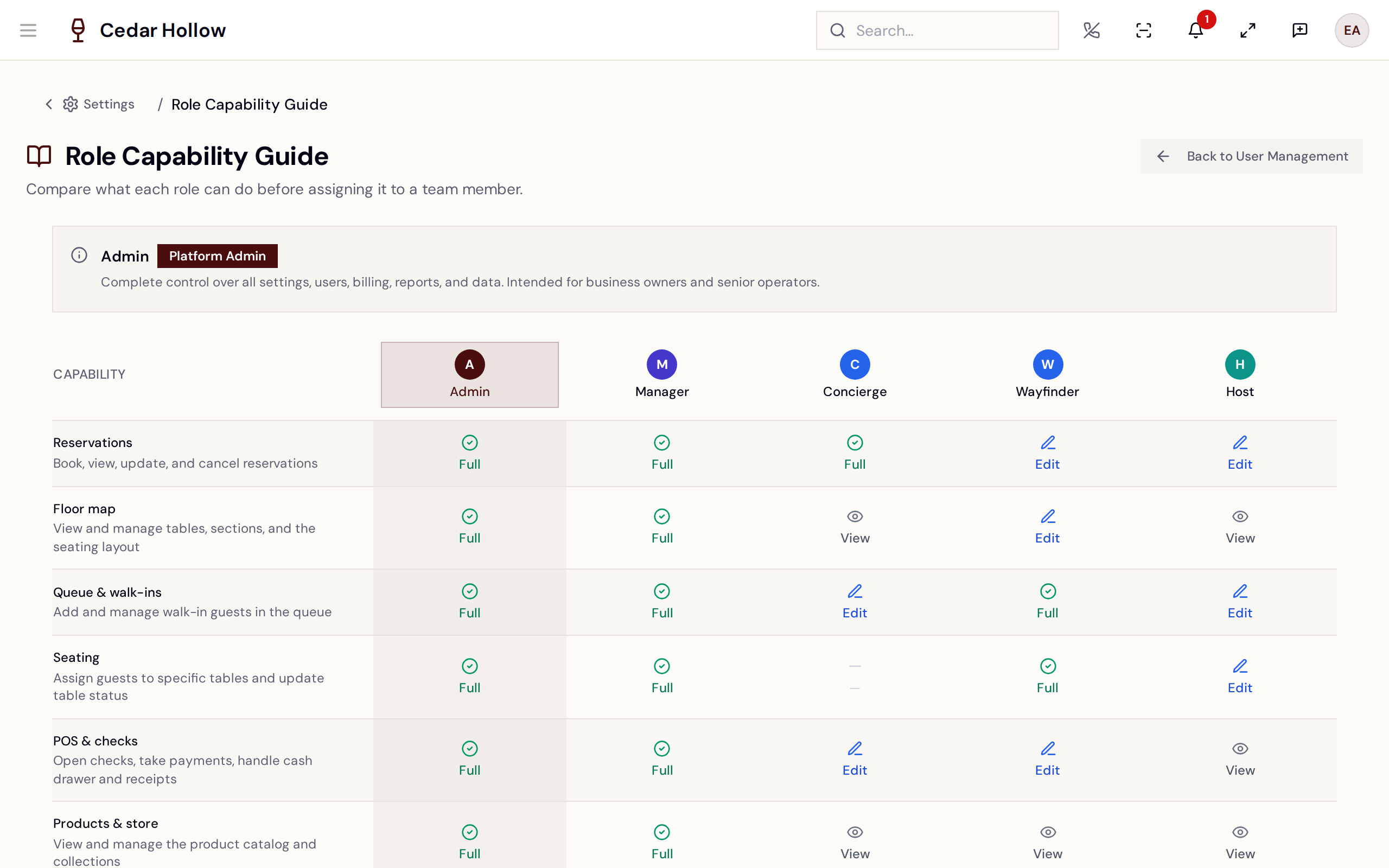
The Role Capability Guide — compare roles before assigning them.
Give each person the narrowest role that covers their job — a Concierge can run the reservations desk and register without being able to touch company settings, and a Server can run checks without reseating the floor.
Device PINs
Staff who work on paired companion devices (Stripe terminals, tablets) sign in there with a 4–6 digit PIN:
- Self-service — each person sets their own under
/settings/profile→ Security → Device Sign-In PIN (Set PIN). - Manager override — Reset device PIN on their row in
/admin/users(needsusers.set_pin). The dialog is explicit: "Normally staff set their own PIN under Settings → Profile; this is a manager override. Setting a new PIN replaces any existing one." PINs are "stored hashed and never shown again."
Your own profile & PIN
/settings/profile (My Profile — "Update your personal
information and preferences.") is self-service for every role: Profile
Photo, Personal Information (name, phone, About Me, Wine
Certifications — email can't be changed here), and the Security
card with Change Password, SMS Password Reset, and Device
Sign-In PIN.
Switching location — and winery
Two different switchers live in the app header:
- Location — in the avatar menu, a location submenu appears when your company has more than one location. Picking one re-scopes every location-aware surface (floor, POS, daily sheet, operations) for your session, without touching your saved default location.
- Winery — staff who belong to more than one company get a Switch Winery menu in the header; switching reloads into that winery's context. Invited with an email that already has an Avero identity? The invite links to your existing account, and both wineries appear here.
Reference
| Control | Where | What it does |
|---|---|---|
| Invite User | /admin/users header | Sends a 7-day email invite with a role. |
| Resend | Invite History row | Issues a fresh invite link. |
| Change Role | Team Members row | Reassigns the member's role. |
| Reset device PIN | Team Members row | Manager override for a forgotten companion-device PIN. |
| Deactivate / Reactivate | Team Members row | Suspends or restores access, with a required reason. |
| Role Guide | /admin/users header | Opens the side-by-side role capability grid. |
| Set PIN | /settings/profile → Security | Sets your own companion-device sign-in PIN. |
Troubleshooting
- An invite shows "Delivery Failed" — the email bounced; check the address and Resend.
- An invite shows "Expired" — links last 7 days; Resend issues a new one.
- "Current password is incorrect" when changing a password — retype the old password; use SMS Password Reset if it's lost (a phone number must be on file).
- "PIN must be 4–6 digits" — digits only, four to six of them.
- A team member can't see a page you can — compare roles in the Role Guide; most admin surfaces need Manager or Admin.
Related
- Onboarding — the Team step that seeds your first invites during Go-Live Setup.
- Settings — the hub that People and Access hangs off.
- Daily operations — what Managers see that floor roles don't.