Floor & seating
The Tables tile opens the Floor Plan — the live view of the room. A Live pill in the header shows the connection state (it flips to an amber Offline pill when the network drops), and the header carries a compact color legend: Available · Reserved · Seated · Dirty.
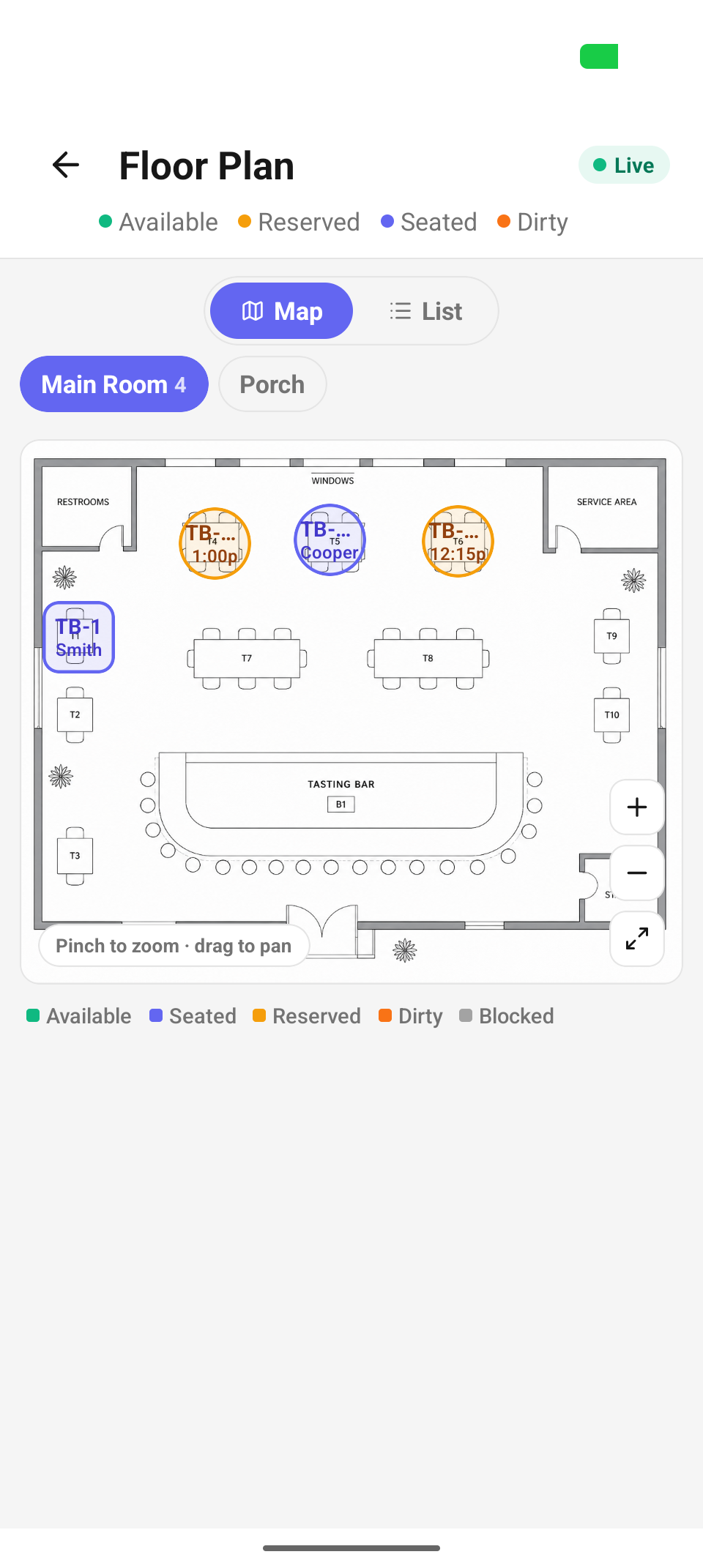
The Floor Plan in Map view — tables drawn on the room, states color-coded, zoom controls at the right.
Who can use it
All nine standard roles can read the floor (floor.tables.read). Seating from the queue needs floor.seat.assign: Manager, Wayfinder, Host, and Ambassador (and Admins). Status changes, Check Out, and Clear (no charge) need floor.tables.update_status: Manager, Wayfinder, and Ambassador (and Admins). Checking a party into the queue needs queue.create, which Concierge also holds. Opening a sale from a table follows the Orders permissions.
Map view and List view
On venues with a spatial floor plan, a Map / List toggle sits above the floor:
- Map draws tables on the venue's actual floor-plan image — walls, the tasting bar, service areas. Each table node is color-ringed by state and shows its name plus a compact cue: seat count when available, the party's last name when seated, the booking time when reserved, "Bus" when dirty, "Held" when blocked. Tap a node to open its table sheet; long-press an occupied one to peek the guest's profile.
- List shows the same tables as cards grouped by room — one card per table with its name, seat count, the current party (or Empty in italics), and a status badge. It's the denser view for working a big room fast.
Venues without a spatial plan don't get the toggle — they always see the List view.
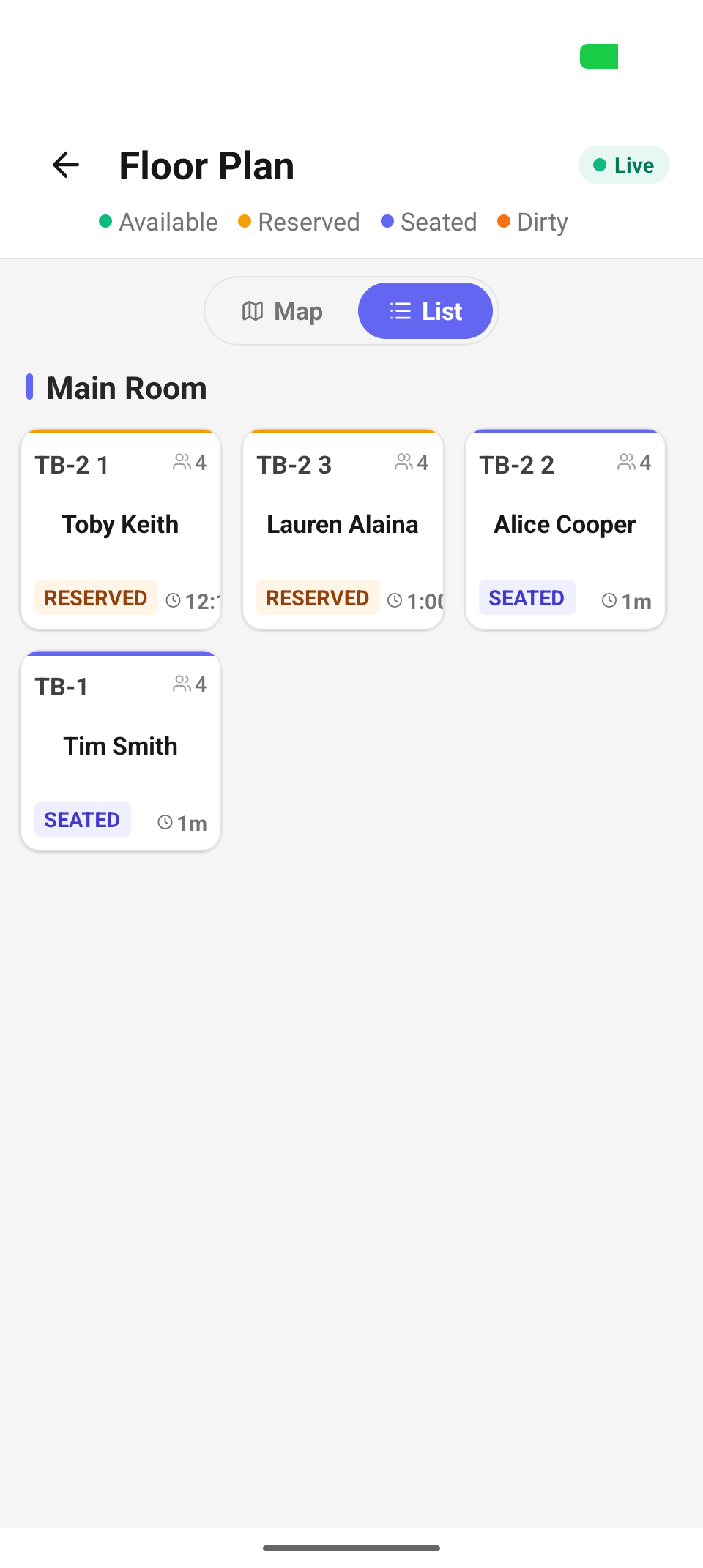
The List view — the same tables as cards, grouped by room, each with its seat count and status badge.
Rooms (surface chips)
In Map view, chips above the map — e.g. Main Room 4 · Porch — pick which room the map draws; the number on a chip is its table count. On tablets an extra All surfaces chip shows everything at once. (The web admin calls these rooms seating areas; the Companion app still says "surfaces".) In List view rooms appear as stacked sections instead.
Pinch, pan, and zoom
The map is fully gestural — the overlay hint says "Pinch to zoom · drag to pan". Three buttons on the right edge do the same without gestures: + zooms in, − zooms out, and the expand button resets the view. On tablets the map may rotate to landscape to breathe; phones stay portrait.
Table states
The legend under the map covers all five states:
| State | Color | Meaning |
|---|---|---|
| Available | Green | Empty and ready to seat |
| Seated | Indigo | A party is on it — shows how long ago they sat down |
| Reserved | Amber | Held for an upcoming booking — shows the time |
| Dirty | Orange | Needs bussing before it can be seated again |
| Blocked | Gray | Out of service |
A table with an offline-queued action shows a Queued badge (amber outline) until it syncs.
The party-waiting banner
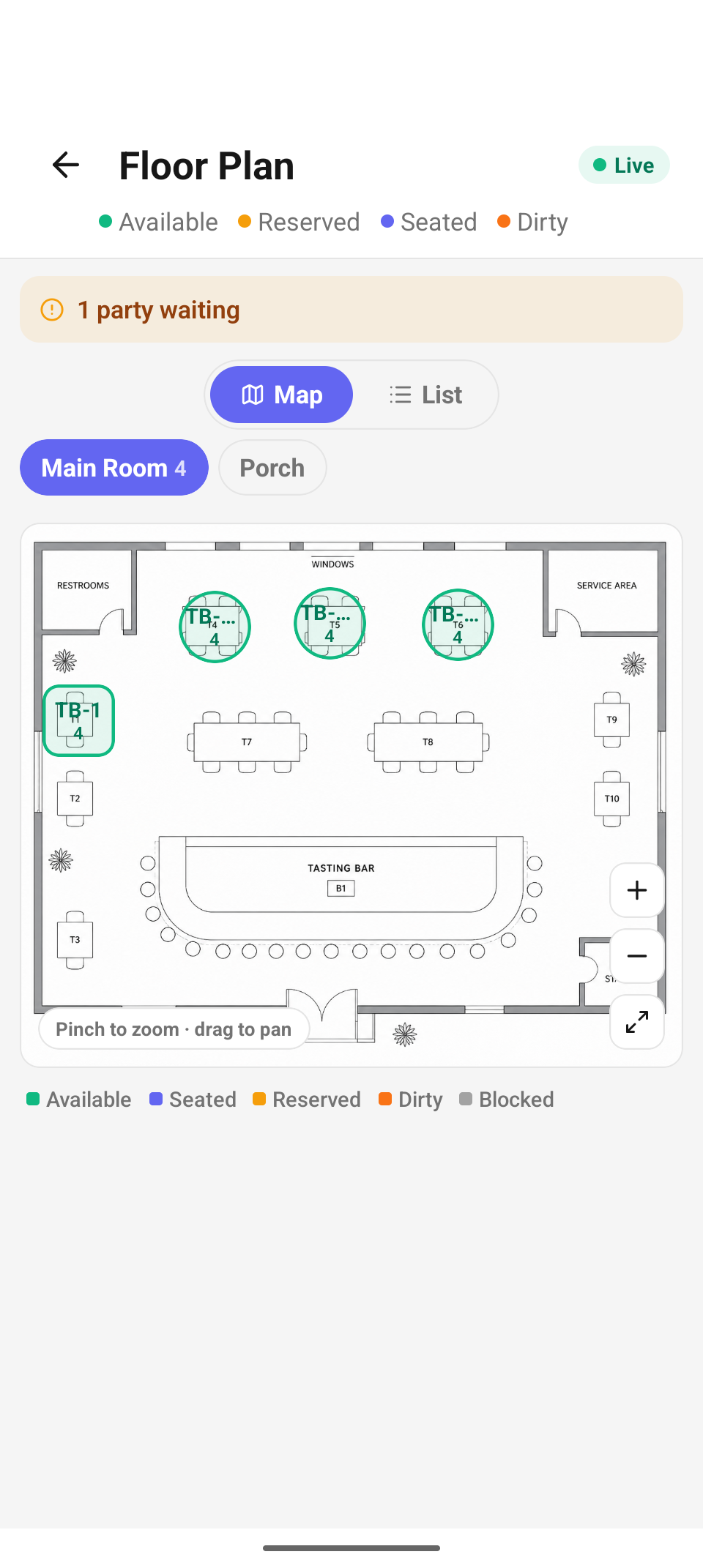
The banner across the top tallies the work: "1 party waiting".
When there's work to do, a banner appears under the header tallying it: "2 parties waiting · 1 table to clear" — parties in the seating queue plus dirty tables. It turns red once any party has been waiting 15 minutes or more. Parties land in the queue from a reservation check-in or from Check-In → Add to Seating Queue.
The table sheet
Tapping any table slides up its sheet: the table name, a status badge, and its seat count ("4 Seats"). What's inside depends on the state.
Available — seat a party from the queue
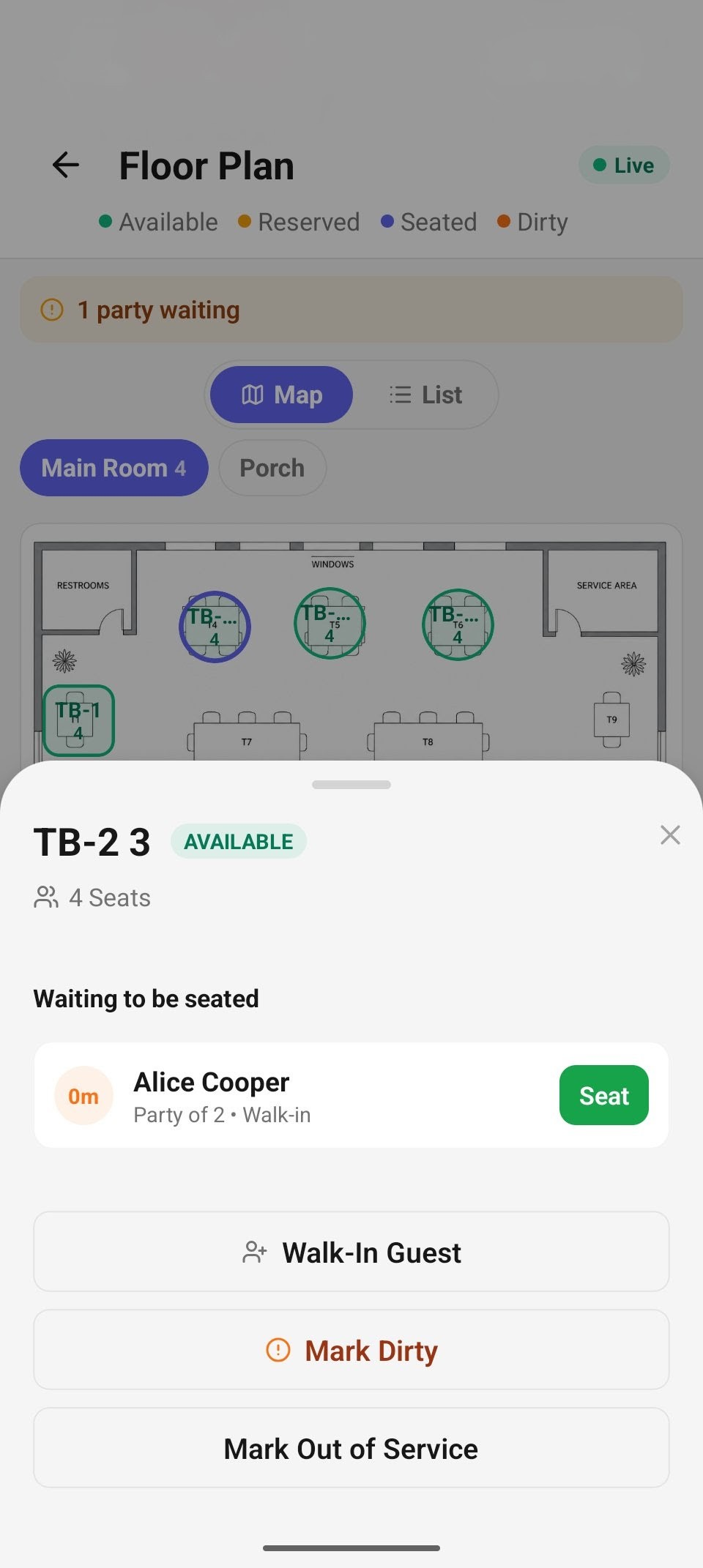
An available table's sheet — the waiting party with a green Seat button, plus Walk-In Guest and status actions.
An Available table lists everyone Waiting to be seated — each row shows how long they've waited (e.g. "0m"), the guest's name, and "Party of 2 • Walk-in" or "• Reservation" — with a green Seat button that puts that party on this table. With nobody queued it reads "No one in the queue."
Below the queue:
- Walk-In Guest — jumps to Check-In to register an arriving guest.
- Mark Dirty — flags the table for bussing.
- Mark Out of Service — blocks the table.
Seated — the current party and its checks
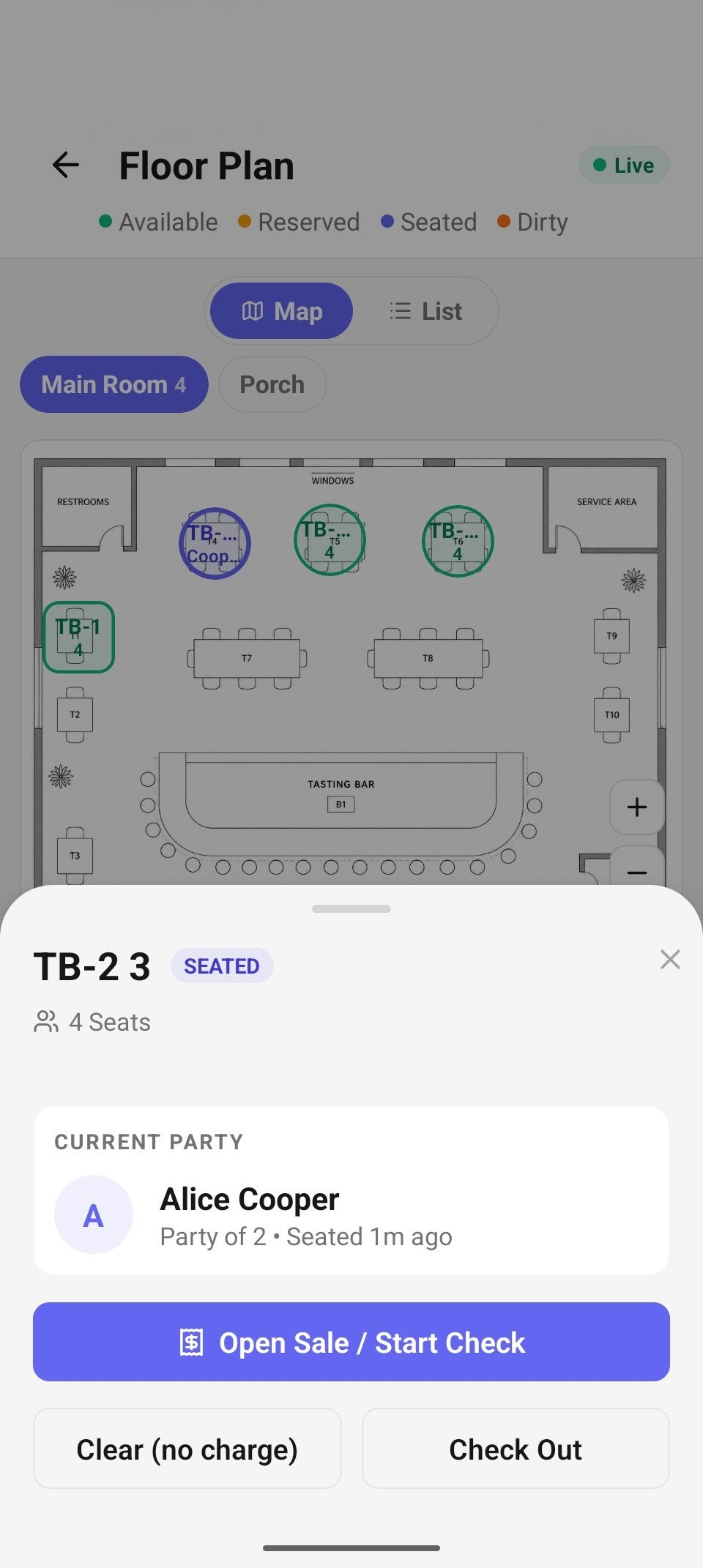
A seated table's sheet — the current party with seat time, and Open Sale / Start Check.
A Seated table shows the CURRENT PARTY card — guest name, "Party of 2 • Seated 1m ago" — and:
- Open Sale / Start Check — starts the table's first order in the catalog; see Orders & payment.
- Clear (no charge) — releases the table without charging (a party that left, a mistake).
- Check Out — closes the visit out.
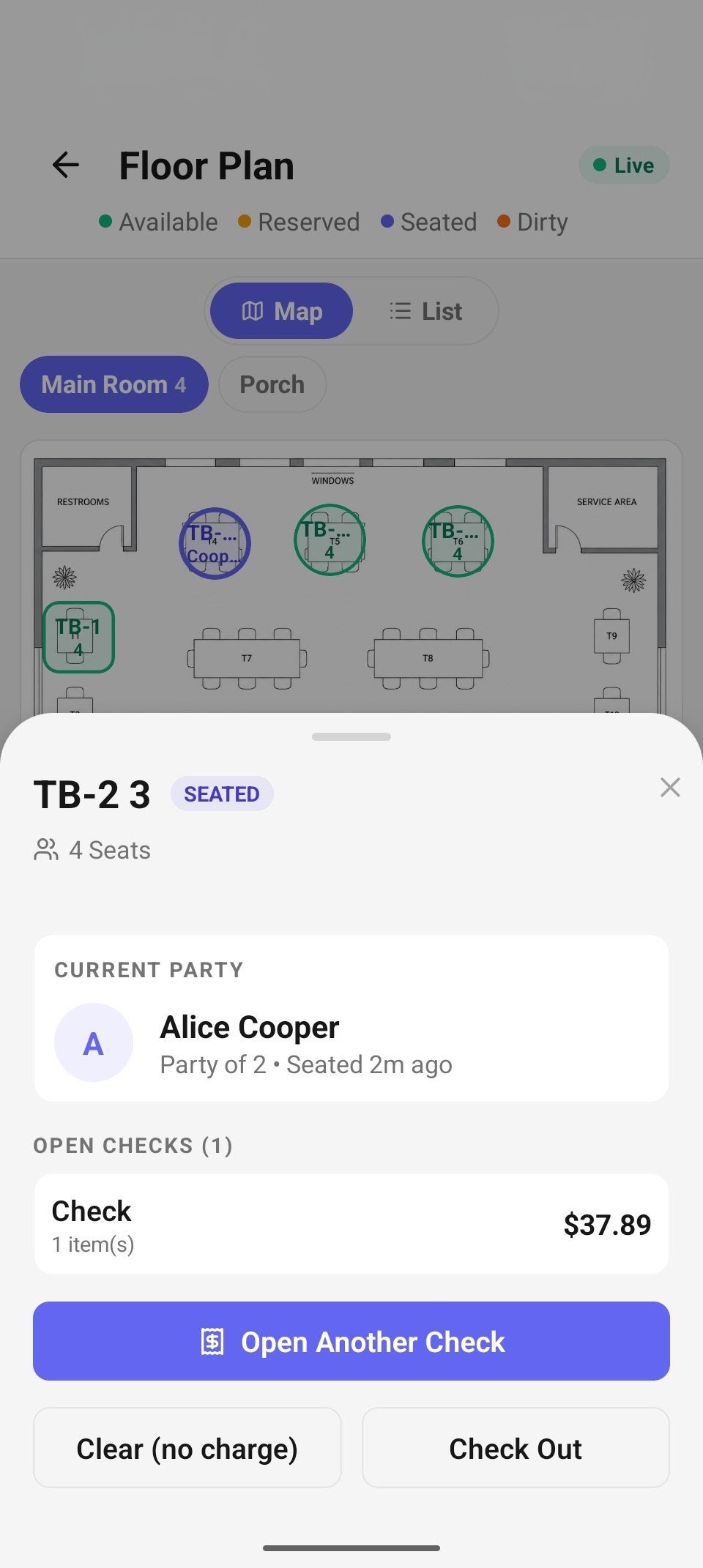
Once a check exists, the sheet lists OPEN CHECKS with totals; the primary action becomes Open Another Check.
Once the table has orders, an OPEN CHECKS (n) section lists each one with its item count and running total (e.g. "Check · 1 item(s) · $37.89"). Tap a check row to reopen it in the catalog and keep building it — closeout is a tap away via Review & Pay. The primary button becomes Open Another Check for parties splitting into multiple checks.
Long-press an occupied table (or a queue row) to peek the guest's profile — VIP and club badges, allergy alerts, visit count, and preferences — without leaving the floor.
Reserved, Dirty, Blocked
- A Reserved table's sheet shows the UPCOMING RESERVATION — guest, party size and time — above the waiting list, so you can seat the party from the same sheet. Reserved is not a separate kind of table: it is an available table that has a booking today, and it is still that party's table. Check In to Queue sits among the seat rows for a party who has not checked in yet — the guest has to be in the queue before they can be seated.
- A Dirty table says "Table needs bussing." — tap Mark Available when it's reset.
- A Blocked table says "Table is out of service." — Make Available brings it back.
Offline
Every floor action — seating, status changes, checkout, clear — keeps working offline. The action is queued (the table shows a Queued badge and the app confirms "It will sync when you're back online.") and replays automatically on reconnect. An "Operating offline — N actions queued" strip counts the backlog.
Reference
| Control | Where | What it does |
|---|---|---|
| Map / List toggle | Above the floor | Switch between the drawn plan and the card grid |
| Room chips (e.g. Main Room 4) | Above the map | Pick which room the map draws; count = tables in it |
| + / − / expand | Right edge of the map | Zoom in, zoom out, reset the view |
| Seat | Available table sheet | Put the tapped queue party on this table |
| Walk-In Guest | Available table sheet | Jump to Check-In to register an arrival |
| Open Sale / Start Check | Seated table sheet | Start the table's first order |
| Open Another Check | Seated table sheet | Add a second (third, …) check for a splitting party |
| Clear (no charge) | Seated table sheet | Release the table without charging |
| Check Out | Seated table sheet | Close the visit out |
| Check In to Queue | Reserved table sheet | Go check the reservation's party into the floor queue |
| Mark Dirty / Available | Table sheets | Flag for bussing / bring back after bussing |
| Mark Out of Service | Available table sheet | Block the table (undo with Make Available) |
| Long-press a table/queue row | Map, list, or the sheets | Peek the guest's profile without leaving the floor |
Troubleshooting
- "Offline — no cached floor yet." — the device went offline before its first successful floor load; reconnect once and the floor caches.
- "No tables or surfaces for this device's location." — the floor loaded but is empty ("surfaces" are the web admin's seating areas). If the floor shows on the web, this device is set to a different location — switch it from Settings → Current Location. The message prints the location id it queried so an admin can confirm.
- "Couldn't load the floor." — a network/server error; pull down to retry.
- "Action failed — Please try again." — a seat/status/checkout call was rejected outright (someone else may have taken the table); the floor refreshes on the next sync.
Related
- Reservations — check parties into the floor queue.
- Check-In — walk-ins that land on the seating queue.
- Orders & payment — the checks you open from a table.
- Floor & seating on the web — the same floor from the staff web app.