Events
The Events tile is the day-of console for ticketed events: see today's events and how check-in is tracking, sell tickets at the door straight into a payable order, and check attendees in one ticket at a time — or by scanning their QR.
Who can use it
Any signed-in staff member can work the day list and check attendees in (events.checkin). Selling tickets builds a real check, so it follows the order permissions (checks.create, events.tickets.issue) — all standard front-of-house roles.
The event day list
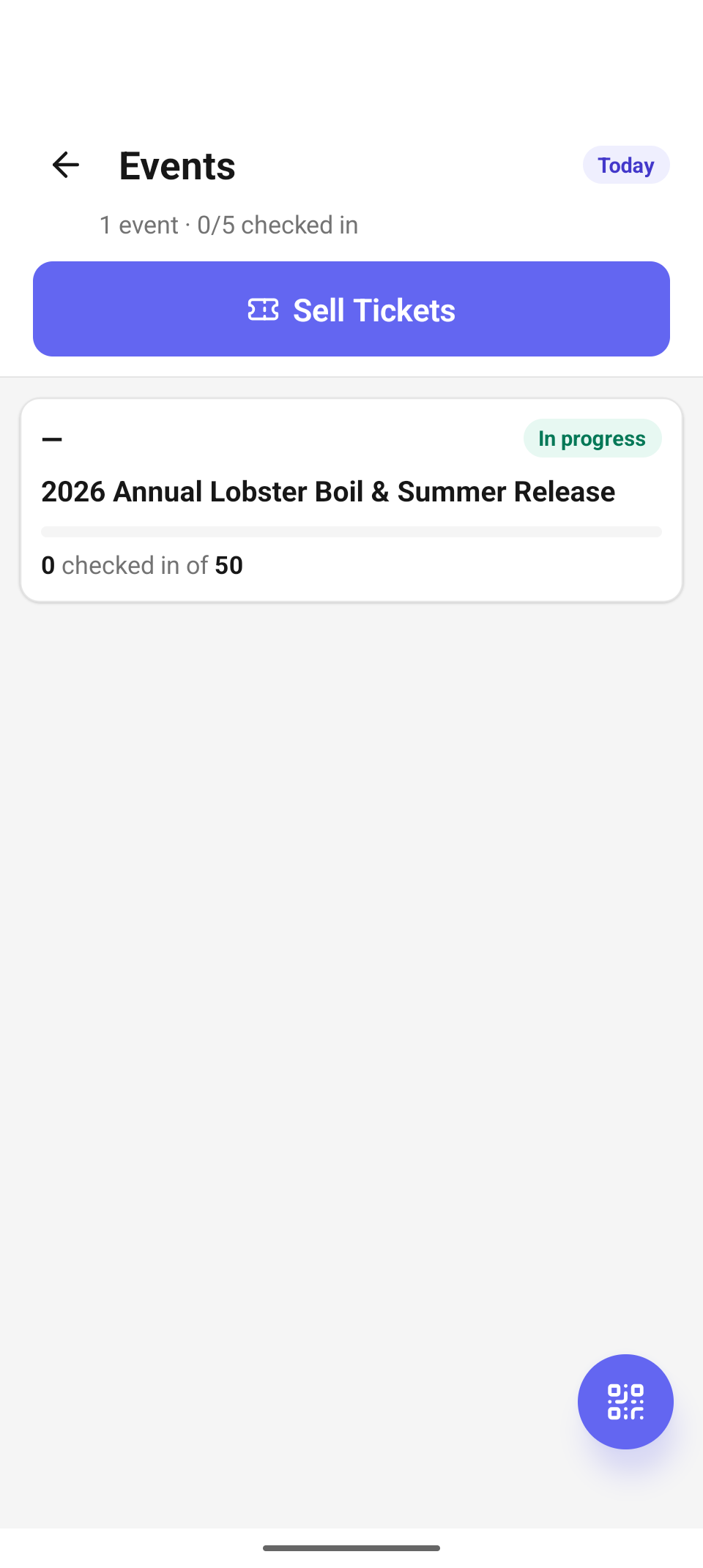
The Events day list — today's events with live check-in counters and the Sell Tickets button.
The header shows a Today pill (an amber Offline pill when disconnected) and a running summary — "1 event · 0/5 checked in" — tallying tickets checked in across every event on the day. Below it, the full-width Sell Tickets button opens the door-sales flow.
Each event card shows:
- Its start time and a phase pill — Upcoming (amber, hasn't started), In progress (green), or Ended (gray).
- The event name.
- A progress bar with the check-in count: "0 checked in of 50".
Tap a card to open its attendee sheet. The round QR button floating at the bottom right jumps to the Check-In scanner for walk-up ticket scans. With nothing scheduled the list reads "No events today." (or "Offline — no cached events." without a connection).
Sell tickets at the door
Sell Tickets lists upcoming sellable events — not just today's — each with its date and time ("Jul 18, 6:00 PM") and remaining capacity ("45 left"). Tap the event you're selling for. (Opening Sell Tickets from an event's own sheet skips this list and goes straight to its tickets.)
Pick ticket types
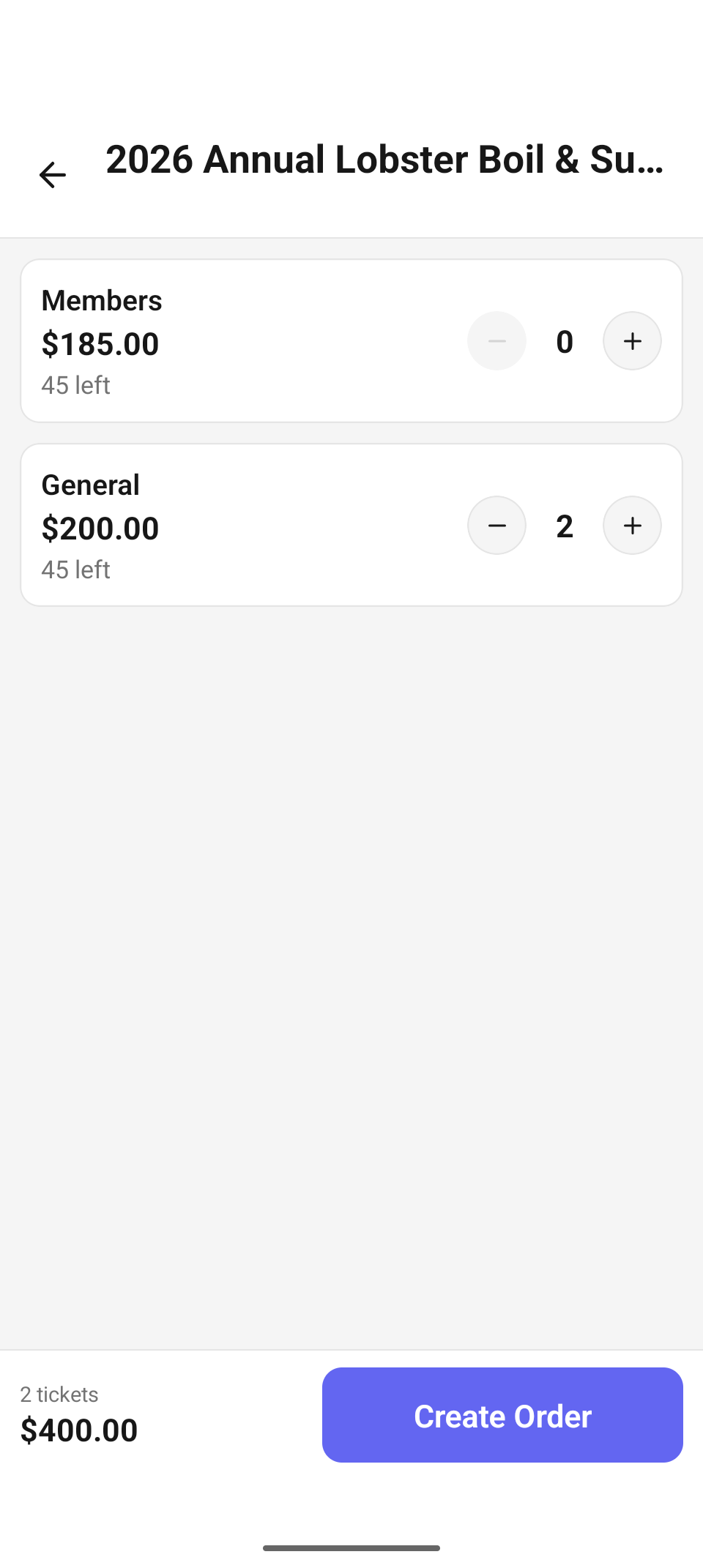
The ticket-type picker — price, remaining stock, and a quantity stepper per type; the bar totals the order.
Each ticket type shows its name, price, and stock — "45 left", "12 left · max 4/order" when a per-order cap applies, or "Sold out". Use the − / + steppers to set quantities; the stepper stops at both the remaining stock and the per-order max, so you can't build an order the server would reject. The bottom bar totals the selection ("2 tickets · $400.00") and Create Order builds the check. If sales have closed for the session, a banner says "Sales are closed for this session." and Create Order is disabled.
The ticket order
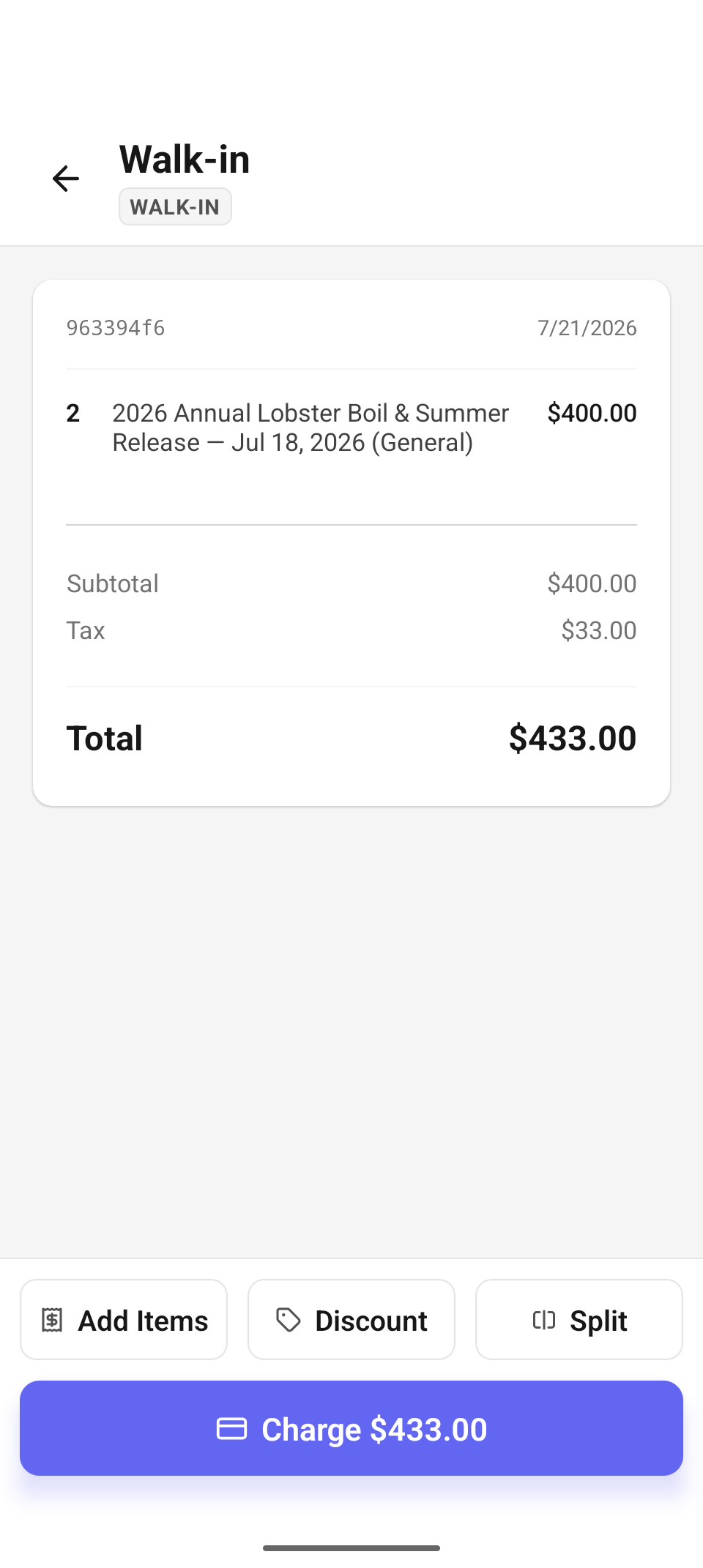
The order with its ticket lines — a normal walk-in check with subtotal, tax, and Charge.
Create Order opens a regular check with one line per ticket type — e.g. "2 × 2026 Annual Lobster Boil & Summer Release — Jul 18, 2026 (General) · $400.00" — plus subtotal, tax, and total. From here it behaves like any order: Add Items to bundle in wine or merch, Discount, Split, then Charge $433.00 to take payment. The tickets are issued on payment and appear on the event's attendee roster.
If something fails while the order is being built (capacity just sold out, a per-order max hit server-side), the app abandons the partial check — releasing the held tickets — and shows the reason, so a retry starts clean instead of stranding a half-built order.
The attendee sheet
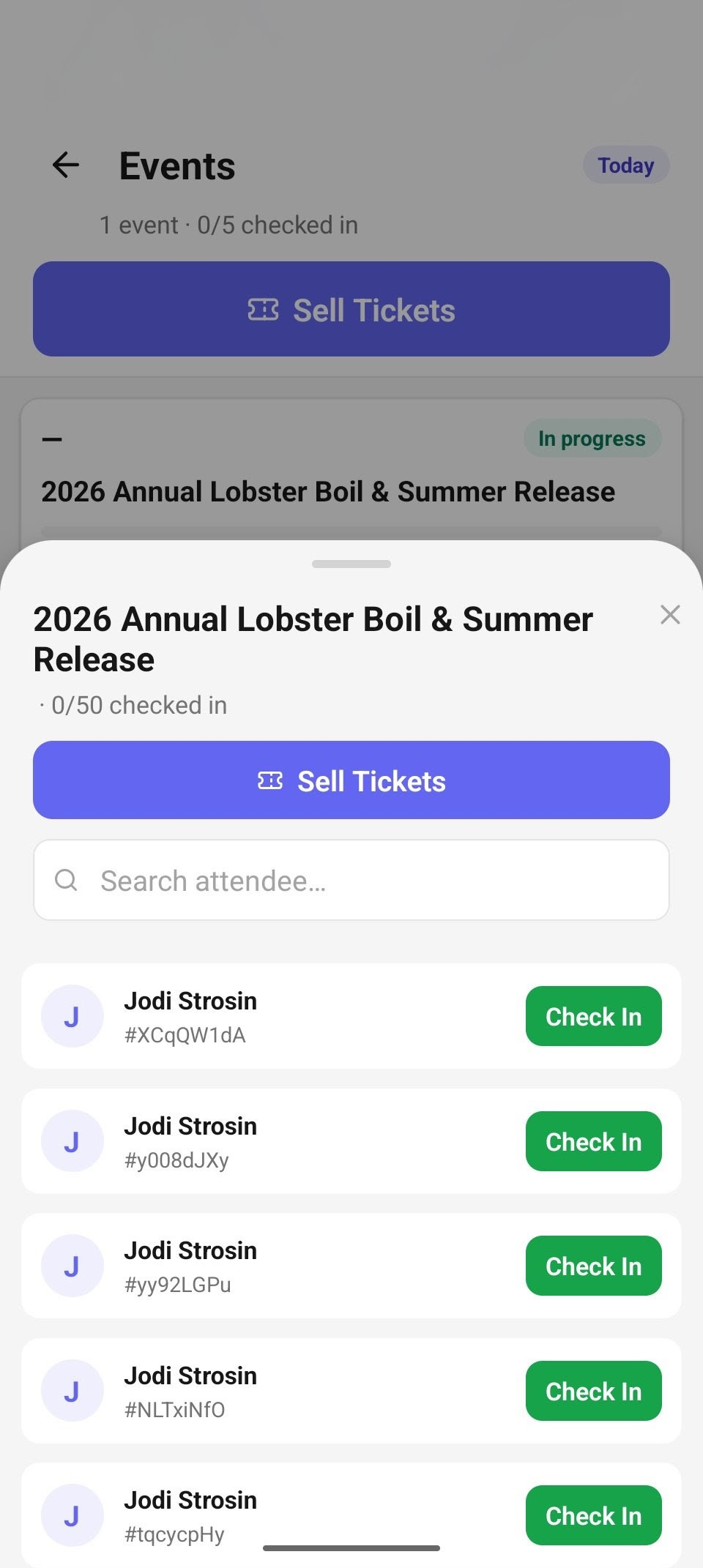
The attendee sheet — every ticket with its holder and a per-ticket Check In button.
Tapping an event card opens its sheet: the event name with its live counter ("0/50 checked in"), its own Sell Tickets button (pre-targeted at this event), and a "Search attendee…" box over the roster.
Each row is one ticket — a buyer with five tickets appears five times, each with its short ticket code (e.g. "#XCqQW1dA") so a party can be checked in as its members actually arrive:
- An active ticket shows a green Check In button. Tapping it redeems just that ticket; only that row's button disables while it processes, so you can keep working the line during a rush.
- A checked-in ticket shows a green In pill.
- Offline, a redeemed ticket shows a Queued pill and the app confirms "⟨Name⟩'s check-in will sync when you're back online."
- Any other status (e.g. refunded) shows as a gray status pill with no button.
No matches for the search shows "No attendees match."
Offline
Ticket check-ins queue offline and replay on reconnect — the day list and rosters keep working from the last sync. Selling tickets is online-only: building the order needs the server to hold inventory, so do door sales on a connected device.
Reference
| Control | Where | What it does |
|---|---|---|
| Sell Tickets | Header / event sheet | Door sales — the header button lists all upcoming events; the sheet's targets this event |
| QR button (floating) | Day list, bottom right | Jump to the Check-In scanner for a walk-up ticket QR |
| Event card | Day list | Open the attendee sheet with the live counter |
| − / + steppers | Ticket-type picker | Set quantities, capped at stock and the per-order max |
| Create Order | Ticket-type picker | Build the check with one line per ticket type |
| Check In | Attendee sheet | Redeem that single ticket |
| "Search attendee…" | Attendee sheet | Filter the roster by name |
Troubleshooting
- "Sales are closed for this session." — the event's sales window has ended; Create Order is disabled. Reopen sales from the web's event management if the door should still sell.
- "No ticket inventory configured for this session." — the event exists but has no ticket types; set them up on the web.
- "Could not add tickets" — an inventory guard fired while the order was building (capacity just sold out, or a per-order max). The partial check is abandoned automatically and the counts refresh — just rebuild.
- "Check-in failed — Please try again." — the redeem call was rejected outright (e.g. the ticket was already checked in on another device); the roster refreshes to show its real status.
- "Couldn't load events. Check your connection and try again." — the day list failed to load while online; Retry refetches.
Related
- Check-In — scan a ticket QR instead of tapping the roster.
- Orders & payment — charging the ticket order.
- Events on the web — creating events, ticket types, and pricing.