Check-In
The Check-In tile is the greeting station: it's where an arriving guest becomes a visit. One screen offers every way in — search the CRM for a returning guest, scan a driver's license, scan an event ticket's QR, or type a brand-new visitor by hand. Every path funnels into the same Finish Intake flow, so the guest's visit is recorded the same way no matter how they arrived, and can end with the party on the floor's seating queue.
Who can use it
Every signed-in staff member can run the hub end to end — search, scan, intake, and queue. The one exception is the alcohol manager override: the server enforces the manager-only checks.alcohol_override permission, so a non-manager who submits it is told to get a manager.
The Check-In hub
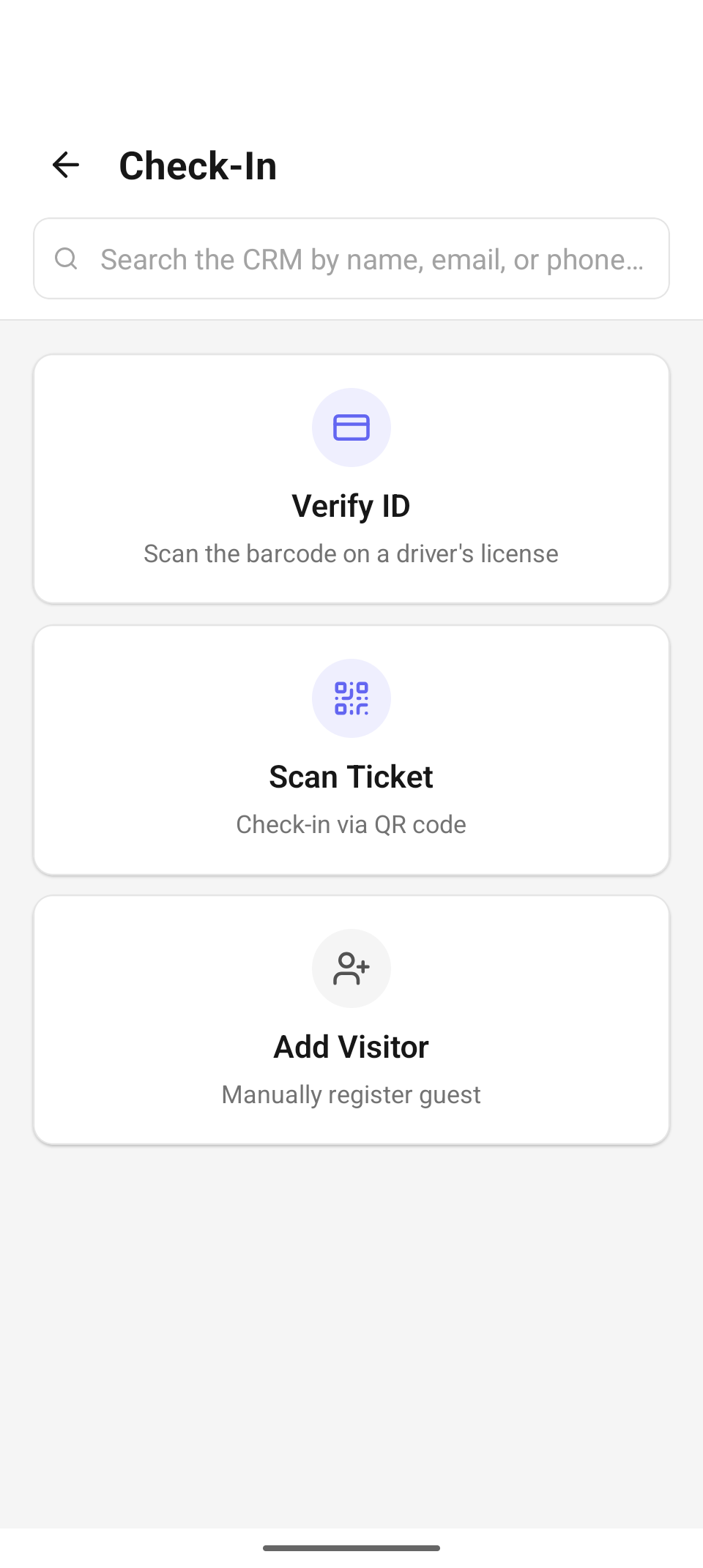
The Check-In hub — search the CRM, or pick Verify ID, Scan Ticket, or Add Visitor.
The hub has a search bar — "Search the CRM by name, email, or phone…" — and three cards:
| Card | Subtitle | Use it when |
|---|---|---|
| Verify ID | "Scan the barcode on a driver's license" | You want a scanned, age-verified profile (fastest for new faces) |
| Scan Ticket | "Check-in via QR code" | The guest holds an event ticket QR |
| Add Visitor | "Manually register guest" | No ID to scan and they're not in the CRM yet |
Search the CRM for a returning guest
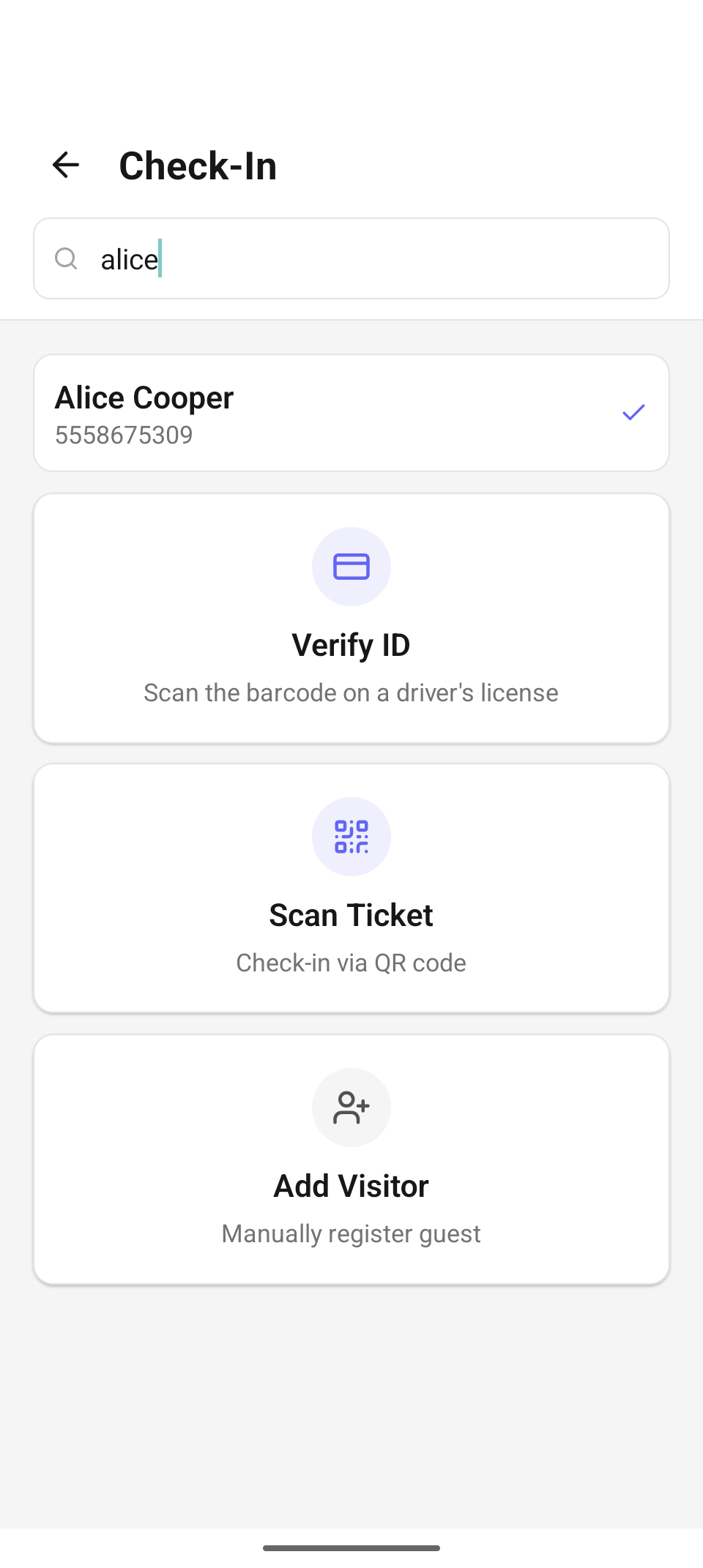
Searching "alice" — the matching guest appears above the cards; tap the row to check them in.
Type at least a couple of characters into the search bar (fewer and the screen says "Type at least 2 characters to search."). While it looks, you'll see "Searching the guest list…"; results appear as rows above the three cards, each with the guest's name and their email/phone (or "No contact on file"). No hits shows "No matching guests. Try another search or add a visitor below."; a failed search offers Retry.
Tapping a result routes the guest straight into Finish Intake with their email and phone pre-filled — no ID scan required for a known guest.
Verify ID — scan a driver's license
Tap Verify ID to open the scanner: "VERIFY ID — Hold the barcode on the back of the license inside the frame — it scans automatically (tap the light if dim)". The app reads the PDF417 barcode on the back of the license; the parsed data lives only in memory for this check-in and the raw barcode is never stored.
The result card leads with one of four statuses:
- Verified 21+ (green) — of age. The card shows the guest's name, age, date of birth, expiry, and address, then continues below.
- Under 21 (red) — a hard stop for age-restricted service.
- ID Expired (amber) — ask for a current ID.
- Couldn't read ID (amber) — "Hold the barcode on the back of the ID flat and steady, then scan again."
On a Verified 21+ scan the app immediately checks the guest list ("Checking guest list…") and lands in one of two places:
- GUEST FOUND — the matched name is shown. Tick the consent row ("Guest consents to ID verification and saving their profile.") and tap Check In Guest. The button stays disabled until consent is ticked.
- No matching guest — create a new profile. Tick consent ("…and creating their profile.") and tap Create Profile & Check In to mint a CRM profile from the scan.
Either way you'll see a green confirmation — "Guest checked in" or "Profile created & checked in" — and two follow-ups:
- Save Card on File (shown when a reader is connected) — starts a card capture on the reader ("Insert, tap, or swipe the card on the reader…") and attaches it to the guest, confirmed as "Card on file · VISA •••• 4242". Without a reader the screen notes "Connect a reader (Settings → Reader) to save a card on file, or finish without one."
- Finish Intake → to record the visit, or Skip · Scan Next to move straight to the next person in line.
Add Visitor — manual intake
Tap Add Visitor ("Manually register a guest") for the typed form: First name and Last name (required — "First and last name are required." if missing), plus optional Email and Phone. Add & Continue creates the profile and drops you into Finish Intake, exactly like a searched guest.
Finish Intake
The Finish Intake form is the common last step, titled with the guest's name. It gathers:
- Contact — email and phone (pre-filled when known; confirm rather than re-key).
- Marketing — two opt-in checkboxes, "Email offers & news" and "Text (SMS) offers". These only change the guest's preference if you actually toggle them — leaving them untouched never opts an already-subscribed guest back out.
- Visit — party size, a visit-type chip (Tasting / Walk-in / Event / Reservation / Club Pickup), and an optional staff note.
- A card-on-file line showing "Card on file · ⟨brand⟩ •••• ⟨last4⟩" or "No card on file".
Tap Complete Intake to record the visit.
Intake Complete — and Add to Seating Queue
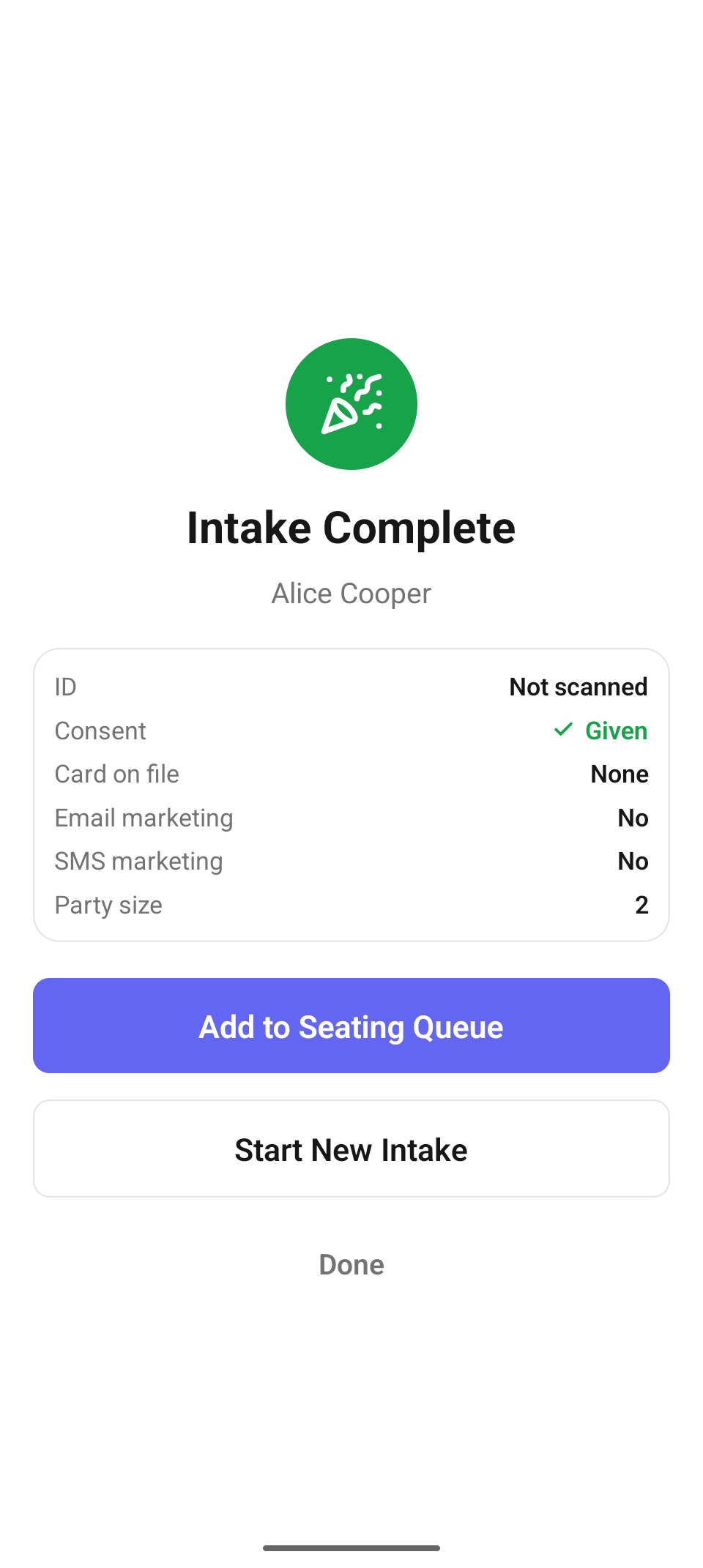
Intake Complete — the visit summary, with Add to Seating Queue as the primary action.
The Intake Complete screen summarizes what was captured: ID ("Verified 21+" when scanned this visit, otherwise "Not scanned"), Consent ("Given"), Card on file, Email marketing / SMS marketing, Party size, and Visit type. Three actions close it out:
- Add to Seating Queue — puts the party on the floor's waiting list so hosts see them on the Tables screen and can seat them. On success the button flips to "Added to seating queue ✓" with the hint "⟨Guest⟩ is on the waiting list — seat them from the Tables screen." This action queues offline and syncs later, like other host actions.
- Start New Intake — resets and jumps straight back into the ID scanner for the next guest.
- Done — returns to the hub.
Scan Ticket — event QR check-in
Tap Scan Ticket and align the guest's QR inside the frame ("SCAN TICKET — Align the QR code within the frame"). The result card shows Checked In (green) or Not Checked In (amber) with the server's message — for example when the ticket was already redeemed or belongs to another event. Scan Again processes the next ticket; Done returns to the hub. For a roster view with per-ticket check-in buttons, use the Events screen instead.
Manager override for alcohol verification
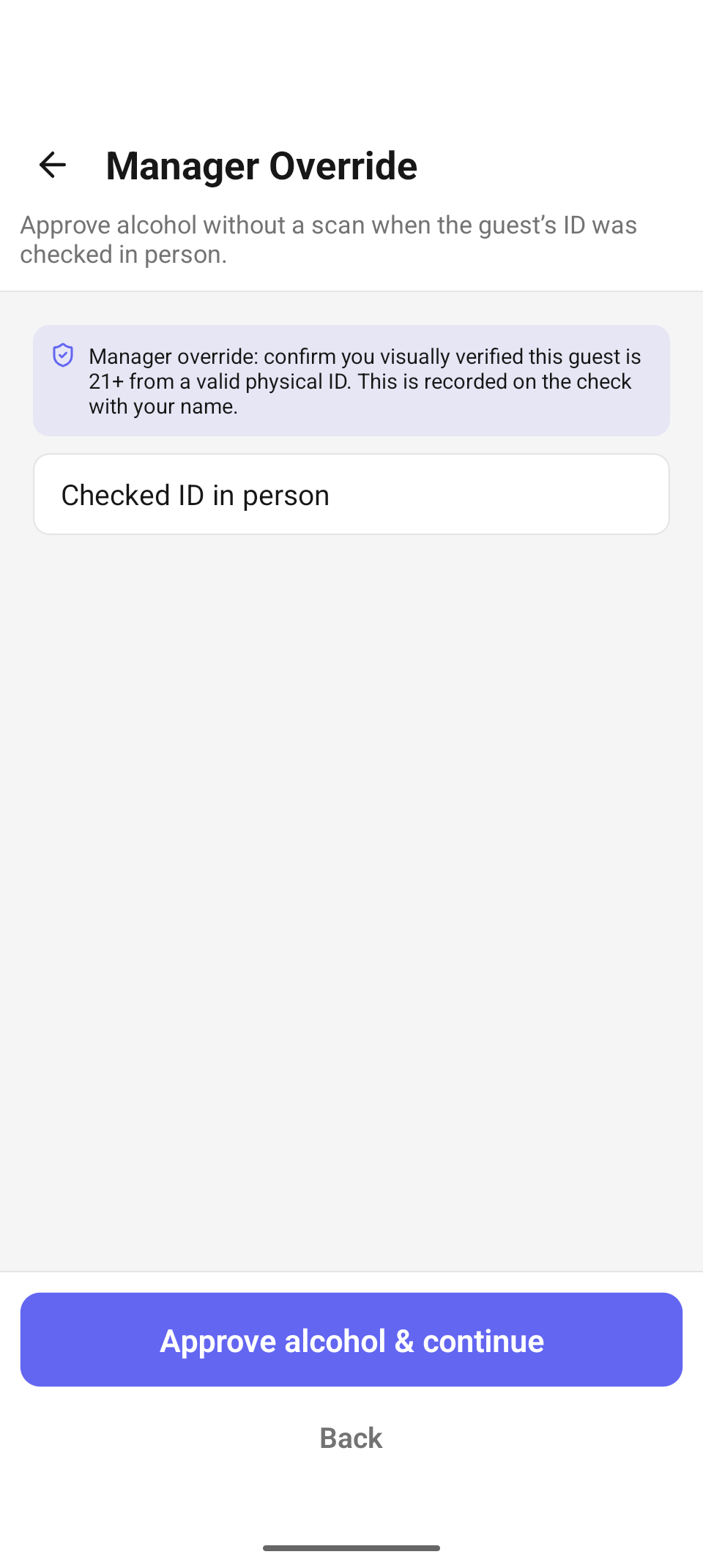
Manager Override — approve alcohol without a scan, with the reason recorded on the check.
A check that contains alcohol cannot be settled until an age check clears it — the pay button on the check reads "Verify ID · $⟨total⟩" and routes into this same ID scanner (with the check attached) instead of charging. Scanning a Verified 21+ ID shows a short contact form ("Receipt contact (optional)") and Save & Continue to Payment, which ties the guest to the check and resumes payment.
When a legitimate ID won't scan, a manager can clear the check instead:
- From the scanner, tap "ID checked in person — manager override"; or after an ID expired / Couldn't read the ID denial, tap Manager override.
- The Manager Override screen explains the stakes: "Manager override: confirm you visually verified this guest is 21+ from a valid physical ID. This is recorded on the check with your name." Enter a reason (e.g. "Checked ID in person" — required; leaving it blank shows "Enter a reason for the manager override.") and tap Approve alcohol & continue.
- The server enforces the manager permission: without it the screen says "A manager must approve alcohol for this check — have a manager sign in, then try again."
- Once approved, the override is recorded on the check for audit and payment resumes.
The override is never a way past an underage result. Under 21 is a hard deny — "Alcohol cannot be sold to this guest." — with no override button. And once any scan in the session has come back underage, the scan-free "ID checked in person" entry point disappears for the rest of that verification, even if you tap Scan Again.
Reference
| Control | Where | What it does |
|---|---|---|
| Search bar | Hub | CRM search by name, email, or phone; results check in via intake |
| Verify ID | Hub | Scan a license barcode; verify age; match or create the profile |
| Scan Ticket | Hub | Redeem an event-ticket QR |
| Add Visitor | Hub | Manual first/last-name intake, no scan |
| Save Card on File | After a verified scan | Capture a card on the reader and attach it to the guest |
| Complete Intake | Finish Intake | Record contact, marketing, and visit details |
| Add to Seating Queue | Intake Complete | Put the party on the floor's waiting list |
| Approve alcohol & continue | Manager Override | Manager-gated, with-reason alcohol clearance recorded on the check |
Troubleshooting
- "No matching guests. Try another search or add a visitor below." — the CRM has no profile matching your query. Check the spelling or use Add Visitor.
- "Hold the barcode on the back of the ID flat and steady, then scan again." — the PDF417 barcode didn't parse. Flatten the card, fill the frame, and tap the light in dim rooms.
- "Card was not collected on the reader." — the tap/insert didn't complete during Save Card on File. Re-try, or finish intake without a card.
- "Connect a reader (Settings → Reader) to save a card on file, or finish without one." — no reader is active on this device; card capture needs one.
- "Could not add to the seating queue." — the queue add failed outright (not just offline — offline adds queue and sync). Re-try from the Intake Complete screen.
- "A manager must approve alcohol for this check — have a manager sign in, then try again." — the override was submitted without the manager permission. Switch user to a manager and re-submit.
- "Enter a reason for the manager override." — the reason field is required; the audit record on the check carries it.
Related
- Floor & seating — seat the queued party at a table.
- Events — the roster view of ticket check-ins.
- Orders & payment — where the alcohol gate fires at payment time.