Your online storefront
Your storefront is the guest-facing shop on your own web address — the
domain slug you picked in onboarding (e.g.
your-winery.averoguest.com), or a custom domain. The bare domain opens
your landing page; the shoppable catalog lives at /shop. Staff run it
from /admin/store (Storefront, under Commerce → Storefront
in the menu), with a Preview Storefront button that opens the live
shop.
Who can use it
- Products, collections, and add-ons tabs — the
products.*,collections.*, andaddons.*permissions: Managers and Admins edit; most other roles can read. - Domains —
company.manage(Admins only). - Club Policy, Abandoned Carts / Signups, Embed, Readiness —
storefront.manage(Admins only). Without it the Club Policy tab says "You don't have permission to manage club policy settings." - Theme & Branding —
theme.update(Managers and Admins).
What guests see
The shop header carries your nav — Our Wines (with a Shop dropdown), Our Story, Experiences, Events, Wine Club, and Visit — plus a cart icon and a Sign In button. Signed-in customers get an account menu (Profile, Orders, Addresses, Payment Methods, Club Membership, Sign Out).
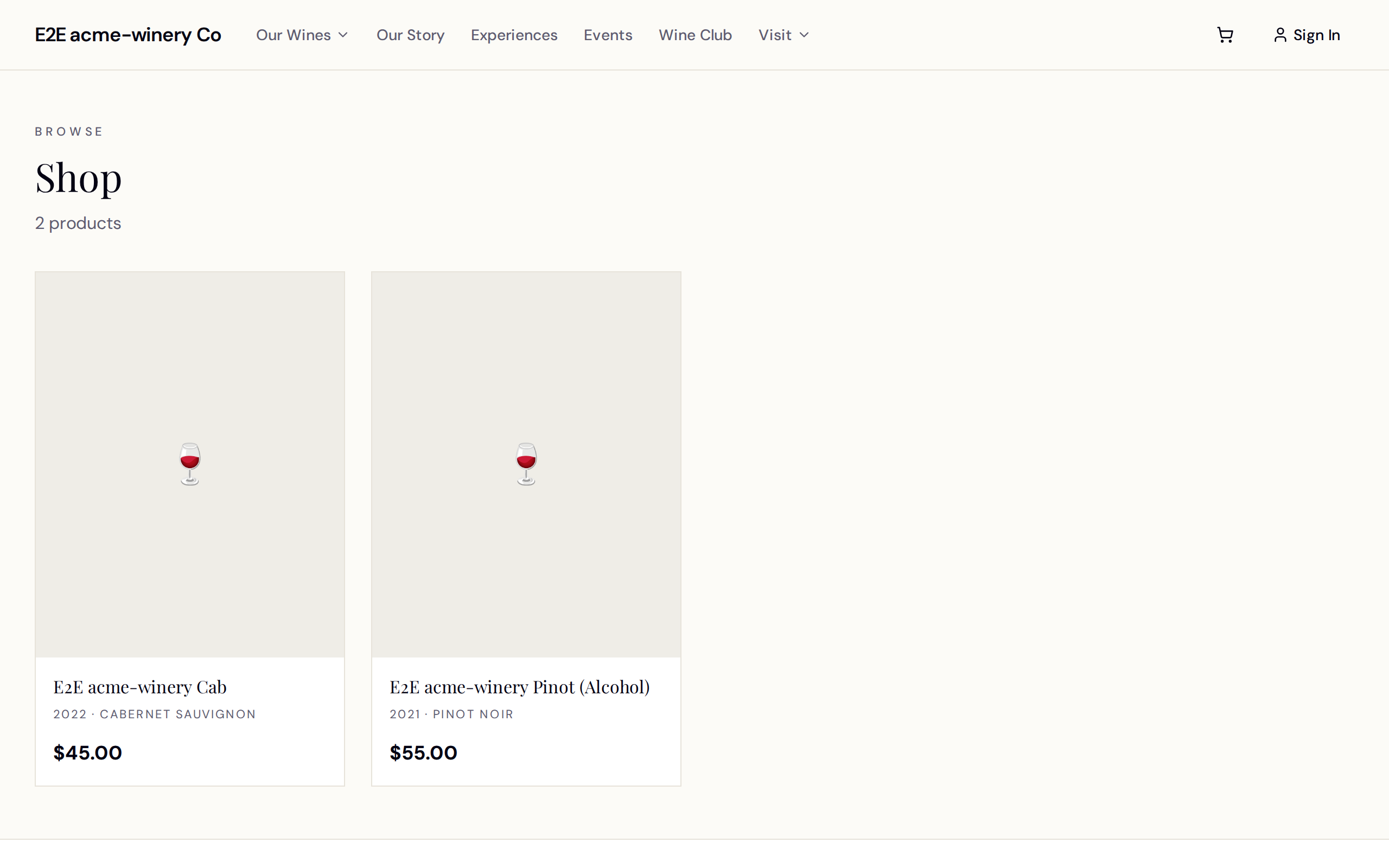
The storefront catalog at /shop — collections, filters, and product
tiles.
This picture shows an earlier version of this screen. The steps on this page are current.
/shop(Shop) is the catalog: filter pills for Color, Type, Series, and Collection (each with an All pill), 24 products per page. Tiles show the vintage, varietal, and price. Sold-out items get an Out of Stock badge, and a product you have paused shows Unavailable. Empty catalog? "There aren't any products to show here yet. Check back soon."- A product page shows the price, an optional Club Release badge, spec rows (ABV, Élevage, Production, Appellation), and three tabs — Tasting Notes, Pairing, Tech Sheet — with a quantity stepper and Add to Cart (toast: "Added to cart"). Out of stock or Unavailable hides the purchase controls entirely; an Unavailable product also shows the reason, if one was given.
- A gift card product page asks for an Amount and whether it is For me or Send it to someone (recipient's name and email, with an optional message). The card is delivered by email.
- Sites built on Avero Sites can show a 21+ age gate first — "Are you 21 or older?" / "By entering you agree you are of legal drinking age. Please enjoy responsibly." — remembered per browser.
- Wine Club (
/shop/club) lists your clubs for online joining — see Set up your wine club.
Product pages show the regular price. A signed-in club member whose club has an online benefit sees a line under the price — "[your club's name] members: your discount is applied at checkout." — with no figure on it, because the discount is worked out against the whole cart. The amount appears as a Discount line at checkout, and on the order confirmation and receipt.
Checkout, from the guest's side
The cart (/shop/cart) lists the items with a Fulfillment choice —
Ship to me or Pick up (Will Call) — and an Order Summary
(Subtotal, Shipping, Tax, Total), then Proceed to
Checkout. Checkout runs four steps — Contact, Delivery,
Payment, Review:
Storefront checkout — Contact, Delivery, Payment, Review.
This picture shows an earlier version of this screen. The steps on this page are current.
- Contact Information — email, name, optional phone.
- Delivery Method — Ship to address (with saved addresses for signed-in customers) or Pick up (Will Call): "Your order will be ready for pickup. We'll send a notification when it's ready." Shipping is priced from your shipping rates. If no rate covers the address, the guest is stopped here with "We can't complete this order" and cannot go on. If a price changed since the item went in the cart, the same panel offers Accept the new price and continue.
- Payment Method — card entry via Stripe, or a saved card. If Stripe isn't connected yet, guests see "Online payment isn’t available for this store yet. Please contact the winery to complete your order."
- Review Your Order — items and totals, a Promo code box, and three checkboxes: a required 21+ attestation ("I confirm I am 21 years of age or older…"), a required data-processing acknowledgment, and an optional marketing opt-in. Place Order stays disabled until both required boxes are ticked.
After paying: "Thank you for your order!" with the order number, "A
confirmation email will be sent to you shortly.", an Order Details
card, and a View Receipt link (receipts work without an account).
Guests who checked out without an account get a Create Your Account
card — "Save your information for faster checkout next time." — and the
confirmation email carries the same one-tap claim link
(/shop/claim-account): "Set a password to track your orders and check
out faster next time." Signed-in customers manage everything under My
Account — orders (with Reorder), addresses, payment methods, club
membership, and Communication Preferences.
Promo codes are validated per channel — a register-only code is refused with "This code can't be used online." (see Discounts at the register for where codes are minted).
Set your zones and rates on the Rates tab of Shipments before you take shipping orders. Without a rate that covers the basket and address, checkout refuses the order rather than charging nothing for shipping.
The Storefront page — the staff side
/admin/store (Storefront — "Merchandising and setup for your
online shop. Products are created and edited in the Catalogue.") is
tabbed: Products,
Collections, Add-ons, Domains, Club Policy, Abandoned
Carts, Abandoned Signups, Embed, and Readiness.
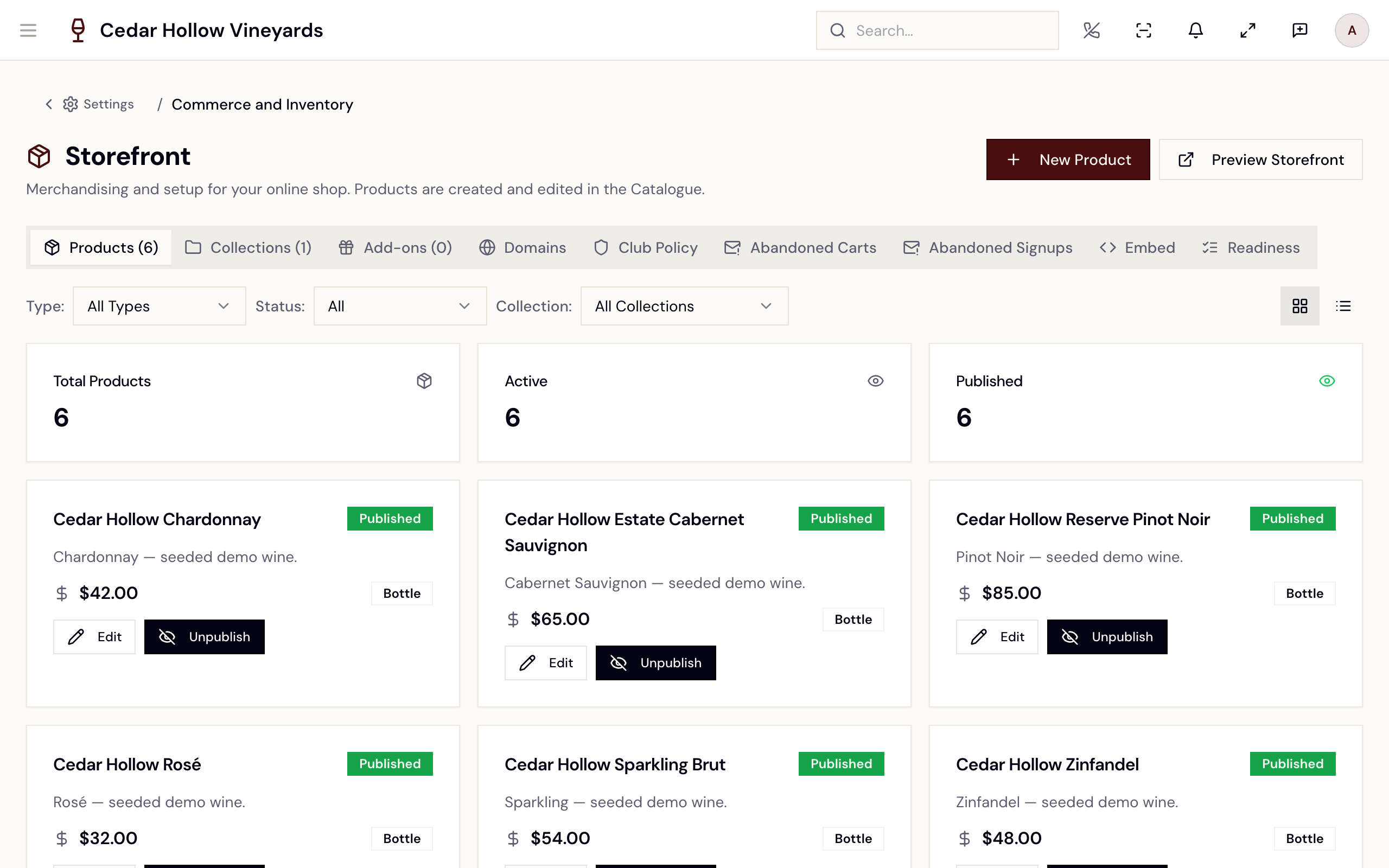
The Storefront page — products, collections, domains, policy, and recovery.
Products — what's on the shelf
The Products tab filters by Brand, Type, Status (Published / Draft), and Collection, with grid/list views and counter cards (Total Products, Active, Published). Each product's Publish / Unpublish toggle is the storefront visibility switch — only published products sell online. Edit and New Product open the Catalogue, where products are actually created.
If the tab shows the notice "Collections decide what sells.", your account places products by collection instead: a product is on the storefront when it is in a collection bound to an active cart profile and is not retired, and the buttons read Mark published / Unmark published and no longer affect the storefront.
Starting from zero, the tab shows "No products yet." with a New Product button. The message also mentions a Set Up Products button; that button no longer exists, so ignore that part.
Collections
Create Collection ("Organize products into collections") takes a Name, Description, Type (Store, Quick Cart, Add-on, Featured), Visibility, and Purpose (Cart, Add-on, Merchandise, Case, Event). Visibility is the key switch: Storefront Only ("Visible only on the public storefront"), Internal Only ("Visible only to staff (concierge)"), or Both. Collections also publish/unpublish like products.
Manage Items opens the collection's item list — Add Product, drag-to-reorder, quantity, a Required badge, and remove.
Where a collection sells is set on the collection itself, at
/admin/collections — see
Collections.
That is also where to look if a product is not appearing at a register or
in the web shop: a collection that sells nowhere strands everything in it.
The Add-ons tab works the same way for reservation upsell sets — "Create your first add-on set for reservation upsells."
Domains
The Domains tab ("Configure domain mappings for your storefronts. Optionally scope a domain to a specific brand.") is where the shop's address lives. Add Domain offers two Domain Type choices:
- Subdomain Slug — a slug under the Avero domain, previewed live.
- Custom Domain — e.g.
shop.mybrand.com. Unverified custom domains show "Add these DNS records at your registrar, then click Verify:" with copyable records — "DNS changes can take a few minutes to propagate." Once verified, a green Verified badge appears; until then Verify replies "Not verified yet" — "Publish the DNS records shown, then verify again."
Each domain can be scoped to a brand ("Leave empty for a company-wide storefront, or select a brand to scope catalog and theme.") and toggled on/off.
Club Policy
Club Self-Service Policy ("Control which actions club members can
perform on the storefront.") is ten switches: Update Shipping
Address, Update Billing Address, Update Payment Method, Skip
Next Release, Pause Membership, Resume Membership, Cancel
Membership, Change Tier, Change Fulfillment Preference, and
Product Swap. What you allow here is exactly what members see on their
/shop/account/club page.
Embed and Readiness
Embed configures the Avero SDK for embedding the shop on an external site — Enable Embedding, Allowed Origins, auth and theme modes, your Storefront Public Key, and copyable SDK Integration Snippets. Readiness ("Probes every e-commerce config the storefront needs to function.") runs pass/warn/fail checks with a Fix link per failure — run it before launching.
Abandoned carts (and signups)
When a guest walks away mid-cart, Avero can win them back automatically. The Abandoned Carts tab has two cards:
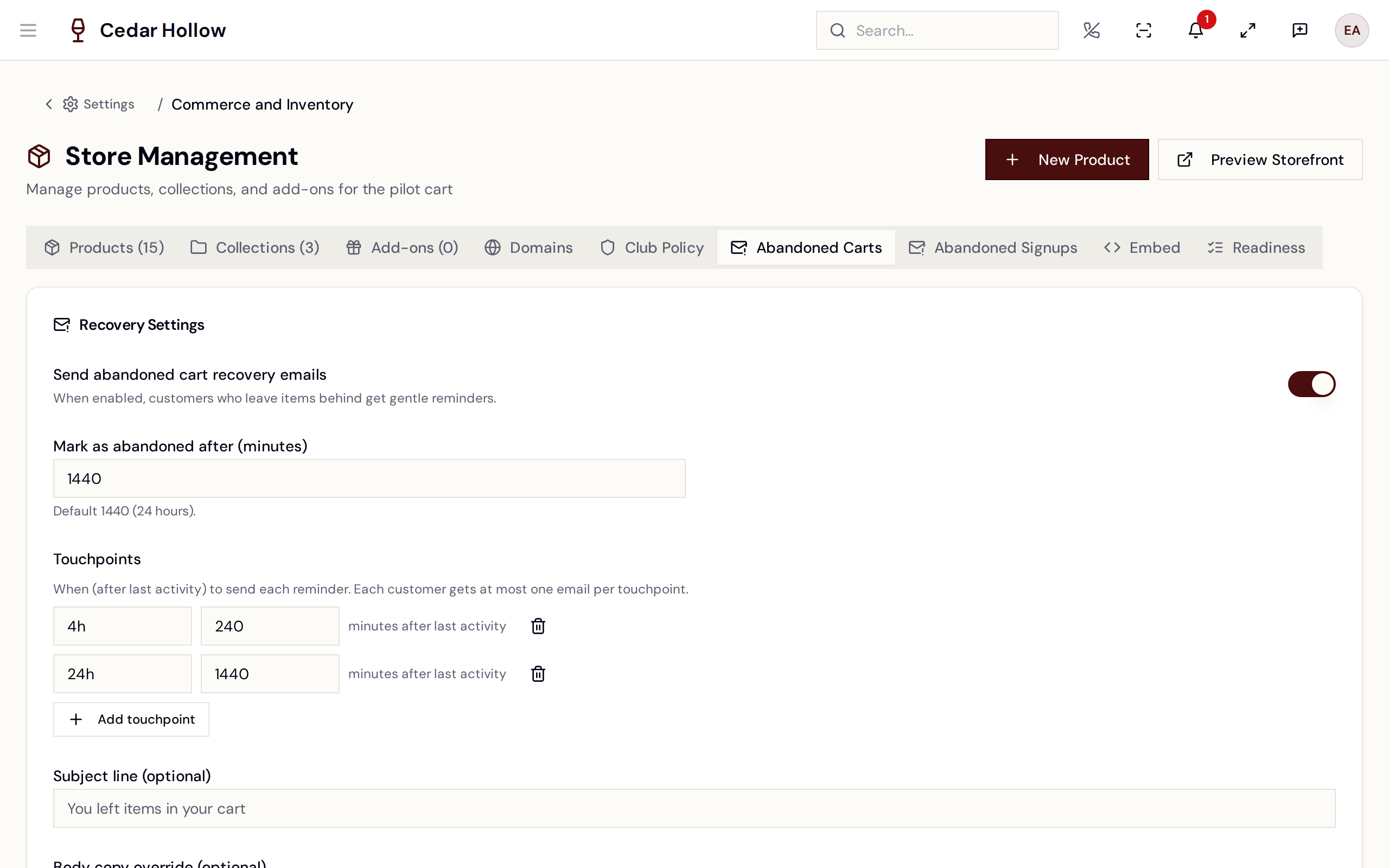
Abandoned Carts — recovery settings and the recovery report.
- Recovery Settings — the master switch "Send abandoned cart recovery emails" ("When enabled, customers who leave items behind get gentle reminders."), Mark as abandoned after (minutes) ("Default 1440 (24 hours)."), and up to five Touchpoints ("Each customer gets at most one email per touchpoint." — the defaults are 4 hours and 24 hours after last activity). You can override the subject line (default: "You left items in your cart"), body copy, and unsubscribe note.
- Recovery Report — a 7/14/30/90-day window over Abandoned carts, Abandoned value, Emails sent, and Recovered carts (with the recovery rate), plus By touchpoint and Most-abandoned products breakdowns.
The email's Return to your cart button restores the cart exactly: "We brought your cart back — everything is right where you left it." A stale link says "That recovery link has expired or already been used." (links last 7 days). Every email includes an unsubscribe link. Abandoned Signups applies the same machinery to unfinished club signups, with email and SMS channel toggles.
Look and feel
/admin/theme (Theme & Branding — "Customize your venue's
appearance") sets your brand colors, surface and status colors, fonts,
and corner radius, in light and dark, with a live preview and a contrast
guard: "These colors don't meet the minimum contrast for legibility
(WCAG AA, 4.5:1). Your theme will save once each is fixed." The theme
flows through to the storefront and to recovery emails.
Logos, hero imagery, announcement bars, and full page editing belong to the Website menu (Sites, Media, and for some wineries Pages & Content). Sites is gated by the Hosted Site add-on — without it the site pages show an upgrade prompt ("…Upgrade to enable it, or talk to our team."). The storefront in this guide works without the add-on.
Pages & Content is being retired. It only appears in the menu if your winery already has pages written there, and it carries a notice saying so: "This editor is being replaced by Sites".
If you are setting up a site now, start in Sites. If you have existing pages in Pages & Content, keep editing them there for now: the notice says they "will be migrated for you into a draft you can review, and nothing changes on your live site until you publish it."
Reference
| Control | Where | What it does |
|---|---|---|
| Preview Storefront | Store header | Opens your live shop (custom domain, slug, or /shop). |
| New Product | Store header | Jumps to the Catalogue's create flow. |
| Publish / Unpublish | Product card | Shows or hides the product on the storefront. |
| Manage Items | Collection card | Adds, orders, and removes a collection's products. |
| Add Domain | Domains tab | Registers a subdomain slug or custom domain (with DNS verify). |
| Club Self-Service Policy | Club Policy tab | The ten member self-service switches. |
| Send abandoned cart recovery emails | Abandoned Carts | The recovery master switch, timing, and copy overrides. |
| Readiness → Fix | Readiness tab | Deep-links to whatever storefront config is failing. |
Troubleshooting
- A product isn't showing on the shop — check three switches: the product is Published (not Draft or Inactive), it's in a collection whose Visibility includes the storefront, and the collection itself is published. If the Products tab shows "Collections decide what sells.", check instead that the product is in a collection bound to an active web cart profile — see Collections.
- "No products yet. Create your first product…" — a greenfield store: create products in the Catalogue with New Product.
- Guests see "We can't complete this order" at Delivery — no shipping rate covers that basket and address. Check the Rates tab on Shipments, and that the fulfilling location is set up to ship.
- Guests see "Online payment isn’t available for this store yet." — Stripe Connect isn't finished; see Payments & refunds.
- "Not verified yet" on a custom domain — publish the DNS records shown, wait a few minutes, and Verify again.
- A member can't cancel (or pause, or swap) online — that switch is off in Club Policy; flip it or handle it staff-side.
- A guest's recovery link "has expired or already been used." — recovery links are single-use and last 7 days; the guest can still sign in or rebuild the cart.
- A member asks about member pricing online — the discount is applied at checkout for clubs with an online benefit, once the member is signed in. Product pages still show the regular price.
Related
- Products & inventory — creating and publishing the products the shop sells.
- Orders & fulfillment — where Web orders land, ship, and get tracked.
- Set up your wine club — the clubs
guests join at
/shop/club. - Discounts at the register — the codes guests can redeem online.
- Onboarding — Go-Live Setup — where your storefront slug is first set.