Home dashboard
The dashboard is the screen you land on after signing in — "Welcome, ⟨your first name⟩ · What would you like to do?". Your company's logo and name sit at the top right. Everything in the app starts from a tile here, and the Switch User button at the bottom hands the device to the next person without signing out.
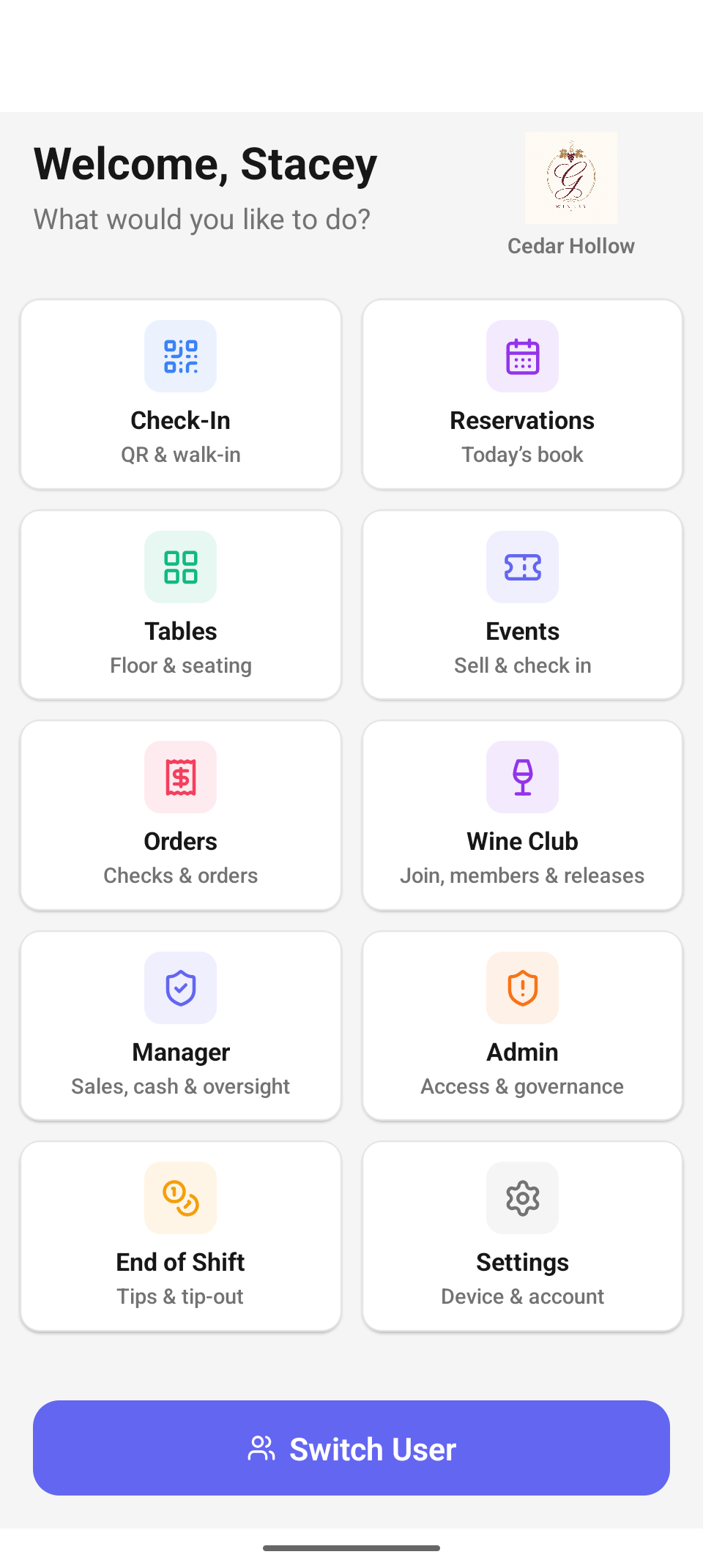
The home dashboard signed in as an admin — all tiles including the role-gated Manager and Admin pair.
The tiles
Tiles appear in a fixed order. On tablets they lay out three across, on typical handhelds two across, and on the smallest card readers they become full-width rows — same tiles, bigger tap targets.
| Tile | Subtitle | Opens | Who sees it |
|---|---|---|---|
| Check-In | "QR & walk-in" | Check-In — greet arrivals, scan IDs and tickets, register visitors | All staff |
| Reservations | "Today's book" | Reservations — today's bookings, waitlist, check-in | All staff |
| Tables | "Floor & seating" | Floor plan — seat, clear, track tables | All staff |
| Events | "Sell & check in" | Events — day-of events, ticket sales and check-in | All staff |
| Orders | "Checks & orders" | Orders & payment — open checks, new orders, payment | All staff |
| Wine Club | "Join, members & releases" | Wine Club — enrollment, members, release billing | All staff |
| Manager | "Sales, cash & oversight" | Manager hub — the day's numbers and approvals | Staff who can view manager reports |
| Admin | "Access & governance" | Admin — staff, devices, company-wide oversight | Company admins |
| End of Shift | "Tips & tip-out" | End of Shift — your tips, tip-out, and the cash drawer | All staff |
| Settings | "Device & account" | Settings — location, reader, printer, updates | All staff |
Role-gated tiles: Manager and Admin
Two tiles are inserted only when your role earns them, and both slot in just before End of Shift so the management pair sits together:
- Manager appears only for staff whose role can view manager reports. Sign in as a server and the grid runs Check-In through Wine Club, then straight to End of Shift — no Manager tile at all.
- Admin appears only for company admins, beside the Manager tile. Opening it re-prompts for your PIN and works company-wide, online-only — see Admin.
There is no "disabled" state — a tile you can't use simply isn't rendered. If a teammate sees a tile you don't, the difference is the role assigned in the web admin, not the device.
Switch User
The indigo Switch User button pinned at the bottom of the dashboard opens the Switch user sheet: the current operator with a Sign out button, a "Search staff…" box, and the rest of the team — pick a name, enter their PIN, tap Go. Device and location stay put; only the signed-in person changes. The full flow is documented in Getting started.
Status banners and indicators
The dashboard (and every screen behind it) surfaces device state as it changes:
- Offline — a banner reads "Operating offline — running as host backup", with a count when actions are queued (e.g. "· 3 queued"). On reconnect it flips to "Back online — syncing 3 queued actions…" and clears itself. See working offline.
- App update — "Downloading update…" while an OTA update fetches, then "A new version is ready." with a Restart button. Restart at a quiet moment; nothing is lost.
- Card reader — right after sign-in the app silently auto-connects the device's built-in reader (no prompt, skipped if a reader is already active), so the Orders flow can take payment immediately: Tap to Pay on an NFC phone, the on-device reader on a Stripe smart reader. Bluetooth/networked readers are chosen once in Settings → Reader.
Troubleshooting
- "I don't see the Manager (or Admin) tile." — that's role gating, not a bug: Manager requires a role that can view manager reports, Admin requires company admin. Roles are assigned in the web admin; sign out/in after a role change.
- The dashboard shows full-width rows instead of tiles — that's the layout for the narrowest card-reader screens; everything works the same.
- The logo box shows two letters instead of our logo — no logo is uploaded (or it failed to load); branding is managed in the web admin and the initials are the fallback.
- A tile opens and immediately asks for a PIN — only Admin does that, by design: it re-verifies the operator before exposing company-wide controls.
Related
- Getting started — sign-in, locations, and the switch-user sheet in detail.
- Check-In, Floor & seating, Reservations, Events — the tiles you'll use most on the floor.