Wine Club
The Wine Club tile is one tabbed hub for everything club-related on the floor: Join (enroll a guest), People (the member directory), and Releases (release billing and shipments). Each tab loads its data the first time you open it; pull down to refresh.
Enroll a guest (Join)
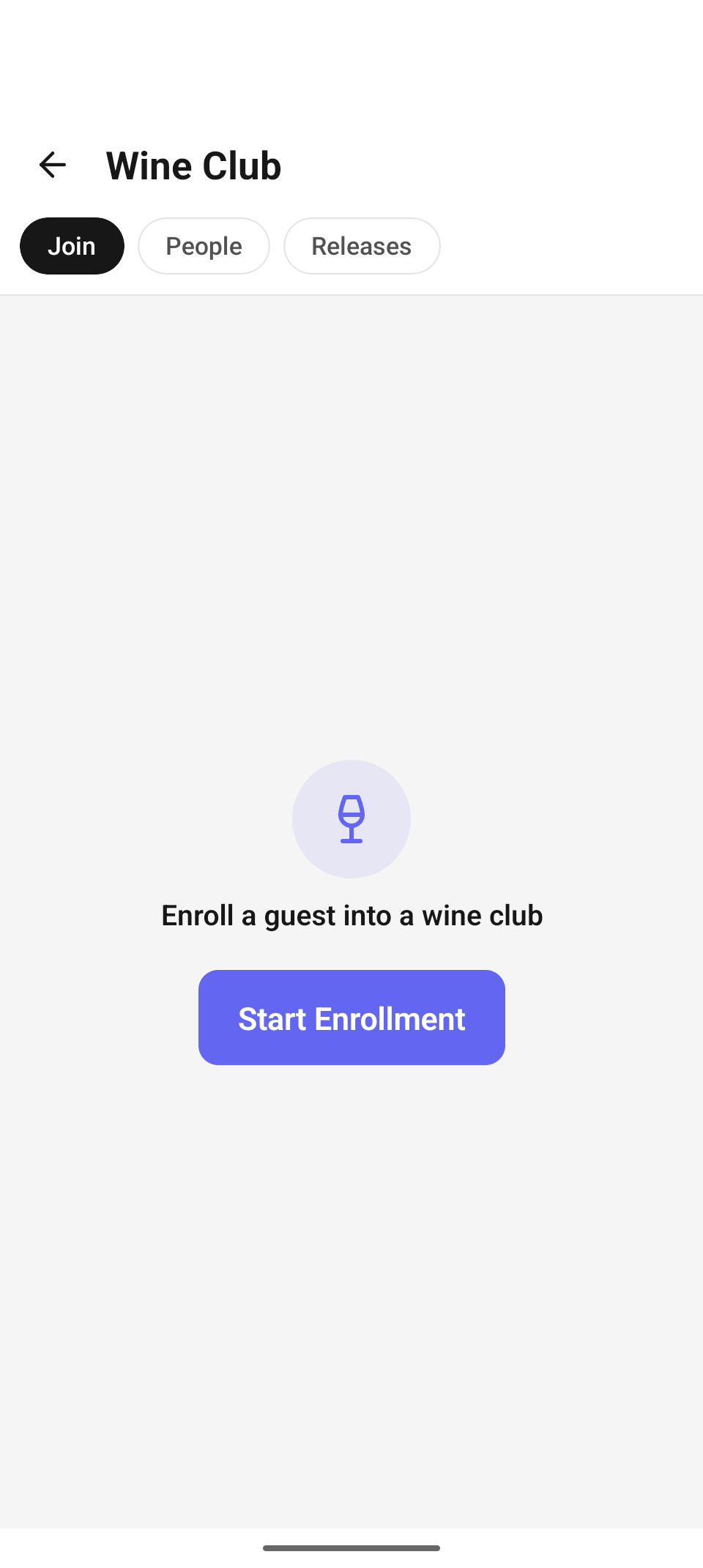
The Join tab — one job, one button: Start Enrollment.
Tap Start Enrollment. The wizard finds the guest, verifies their age, and picks the club and tier.
1. Pick the guest
The selection hub offers four ways in:
- SEARCH CUSTOMERS — search the CRM by name, email, or phone. Each result shows the contact on file plus a status pill: green Verified (ID already on record) or amber Scan ID.
- TODAY'S RESERVATIONS — today's bookings that are linked to a customer profile, with time and party size, carrying the same Verified / Scan ID pills. ("No reservations with a customer profile today." when empty.)
- New Customer — a short intake form (first/last name required; email "FOR RECEIPTS & CLUB" and phone optional): "We'll verify their ID next to confirm age."
- Scan a New ID — the walk-in fast path: go straight to the scanner, and the app matches or creates the CRM guest from the scanned ID itself.
2. Verify Age
Guests with a Verified pill skip the scanner entirely. Everyone else gets the Verify Age screen — scan the barcode on the back of the ID. Members must be 21+:
- Underage is a hard stop: "Guest is under 21 — Wine club members must be of legal drinking age." This also blocks an already-verified guest whose record says underage — there is no override in enrollment.
- "ID expired — Ask for a current, unexpired ID and rescan." and "Couldn't read the ID" offer Try Again / Back to Start.
3. Choose a Club — and a tier
All open clubs from your club catalog are listed with their name and floor summary. Selecting a club loads its catalog-driven tier picker:
- Under MEMBERSHIP TIER, each tier card shows its display name and what it means — "6 bottles/release", "4× a year" — straight from the club's benefit catalog.
- A club with exactly one tier auto-selects it; a club with no tiers configured simply enrolls tier-less.
- A club with tiers requires a choice — Enroll stays disabled and the form says "Choose a membership tier to continue."
A checkbox records "Guest agrees to receive club emails." (on by default). Tap Enroll — "Enrolled!" confirms, e.g. "Alice Cooper joined Estate Club."
Enrollment errors are specific: "This guest already has an active membership for that club.", "You do not have permission to enroll club members.", and — if the catalog changed mid-flow — "That tier is no longer available. Pick a current tier." (the tier list reloads automatically).
Look up a member (People)
The People tab is the searchable directory — name, email, or phone, filtering as you type. Each card shows the guest, club and tier, a status badge, and lifetime spend.
Tapping a member opens the read-only profile: stat pills for lifetime spend, shipments, and succeeded / failed / pending charges, then the per-release history — each release with its date, billing-status badge, amount, any failure reason, shipment status, and a tappable carrier tracking link.
Work a release (Releases)
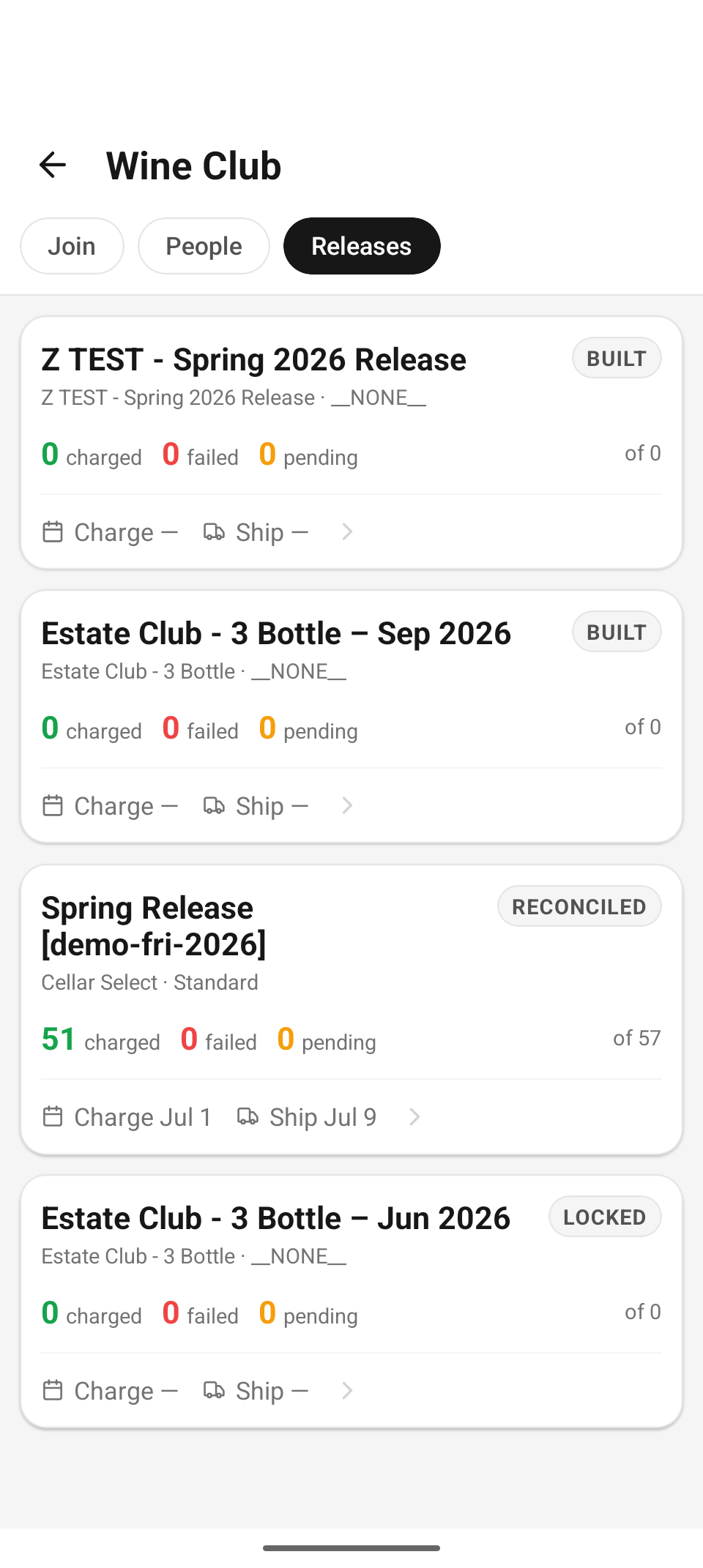
Releases — cards with the charged / failed / pending counts and the charge/ship dates.
Release cards show the release name, its club and tier, a state badge (e.g. BUILT, RECONCILED, LOCKED), the live charged / failed / pending counts "of N" members, and the Charge and Ship dates.
Tap a release to open its member list. Anyone who needs attention — a failed or pending payment — floats to the top in its own section, so you work the problems first. Every row carries a billing badge (Paid / Pending / Failed) and, when a shipment exists, a fulfillment badge (Shipped / Delivered / Pickup / Picked up). A search box filters by name.
Member billing detail
Tapping a member opens their billing detail: the charge amount and status, the card on file (•••• 4242 or "No card on file"), and the Billing timeline — attempts, last attempt, next retry, and the failure reason. A Shipment card shows tracking (tap to open the carrier's page) or "Ready for pickup". Then the actions:
- Send payment reminder — a dunning email; pick First attempt, Second attempt, or On hold. Available while the charge is failed or pending and unresolved.
- Pause auto-retry / Resume auto-retry — stop or restart the automatic retry schedule for a failing card. When paused, the "Next retry" row reads Paused. (Retries themselves run on the server — there is no manual charge-again button.)
- Mark picked up — record a pickup-fulfilled shipment; the button disappears once recorded so it can't fire twice.
Any of these may prompt the Manager approval PIN pad ("A manager must enter their PIN to approve.") when the signed-in user can't act alone — same flow as discount approvals; a wrong PIN gets "Incorrect PIN. Try again." and the action retries verbatim once a valid PIN clears.
Reference
| Control | Where | What it does |
|---|---|---|
| Join / People / Releases | Hub | Enrollment, directory, and release billing. |
| Start Enrollment | Join | Launch the enroll wizard. |
| Verified / Scan ID pills | Enroll: guest | Whether the age scan can be skipped. |
| MEMBERSHIP TIER cards | Enroll: club | Catalog tiers with bottles/release and shipments/year. |
| Needs-attention section | Release members | Failed/pending payments floated to the top. |
| Send payment reminder | Member billing | First / Second / On-hold dunning email. |
| Pause / Resume auto-retry | Member billing | Control the server-side retry schedule. |
| Mark picked up | Member billing | Record pickup fulfillment for the shipment. |
Related
- Set up your wine club — clubs, tiers, and benefits in the web admin.
- Releases & shipments — building releases and full reconciliation on the web.
- Orders — club-member discounts appear as suggested chips at the register.