Events
Run ticketed events — release parties, dinners, tastings — end to end.
Authoring lives at /admin/events (Events — "Manage your event
definitions"); day-of check-in lives at /events. Tickets themselves
are ordinary products: you sell them on a normal POS check, and Avero issues
QR tickets the moment the order is paid.
Events is an entitlement-gated add-on. Without it, /admin/events shows
"Events & ticketing" — "The Events add-on lets you create ticketed
events, sell tickets online and at the point of sale, scan QR check-ins, and
run day-of operations. Upgrade to enable it, or talk to our team." See
Settings for your subscription.
Who can use it
- Create and edit events —
events.definitions.manage; publishing needsevents.definitions.publish. Managers (and Admins) hold both. - Manage workspace — viewing needs
events.management.read(Admins, Managers, Concierges, Wayfinders, Hosts, Ambassadors); editing needsevents.management.update(Managers and Admins). - Day-of check-in —
events.checkinis held by every role except Viewer (Admin, Manager, Concierge, Wayfinder, Host, Ambassador, Server, Wine Associate). Viewing the/eventsdashboard and ticket lists needsevents.instances.read(Admins, Managers and Concierges). - Planning sheet —
events.planning.readto view (Admins, Managers, Concierges, Wayfinders, Hosts, Ambassadors),events.planning.updateto edit (Managers and Admins). - Refund queue —
events.refund.manage(Admins only). - Event settings —
settings.readplus eitherevents.definitions.readorevents.refund.manage(Managers and Admins).
Create an event
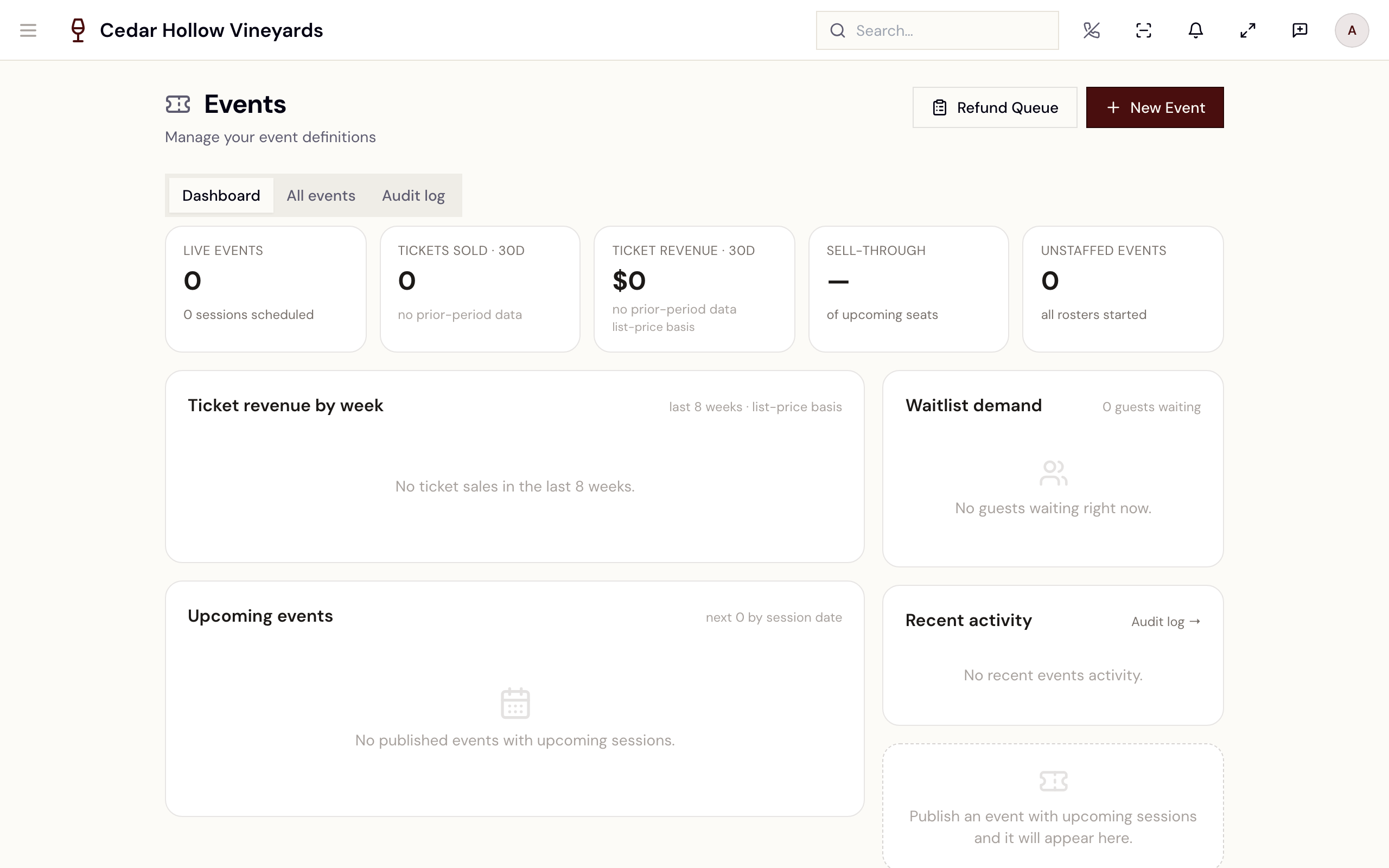
On /admin/events you'll find three tabs — Dashboard, All
events, and Audit log — plus up to three header buttons, depending
on your role: New Event, Refund Queue (with a red badge counting
pending refund tasks), and Settings, which opens Event settings at
/admin/events/settings — the events refund policy and the policy
templates guests see on event pages.
New Event creates a draft named "Untitled Event" and drops you
straight into the event wizard at
/events/:eventDefinitionId/wizard. The page is titled with the
event's name. Five steps:
The Event Creation Wizard — Basics, Ticket Types, Sessions, Capacity, Review.
This picture shows an earlier version of this screen. The steps on this page are current.
- Basics — Event Name (required — "Event name is required"), Description, Visibility (Public / Internal), and the venue: Company Location or Offsite / Partner Venue. Offsite events need Venue Name, street address, city, and state, plus a POS & Reporting Location — "Required — this company location is used for POS terminal visibility and compliance reports. The event venue above is shown to guests on the storefront."
- Ticket Types — Add Ticket Type with Name (e.g. General Admission), SKU (auto-suggested from the name), and Price ($). You can't continue empty: "Add at least one ticket type to continue".
- Sessions — Add Session with start date/time, optional end, and Capacity (defaults to 100, minimum 1). The wizard detects overlaps: "This session overlaps with an existing session" on the form, and "Sessions have overlapping times. Please fix overlaps to continue." page-wide.
- Capacity — optional per-ticket-type limits per session: "This step is optional. You can set per-ticket-type limits for each session, or skip ahead." A blank Max Qty means Unlimited, and "Session capacity (N) is always the hard ceiling." This step also holds the event's reservation-policy override.
- Review — summary cards plus a validation checklist ("At least one ticket type", "All ticket types have SKU", "At least one session", "No session overlaps", and more). When everything passes, Publish Event goes live — "Event published — Version 1" — and lands you in the manage workspace. Until then: "Fix the issues above before publishing."
The wizard autosaves as you navigate. Save & Exit returns to the events list, where the draft shows a Resume Setup button. If you edit in two tabs at once, the loser sees "Changes were made in another tab. Refresh to continue."
The manage workspace
Every published event opens in the manage workspace. Manage on the
events list opens it at /events/:eventDefinitionId/manage;
/admin/events/:id/manage shows the same page. The header shows the
event's name and badges (Private / Brand type, public / internal
visibility, draft / published status) and two shortcuts — Planning
Sheet, which asks for a date, and, once sessions exist, Check-in
(which opens /events).
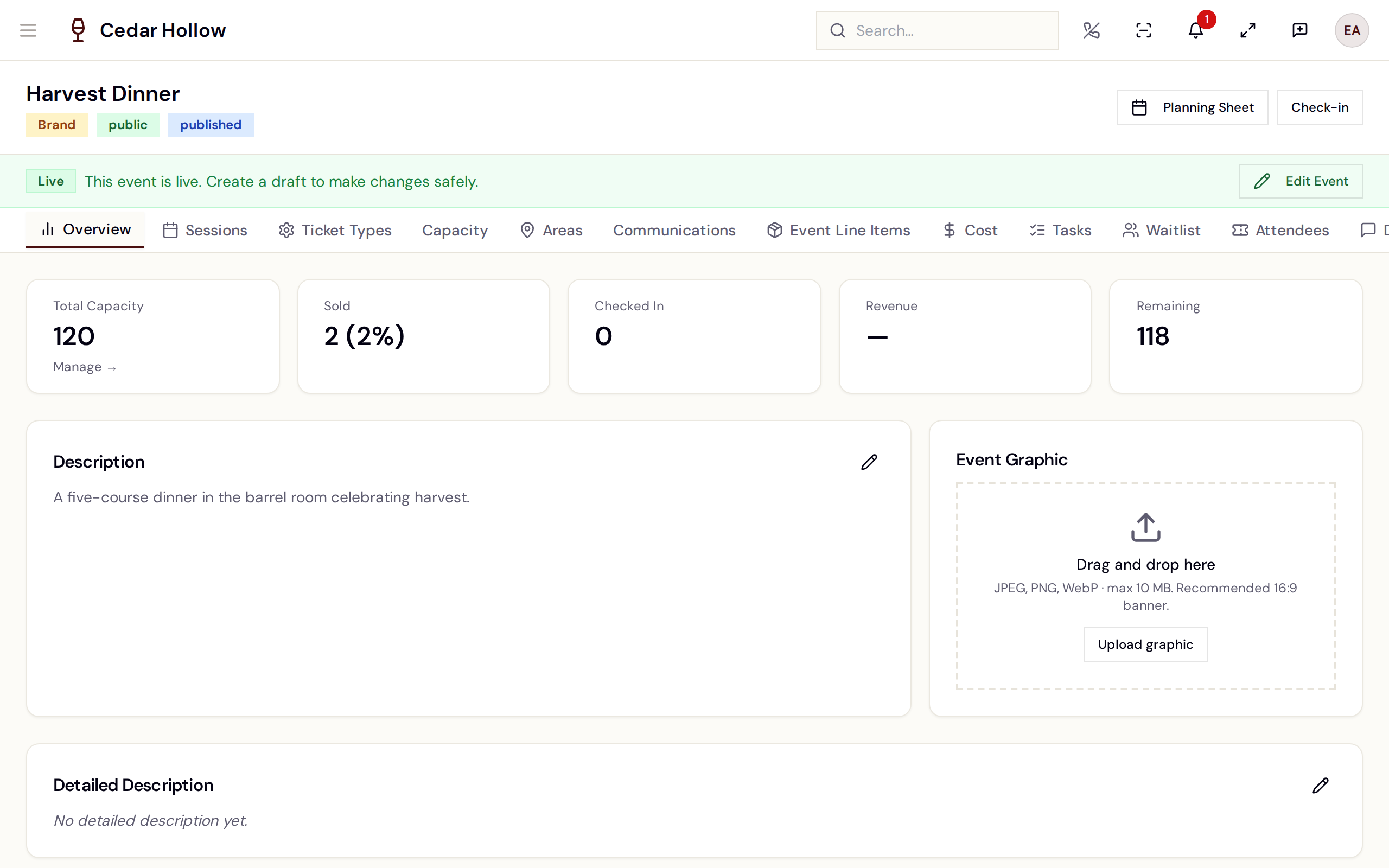
The Event Management Workspace — draft banner on top, then the tab bar.
The tab bar runs: Overview, Sessions, Ticket Types,
Capacity, Areas, Communications, Event Line Items, Cost,
Tasks, Waitlist, Attendees, Discussions, and Version
History. Private events additionally get a Private Finance tab
(invoices, payment links — needs events.private_finance.manage), and
Attendees only shows with events.instances.read.
Drafts and publishing
Edits to a live event go through a draft snapshot, controlled by the banner at the top:
- Live, no draft — a Live badge ("Version N — all changes are live.", or "This event is live. Create a draft to make changes safely.") and an Edit Event button.
- A saved draft exists — "Unpublished draft changes exist." with View Summary, Discard Draft, and Enter Draft.
- While editing — "Editing Draft — based on vN" with Exit Draft and Publish Changes.
Publish Changes opens a review — "Review the changes below before publishing them live to this event." — with any blockers under "Cannot publish — fix these errors:". Confirm Publish reports "Published — now Live Version N".
Discard Draft warns: "Are you sure you want to discard this draft? All unpublished changes will be lost." — Keep Draft / Confirm Discard. There is no undo.
Sell tickets
Ticket types are ordinary catalog items — there is no separate sale screen. Sell them like anything else: add the event's ticket product to a check at the POS, then settle it with any tender (or sell online via the storefront). Avero issues the QR tickets automatically when the order is paid, and capacity is enforced at that moment — an oversold session fails the issue rather than silently overbooking.
Day-of check-in
/events is the check-in and attendance dashboard: pick a location and
you get today's event instances with capacity, Active, and Checked
In counts (refreshed every 30 seconds), an Event Insights KPI drawer,
and card/table views. Each instance row offers Plan and Manage
shortcuts. No location selected? "Select a location to view events";
nothing scheduled? "No events for today".
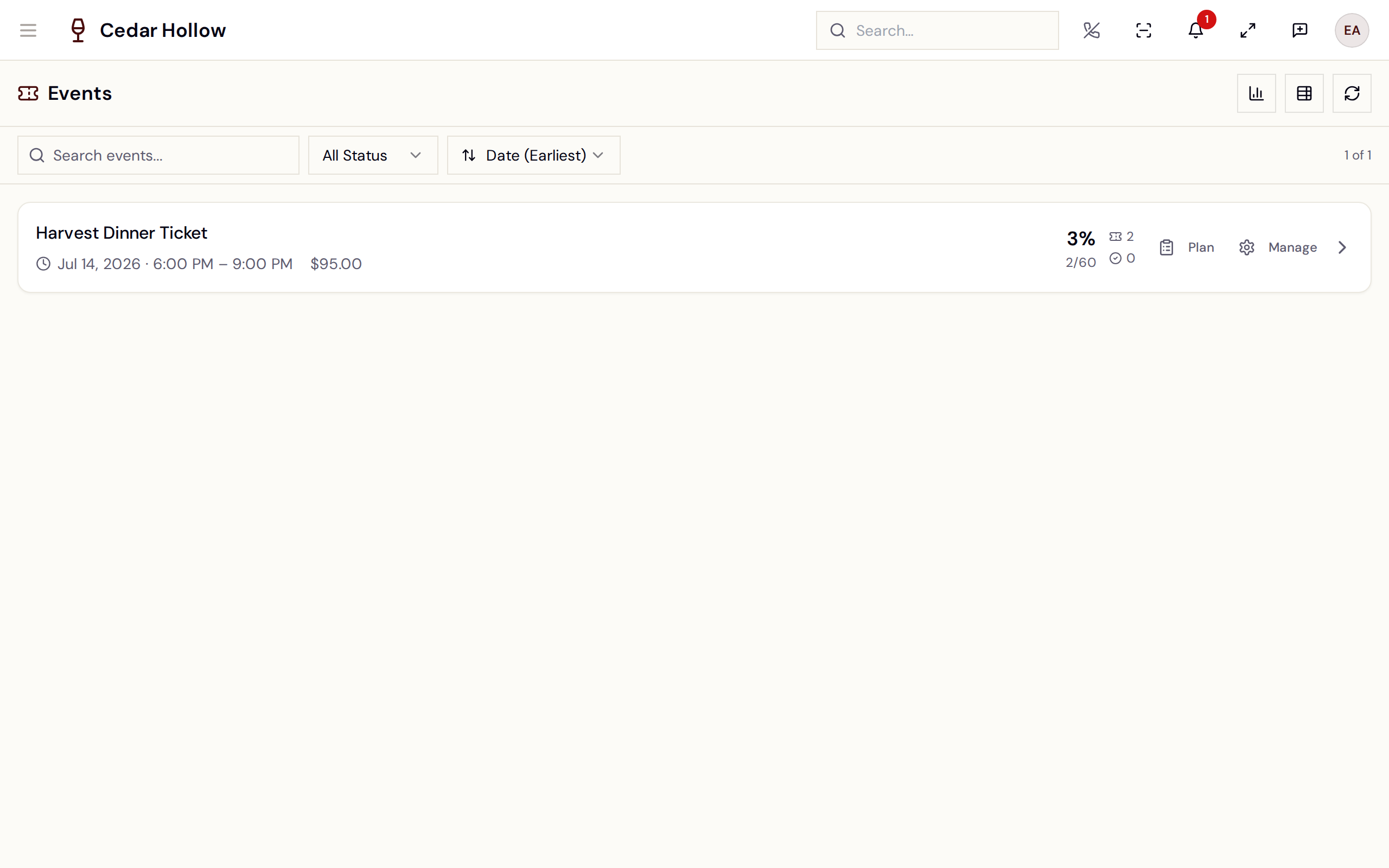
The Events dashboard at /events — today's instances with capacity and
check-in progress.
Selecting an instance opens its ticket list — search by guest and filter by
All / Active / Checked In / Voided / Refunded. Tapping a ticket opens
Ticket Detail at /events/tickets/:ticketId.
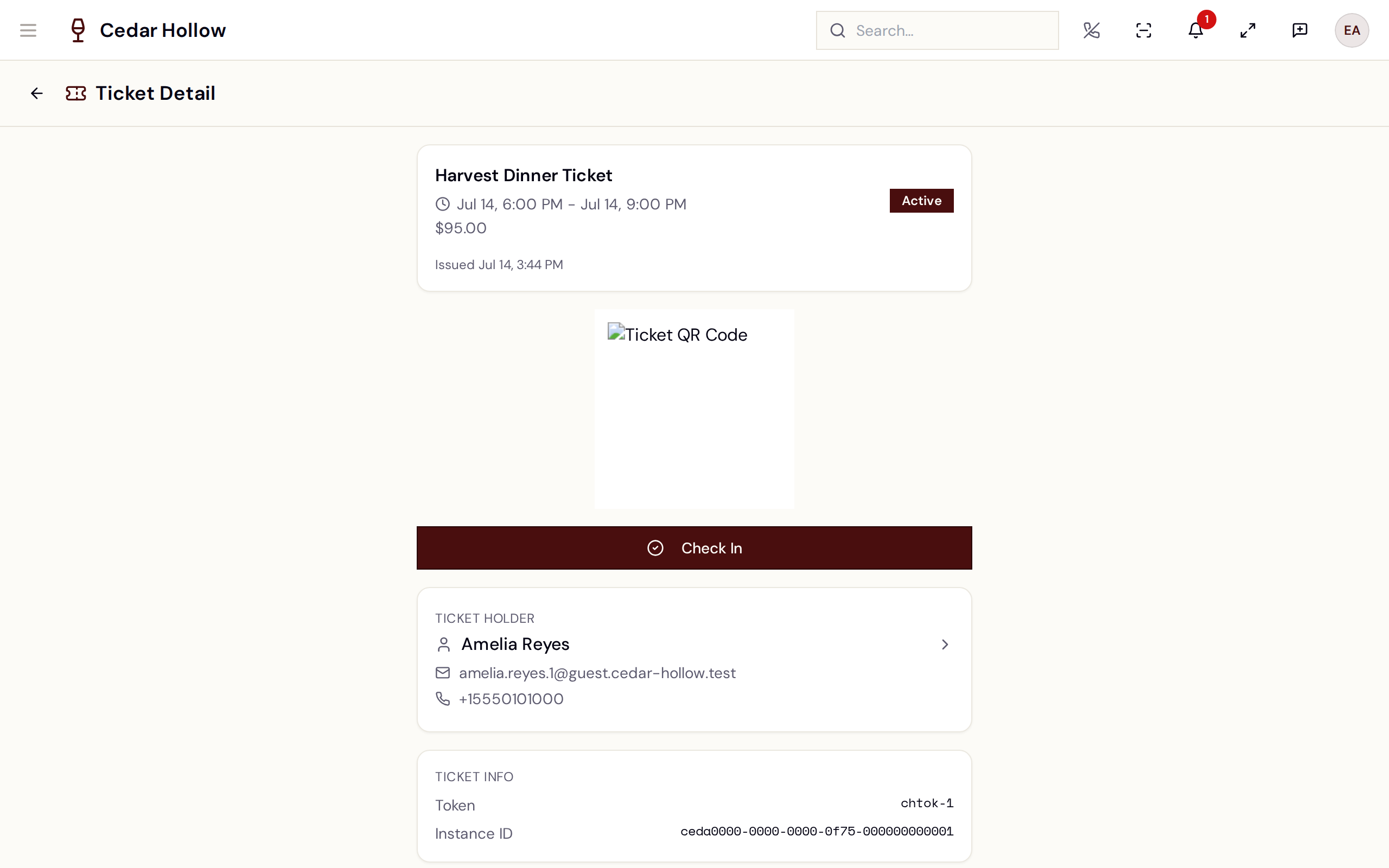
Ticket Detail — the ticket's QR code, status, holder, and order.
Two ways to check a guest in (both need events.checkin):
- Scan the QR — the global scanner (Start QR Scanner) reads the guest's ticket QR with the device camera and confirms — "Check-in confirmed".
- Tap Check In on the Ticket Detail page — shown while the ticket is Active. Success toasts "Check-in successful" with the timestamp.
A ticket is one of Active, Checked In, Voided, or Refunded. Check-in is atomic — if two stations race, exactly one wins and the other sees "Ticket has already been checked in". Every scan (good or bad) is logged for the audit trail.
The planning sheet
Plan (from the events list, the manage header, or /events) opens the
Planning Sheet at /events/:eventDefinitionId/planning — the
operational run-sheet for one date. Move between dates with the arrows or
Today; a Save button appears once you've changed something
(events.planning.update), and saving reports "Planning sheet saved".
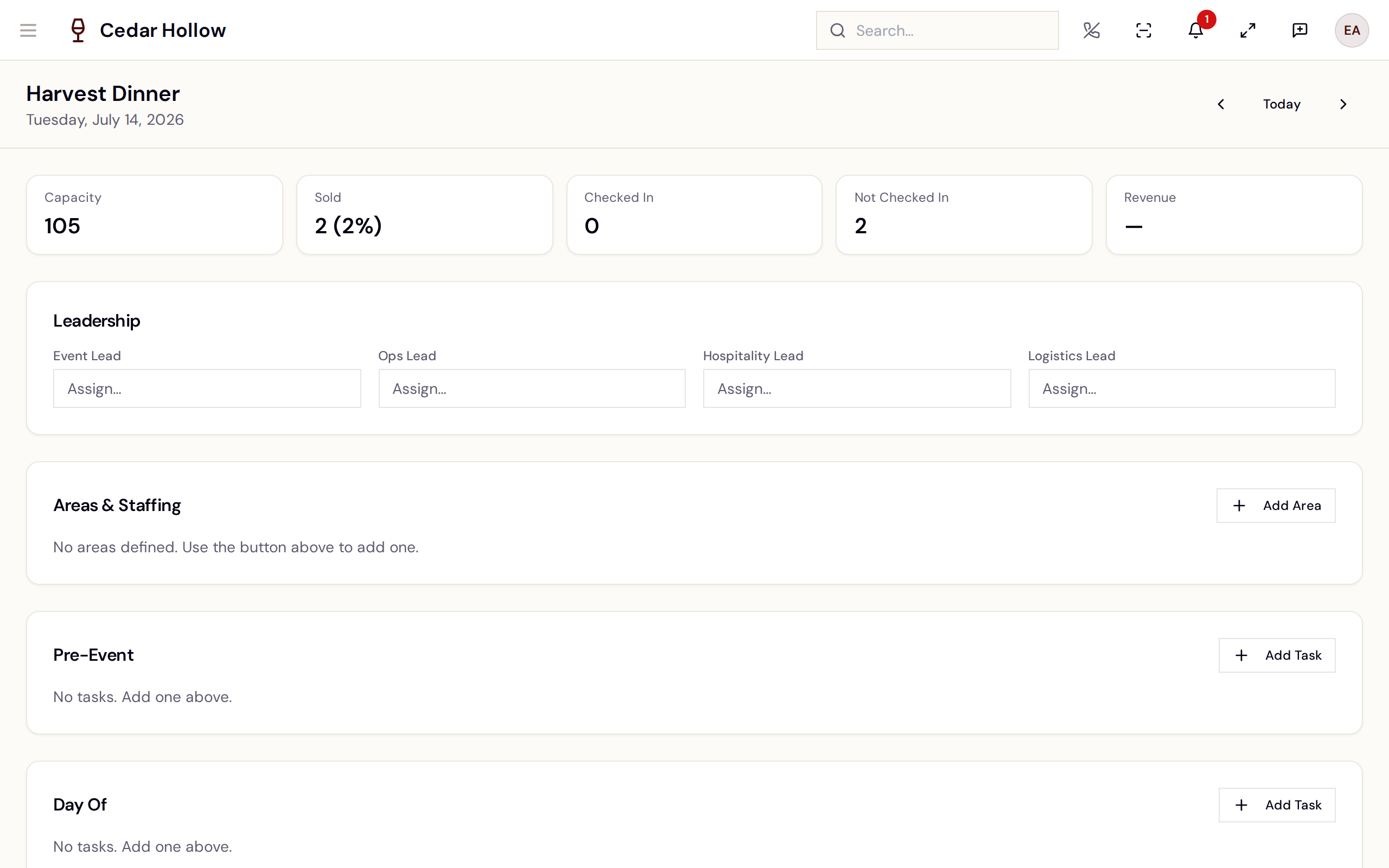
The Planning Sheet — KPI strip, Leadership, Areas & Staffing, and the Pre-Event / Day Of / Post-Event checklists.
- A KPI strip: Capacity, Sold, Checked In, Not Checked In, Revenue — plus inventory warnings. Revenue is the ticket lines on orders that have been collected, before tax and shipping; each line counts once, and other items on the same order are left out.
- Leadership — assign staff to Event Lead, Ops Lead, Hospitality Lead, and Logistics Lead.
- Areas & Staffing — Add Area builds the table: Area Name, Surface, Area Lead, Logistics, Ambassadors, Ticket Types, Notes.
- Three task checklists — Pre-Event, Day Of, Post-Event — each with Add Task; tap a task's status dot to cycle open → in progress → done → blocked, and assign an owner role and person.
- Free-text Run of Show and Internal Notes (staff-only).
If someone else saves the same sheet first, you'll get "Edit conflict" — reload and re-apply your changes. A banner also warns when the event has unpublished draft changes: "Unpublished draft changes exist and are not yet live."
Refunds — the reconciliation queue
Ticket refunds start like any other refund (see
Payments & refunds). Avero then reconciles
the refund against the order's tickets: clear cases are resolved
automatically (tickets marked refunded, capacity released), and anything
ambiguous lands in Refund Reconciliation at /admin/events/refunds
— "Review and resolve event ticket refund tasks".
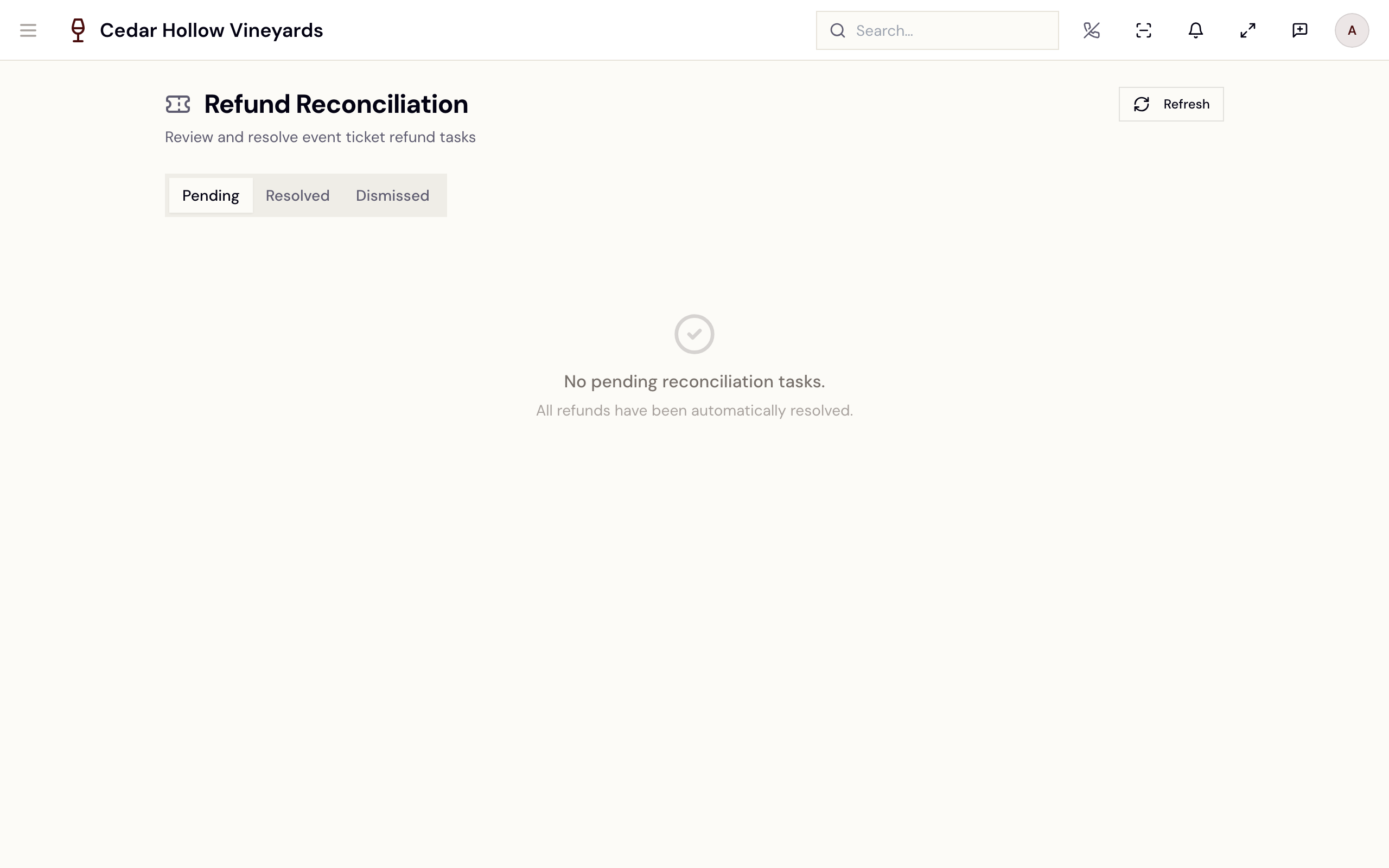
Refund Reconciliation — the Pending queue, with a Review action per task.
Three tabs — Pending, Resolved, Dismissed — over a table of Reason, Order, Refund Amount, Created, Status. Reasons you'll see:
| Reason label | Why it queued |
|---|---|
| Partial Refund — Manual Required | A partial amount that can't be mapped to whole tickets automatically. |
| Strict Policy | Your event policy routes every ticket refund through manual review. |
| Checked-In Tickets | Some tickets were already scanned — refunding them needs an explicit OK. |
| Cannot Auto-Calculate | Mixed ticket types — Avero can't infer which seats to release. |
Review opens the Reconciliation Task dialog: the order's tickets with their statuses, the refund amount, and checkboxes to pick the tickets to release. If any selected ticket was scanned, a warning appears — "One or more selected tickets were already scanned at check-in." — and you must tick Allow refunding checked-in tickets to proceed. Then:
- Refund Selected (N) — "Tickets refunded. Capacity released." Freed seats go back on sale (and the session waitlist is notified).
- Dismiss — "No tickets will be refunded and no capacity will be released. This action cannot be undone." — "Task dismissed. No capacity released."
Tasks marked Blocking pause further ticket purchases on that order until resolved. An empty Pending tab is the goal: "All refunds have been automatically resolved."
Reference
| Control | Where | What it does |
|---|---|---|
| New Event | /admin/events header | Creates a draft and opens the five-step wizard. |
| Resume Setup | Event row (unfinished) | Re-enters the wizard where you left off. |
| Plan / Manage | Event row | Planning Sheet for a date / the manage workspace. |
| Refund Queue | /admin/events header | Opens Refund Reconciliation (badge counts pending tasks). |
| Settings | /admin/events header | Opens Event settings (refund policy, policy templates). |
| Edit Event | Manage banner (live) | Starts a draft snapshot of the live event. |
| Publish Changes | Manage banner (draft) | Reviews and publishes the draft as a new live version. |
| Check-in | Manage header | Jumps to the /events day-of dashboard. |
| Start QR Scanner | Global scanner | Camera scan of a guest's ticket QR, then confirm check-in. |
| Check In | Ticket Detail | Checks in an Active ticket by hand. |
| Refund Selected (N) | Reconciliation Task | Marks tickets refunded and releases their capacity. |
Troubleshooting
- "Add at least one ticket type to continue" / "Add at least one session to continue" — the wizard gates each step; add the missing item.
- "Sessions have overlapping times. Please fix overlaps to continue." — adjust the session times; the conflicting row is flagged inline.
- "Changes were made in another tab. Refresh to continue." — the wizard or workspace was edited elsewhere; reload to pick up the latest draft.
- "Ticket has already been checked in" — a second scan of a used ticket. The detail page shows "Already checked in at [time]".
- "Ticket has been voided" — the ticket was voided (e.g. refunded upstream); don't admit.
- "Ticket belongs to a different venue" — the QR is valid but for another company's event; it will not check in here.
- "QR code format is not recognized" — not an Avero ticket QR. Look the guest up in the instance's ticket list instead and check in from Ticket Detail.
- "No events for today" — nothing is scheduled at the selected location for today; check the location picker first.
Related
- Take an order (POS) — building the check that sells the tickets.
- Settle a check & take payment — taking payment; tickets are issued when the order is paid.
- Payments & refunds — issuing the refund that feeds the reconciliation queue.
- Reservations & availability — bookable experiences, as opposed to ticketed events.