Reservations
The Reservations tile lists today's bookings — the header shows the date ("Today, Jul 21") with an arrivals counter (e.g. "3 / 12 Arrived"), a "Search guest name..." box, and the indigo New reservation button. Rows show the time, party size, and badges — VIP, Club, the experience type, and a green check once the party has arrived.
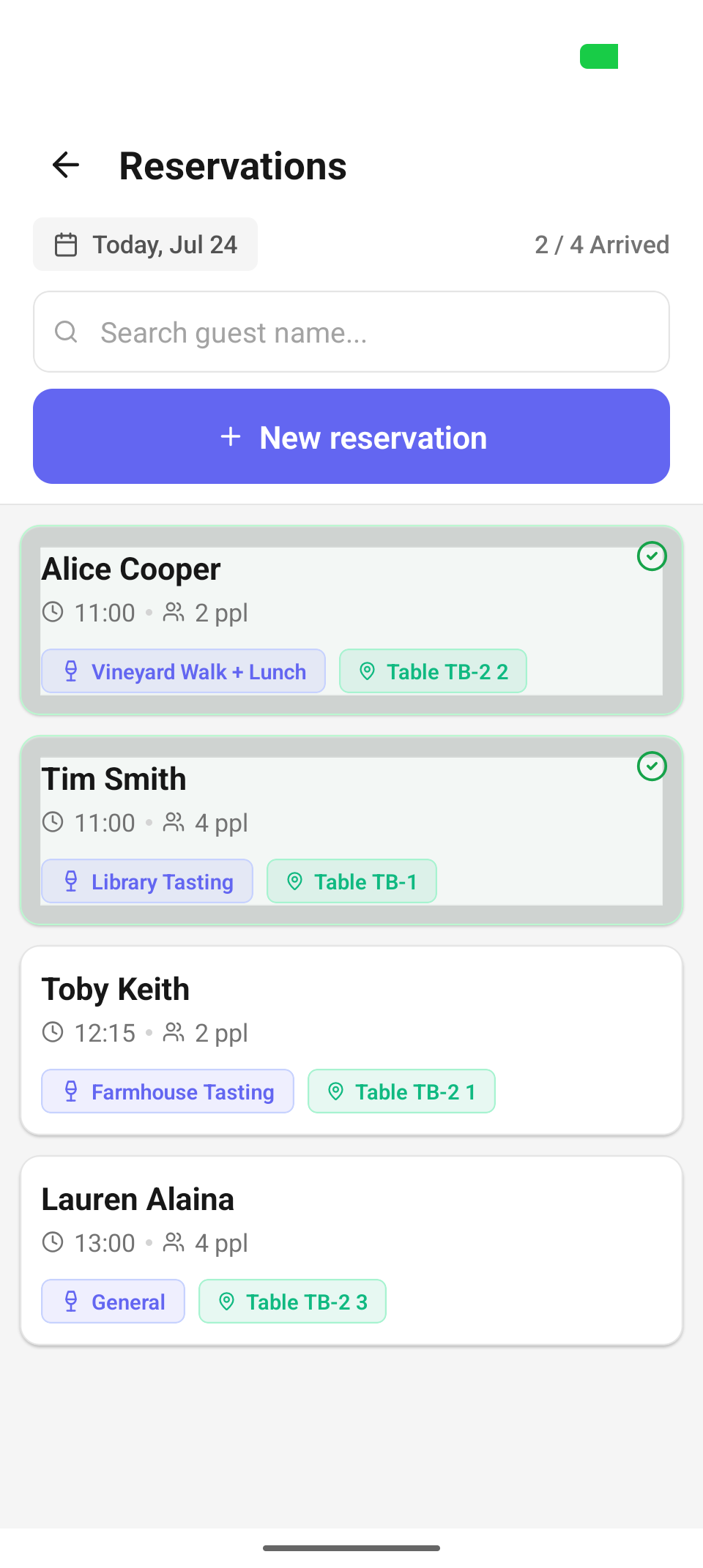
Today's reservations — times, party sizes, badges, and the arrivals counter.
Who can use it
Reading the book and checking parties in is open to all front-of-house roles (reservations.read, queue.create); creating, editing, and canceling ride on the reservation permissions in the frontmatter. Waive on the deposit sheet is the one manager-only control — it appears only for staff who can view manager reports.
Create a reservation
Tap New reservation (online-only — the button is disabled and the sheet warns "You're offline — booking needs a connection." while disconnected). The sheet walks three steps: guest → details → time & date.
Step 1 — pick the guest
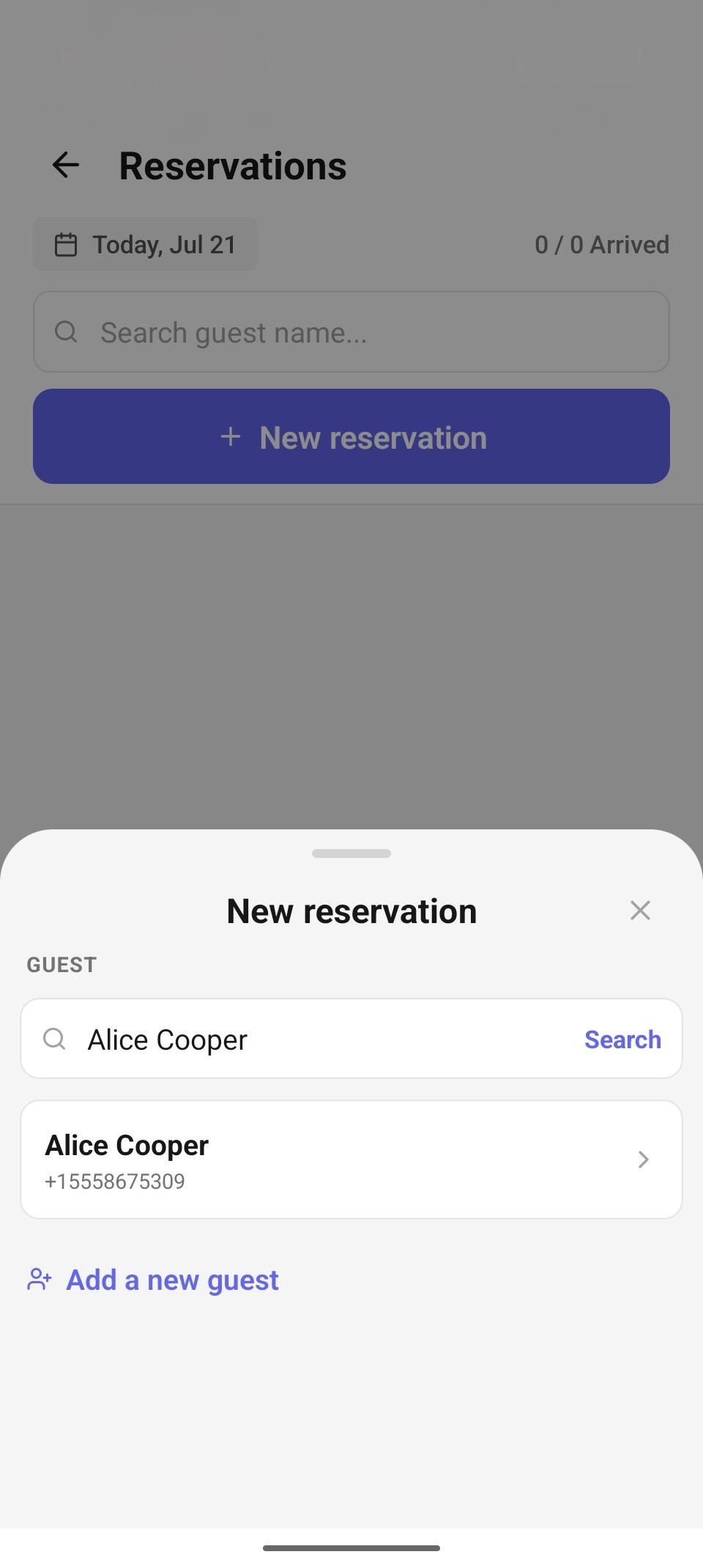
The guest step — search the CRM; matches show the guest's contact info.
The sheet opens on the GUEST step with a search box ("Search by name, email, phone") and a Search button (enabled once you've typed at least 2 characters). Matches appear as cards with the guest's name and email or phone — tap one to select them and move on.
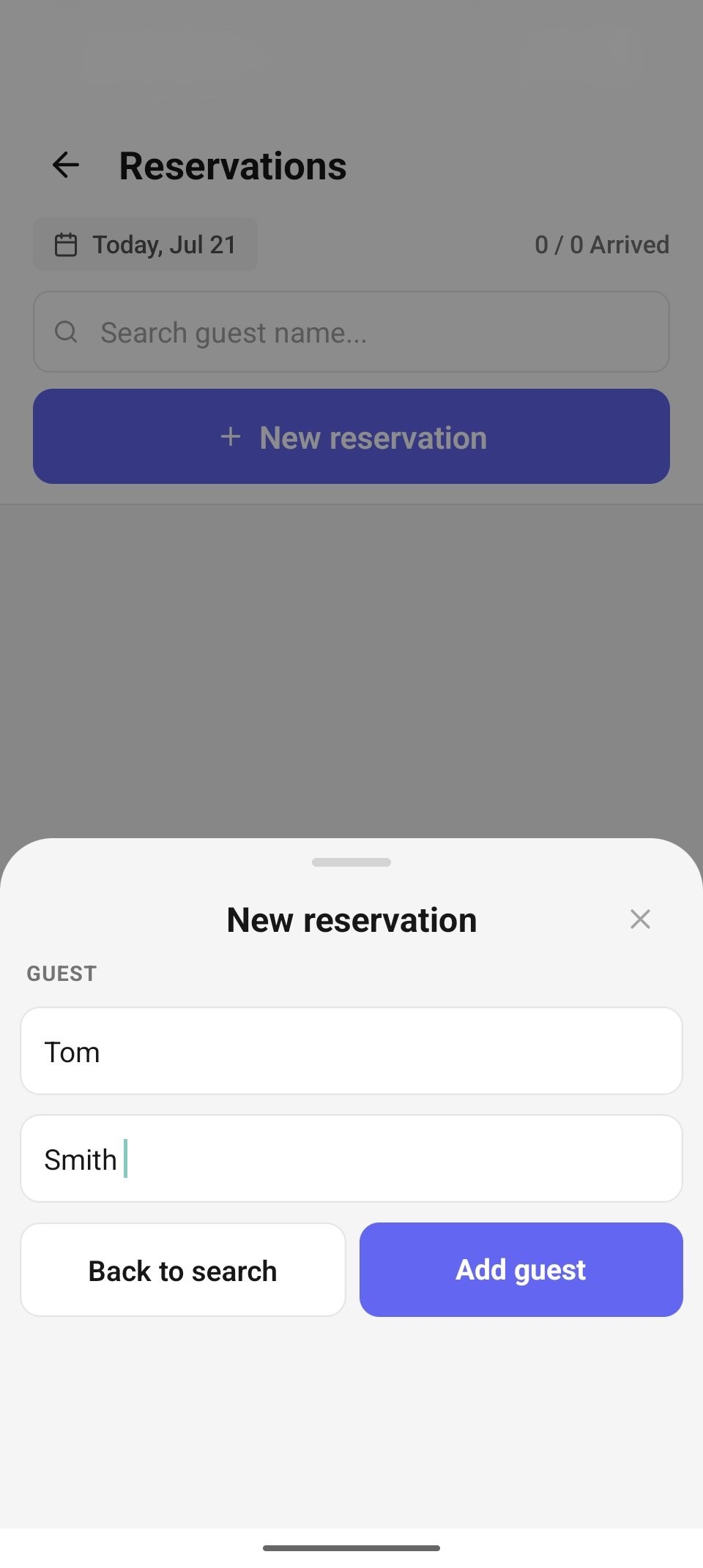
Add a new guest — just a first and last name.
Not in the CRM yet? Tap Add a new guest under the results. The quick-add form takes just a first and last name ("Enter a first and last name." if either is missing) with two buttons: Back to search and Add guest. Adding creates the CRM profile and selects it in one step.
Step 2 — party size, experience, and details
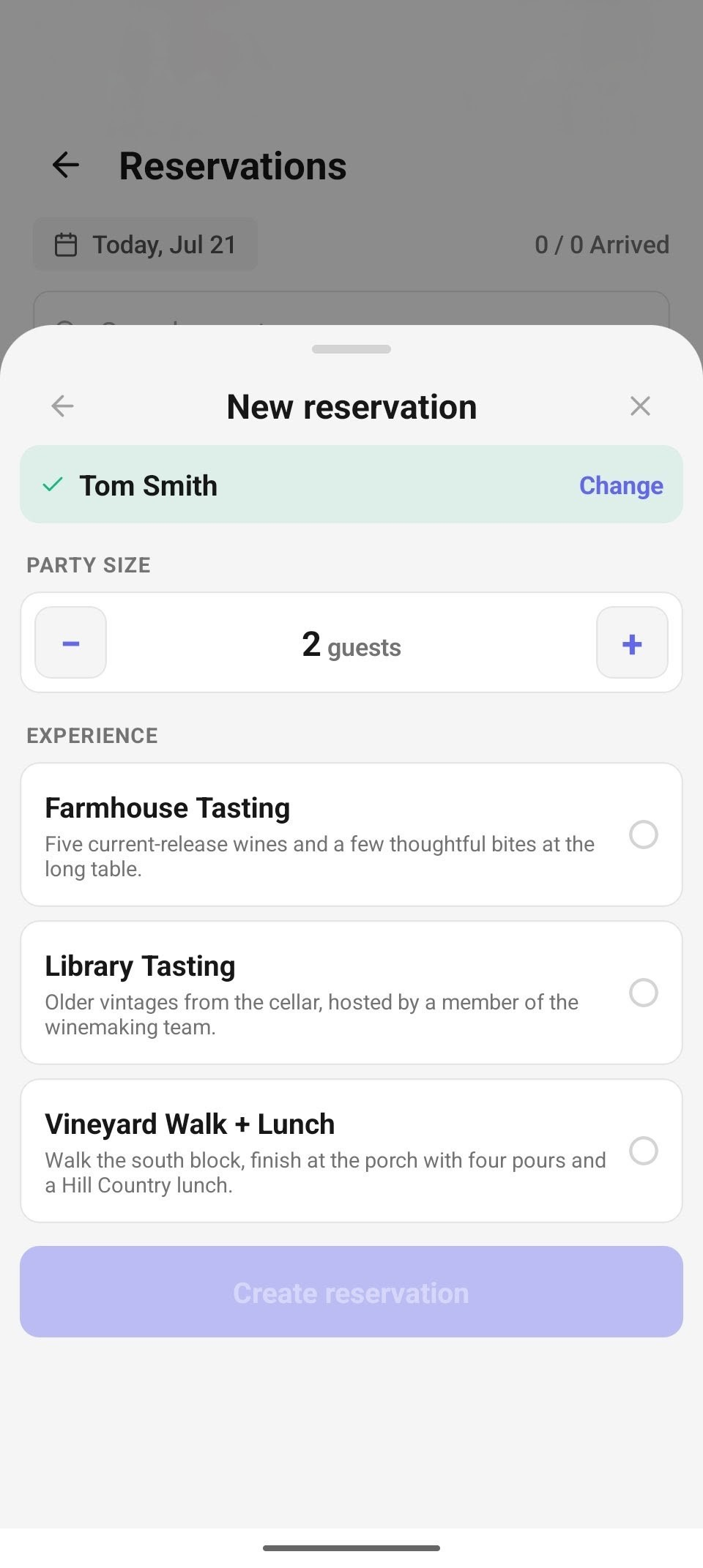
The details step — the chosen guest pinned at the top with a Change link, party size stepper, and the experience list.
The details step pins the chosen guest in a green chip at the top (with a Change link back to search) and gathers the booking:
- Party size — a stepper from 1 to 50 guests. Changing it clears any already-picked slot, since availability depends on it.
- Experience — shown when the venue has experiences configured (e.g. "Farmhouse Tasting", "Library Tasting", "Vineyard Walk + Lunch", each with its description); picking one is required before the time can be chosen — the Time & date row reads "Choose an experience first" until then. Switching experience also clears the picked slot. Venues with no experiences configured skip this section entirely.
- Time & date — a row that reads "Choose an open slot" until set, then the picked "Thu, Jul 23 · 2:30 PM" with "Tap to change".
- Notes — free text ("Add a note…").
If the chosen experience carries a deposit, an inline hint appears: "Deposit $50.00 — Collected after you book — charge on the reader or send a link."
Create reservation stays dimmed until a guest, slot, and (when required) experience are all set.
Step 3 — pick time & date
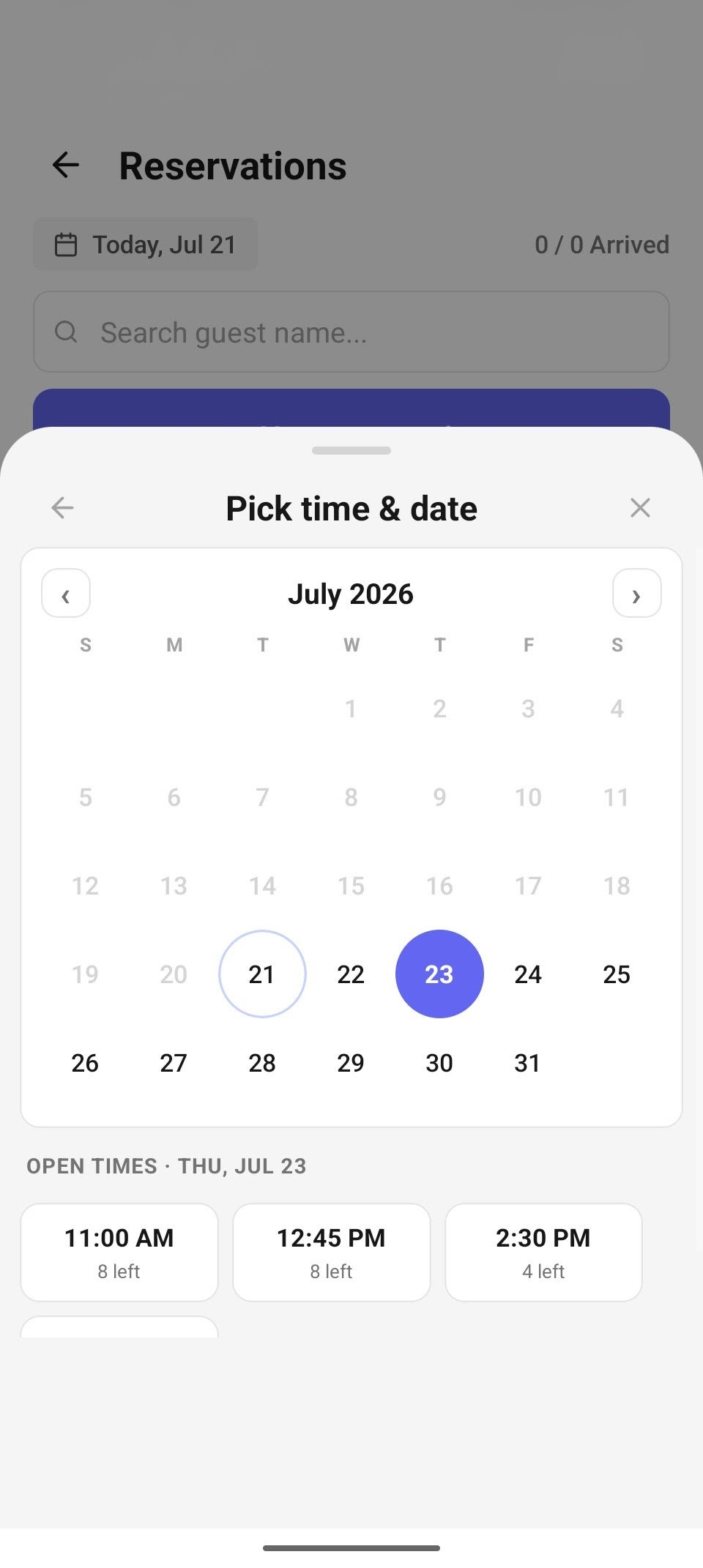
Pick time & date — the month calendar above the day's open-time chips, each showing seats left.
The Pick time & date step shows a month calendar (today ringed, the browsed day filled; past days are dimmed) above OPEN TIMES for the selected day — a grid of time chips driven by real availability, each showing how many seats remain ("11:00 AM · 8 left", "2:30 PM · 4 left") or Full. Tap an open chip to select it and bounce back to the details step with the slot filled in; the picker remembers which day you were browsing if you reopen it.
Waitlist a full slot
Picking a slot marked Full doesn't dead-end: an amber panel explains "6:00 PM is full. Add ⟨guest⟩ to the waitlist — you can book them if a seat frees up." with a "Join waitlist for 6:00 PM" button. Waitlisted guests appear in the Waitlist section of the reservations list — a Spot opened badge appears when a seat frees up, and tapping the entry offers Book now (which reopens the create sheet pre-filled on the details step) or Remove from waitlist. The waitlist is online-only ("You're offline — the waitlist needs a connection.").
Deposit at booking
Some experiences require a deposit. When they do, the Deposit sheet opens right after booking ("Applied to the final check · forfeited on a late cancel or no-show"), with three ways to collect:
- Charge now — tap the guest's card on the connected reader.
- Charge card on file — when the guest has a saved card, charge it with no tap needed.
- Send payment link — the guest pays on their own device before arrival; the link holds the booking and expires in 24 hours.
Staff who can view manager reports also see Waive; everyone can pick Collect later. Deposits are online-only.
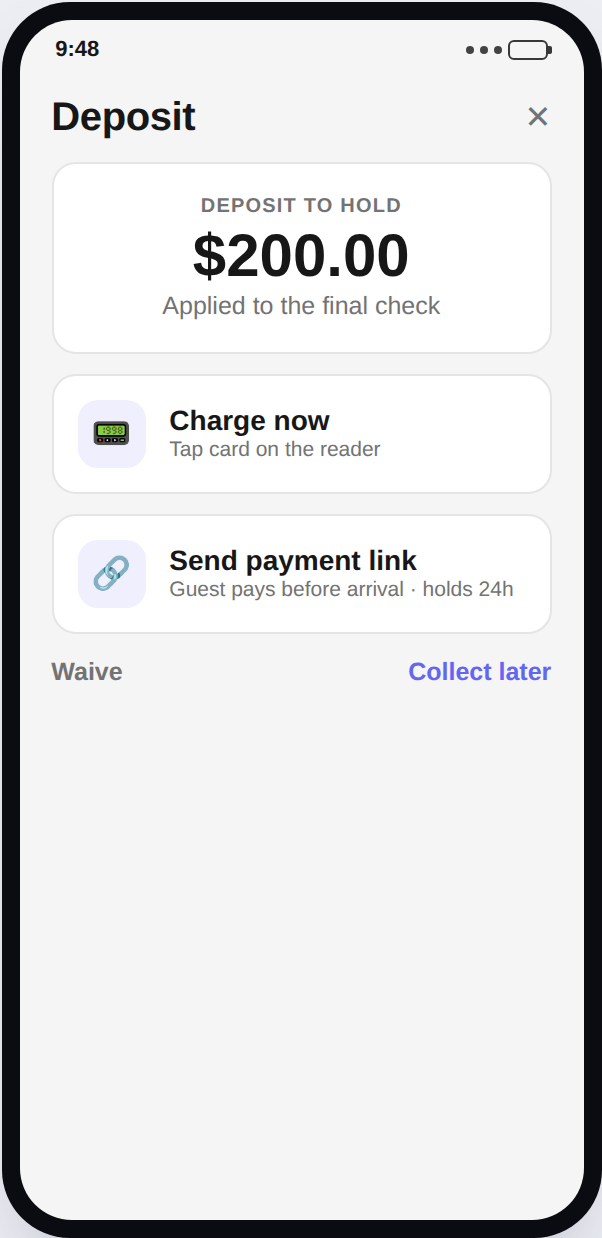
The Deposit sheet — charge on the reader, charge the card on file, or send a payment link.
Check in, edit, no-show, cancel
Tap a reservation to open its detail drawer:
- Check In to Queue — puts the arriving party into the floor queue. This works offline (it queues and syncs later). Once checked in, Seat at a Table jumps to the floor plan.
- Edit reservation — change the party size, notes, or move the booking to a new time or date; real availability drives the slot picker, and rescheduling never forfeits a deposit ("Deposit unaffected."). Online-only.
- No-Show — releases the booking (only offered while the party hasn't arrived).
- Cancel — cancels the booking and releases the slot.
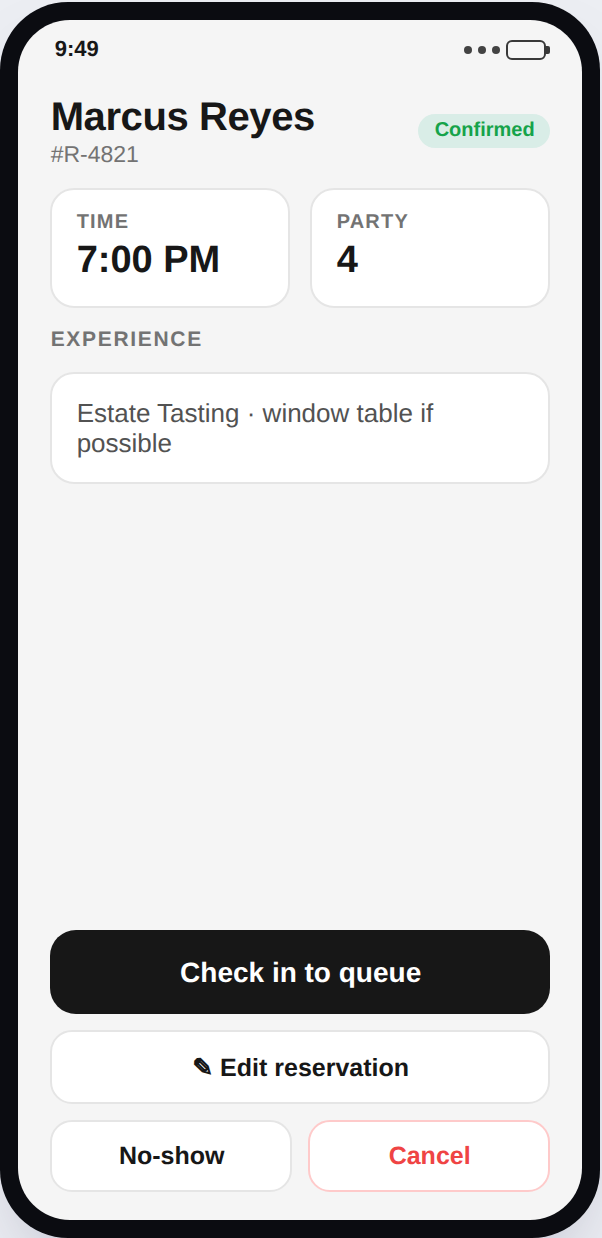
The reservation detail drawer — Check In to Queue, edit, No-Show, Cancel.
Troubleshooting
- New reservation is dimmed — you're offline. Booking, editing, the waitlist, and deposits all need a connection ("You're offline — booking needs a connection."); check-in to the queue still works and syncs later.
- "Choose an experience first" on the Time & date row — this venue has experiences configured, and availability is scoped per experience; pick one and the slot picker unlocks.
- The slot I picked disappeared — changing the party size or the experience clears the picked slot on purpose, because either changes what's actually available. Re-pick against the fresh availability.
- "Enter a first and last name." — the quick-add guest form needs both before Add guest will create the profile.
- "Could not create the reservation." — the server rejected the booking (most often the slot filled while you worked). Reopen the slot picker; the counts refresh.
Related
- Floor & seating — seat checked-in parties.
- Check-In — walk-ins that skip the book entirely.
- Reservations & availability on the web — experiences, slot rules, and the full reservation book.