Payments
Payment on the Companion is a three-step walk from an open check: Add a Tip → Payment Method → the tender's own screen, ending on the Payment Successful receipt. It starts when you tap Charge on the check detail (or Verify ID clears first, for unverified alcohol).
Add a Tip
The tip screen shows the Check Total and four cards: preset 18% / 20% / 22% (each with its dollar amount printed underneath) and Custom.
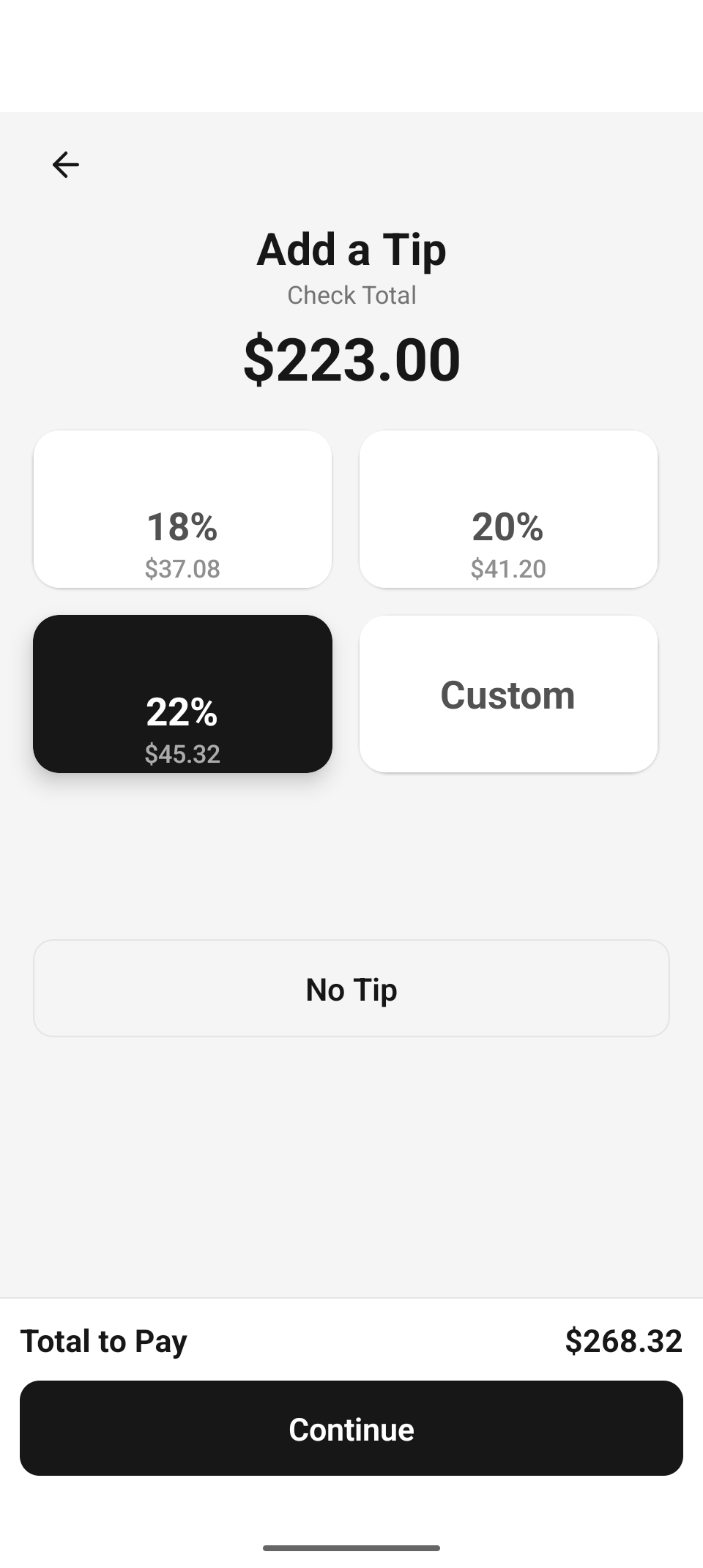
Add a Tip — 22% selected on a $223.00 check. The presets are computed on the pre-tax subtotal, so $45.32 is 22% of the $206.00 subtotal — guests are never prompted to tip on tax.
- Tapping a preset highlights it and updates the Total to Pay line at the bottom in real time.
- Custom reveals a dollar-amount field that focuses automatically and brings up the decimal keypad — type the amount, and the total tracks as you type. (The screen scrolls itself clear of the keyboard, so the total and Continue stay reachable.)
- No Tip skips straight to the payment-method screen with a $0 tip.
- Continue locks in the selection and moves on. The back arrow returns to the check without losing the check's contents.
Payment Method
Four tender tiles, under a header showing Total Due (and "Includes $45.32 tip" when a tip was added). After a partial tender the header switches to Balance Due — the remainder, not the original total.
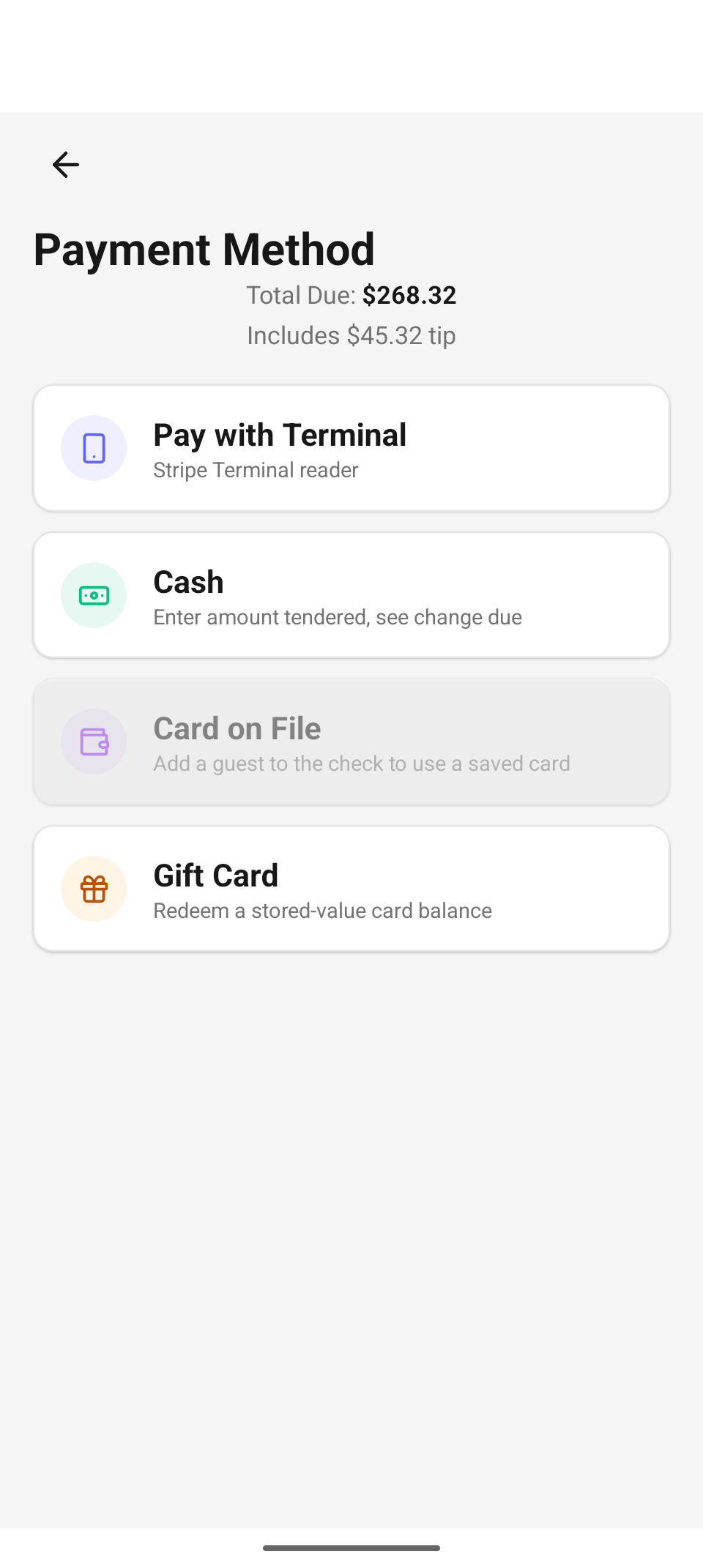
Payment Method — Card on File is greyed out because this walk-in check has no guest attached.
| Tile | Subtitle | Disabled when… |
|---|---|---|
| Pay with Terminal | "Stripe Terminal reader" | No reader is connected. A reader-trouble banner appears with Reconnect Reader (retries the last-used reader) and Reader Settings (pick or scan a different one). |
| Cash | "Enter amount tendered, see change due" | Always available. |
| Card on File | Changes with state (see below) | The check has no guest ("Add a guest to the check to use a saved card") or the attached guest has no saved card ("No saved card for this guest"). |
| Gift Card | "Redeem a stored-value card balance" | Always available. |
On a device without native payment support (e.g. the web preview), a banner notes "Terminal payments require a native device build." — the other tenders still work.
Terminal
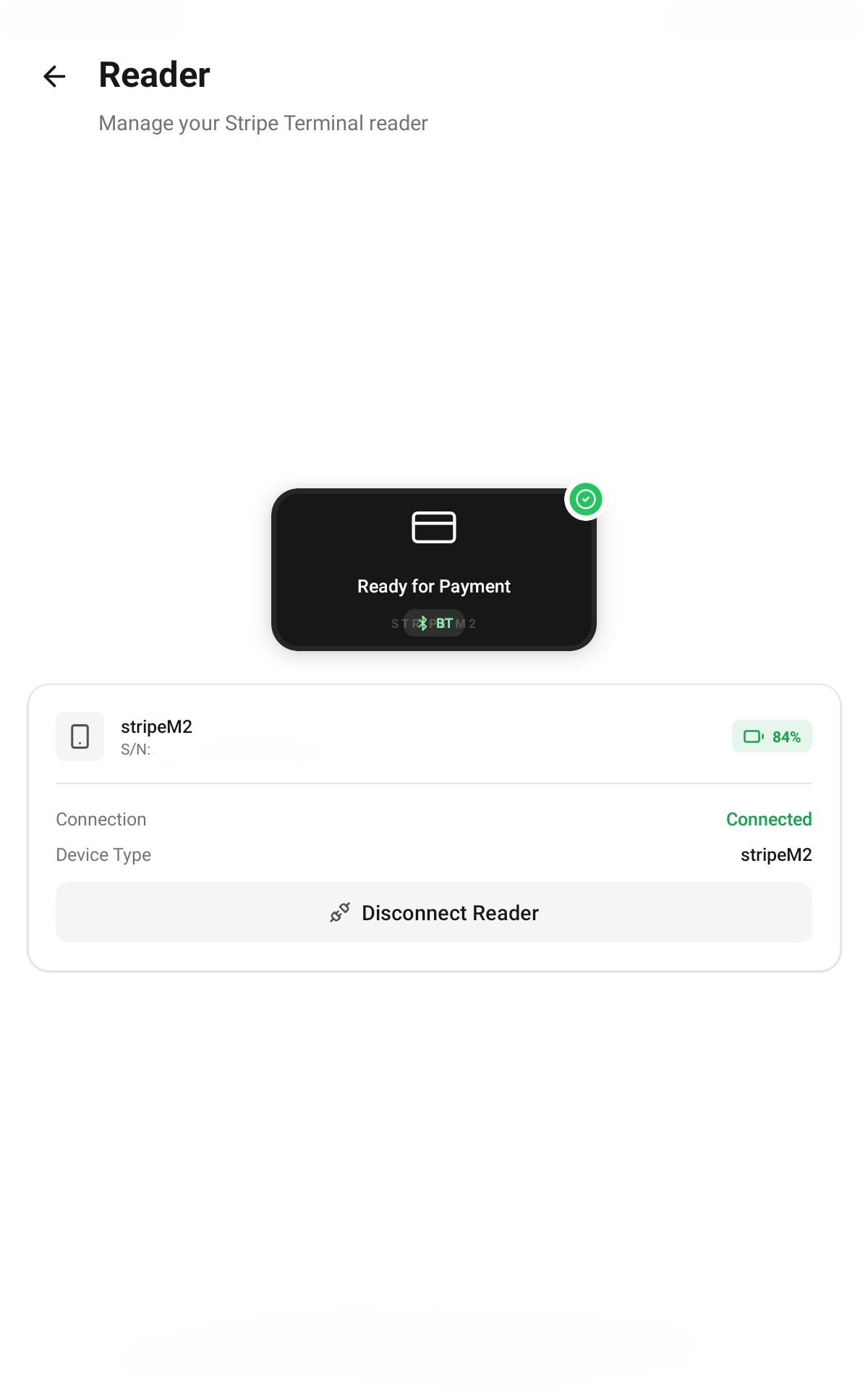
A healthy reader: Settings → Reader shows the paired Stripe M2 as Connected and "Ready for Payment", with its battery level. This is the screen behind the Reader Settings action on the trouble banner.
Tap Pay with Terminal and hand over the reader: "Follow the prompts on the reader to complete payment." A Cancel button is available while the reader is still collecting — but the moment the card is captured it disappears and the screen pins you in place:
"Card captured — finalizing. Please don't leave this screen." Once the reader has charged the card, the app must finish confirming the payment against the check. Stay on the screen until Payment Successful appears. If finalizing fails, Try Again on the Payment Failed screen resumes that same payment — it never charges the card a second time.
A payment that fails before capture shows Payment Failed with the processor's message; Try Again returns to the method picker, and Back to Check abandons the attempt.
Cash
The cash step shows the amount due, a Cash received field, and quick-tender presets (the exact amount plus rounded-up bill amounts). As you type, the Change due card updates live; a tender short of the total shows "$10.00 short of the total due." and keeps the Take $X.XX button disabled until the entry covers the amount.
Cash recorded against a bound cash drawer books to that drawer's expected total. A deliberate short tender recorded by the server becomes a successful partial payment — "Partial payment recorded — $10.00 still due." — and the screen re-arms to collect the remaining balance (never the full total again).
Card on File
Only reachable when the check's attached guest has saved cards. Each card lists brand, last four, expiry, and a "Default" marker — tap one to charge it for the full amount due. Failures (expired card, decline) land on the Payment Failed screen with the processor's message.
Gift Card
Gift cards are a first-class tender: they can settle a check alone or cover part of it.
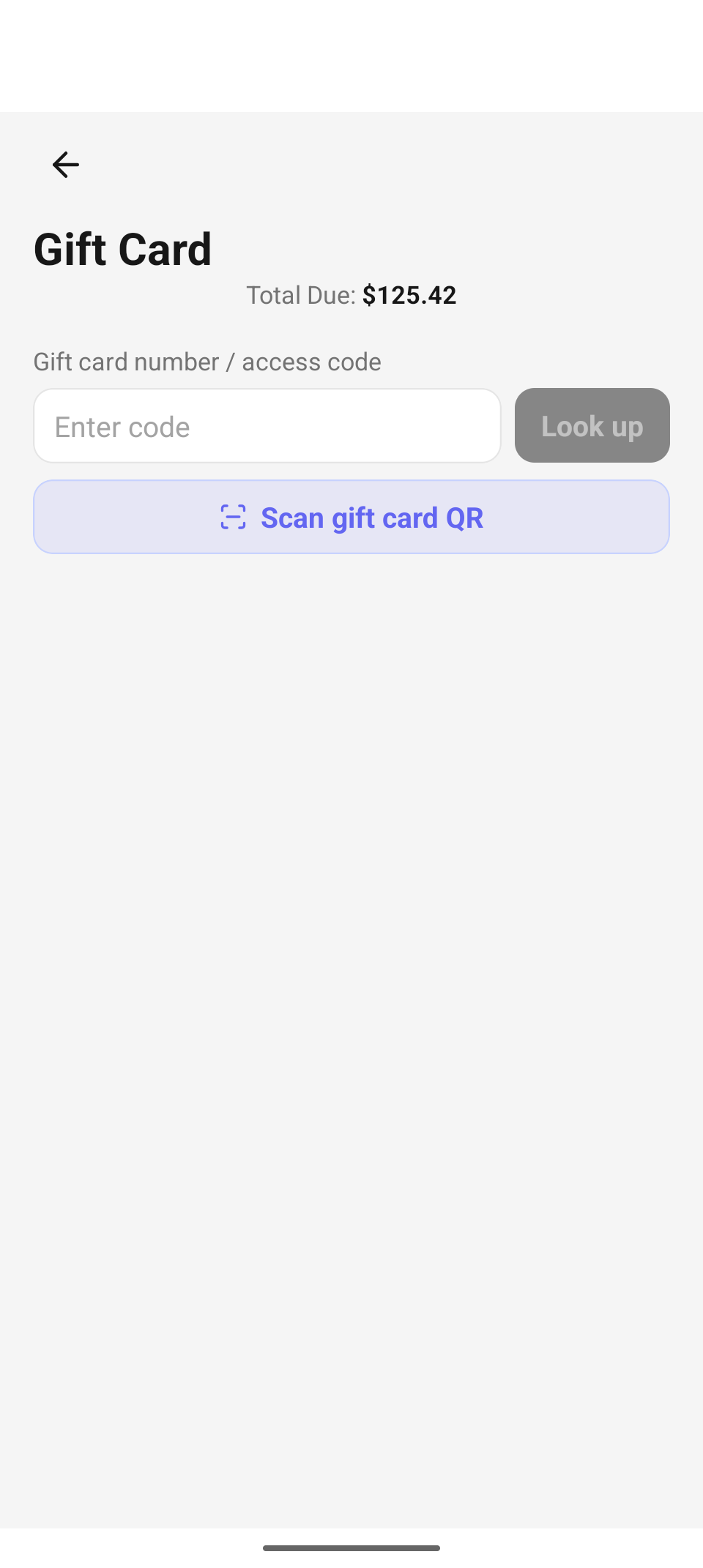
Gift Card — type the code and Look up, or Scan gift card QR.
- Enter the card's number / access code and tap Look up — or tap Scan gift card QR and point the camera at the card's QR. Gift cards sold at the register print their QR on the receipt, so the printed receipt doubles as the guest's redeemable card.
- A found card shows "Card •••• 1234" and its available balance. The Amount to apply field prefills with the smaller of the balance and the amount due — edit it to apply less.
- Apply $X.XX redeems. Validation is strict: "Enter an amount to apply.", "Amount exceeds the card balance.", "Amount exceeds the balance due."
If the gift card covers everything, you land straight on Payment Successful. If it covers only part, you're returned to the method picker — "Gift card applied — $142.90. $125.42 still due." — and finish with any other tender. The checkout tip is committed with the first tender only, so a follow-up tender never double-counts it. (Cancelling the whole order later reverses gift-card tenders automatically.)
Payment Successful
The success screen confirms Total Paid (with "Includes $45.32 tip" when applicable) and, for cash, a green Change Due banner. Below it:
- Receipt card — the full itemized breakdown on screen: every line, Subtotal, Discount, Tax, Tip, and Total Paid, so the guest can review it without paper.
- Send Receipt — the Print / Email / Text row (below).
- Close Check — returns to the Orders list.
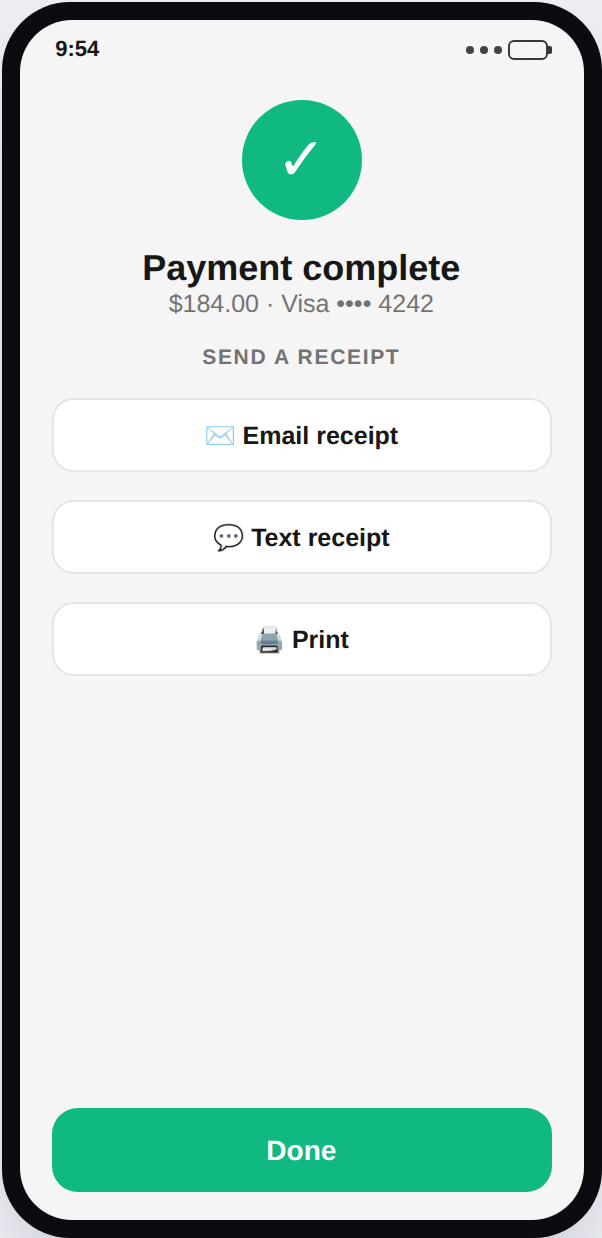
Payment Successful — the itemized receipt card with the Print / Email / Text row.
Send the receipt
The same Print / Email / Text row appears on the success screen and on every completed order's detail. Sending needs the receipts.print permission.
- Email / Text send to the guest's contact on file. With none on file, a prompt asks where to send it — "No email is on file. Enter where to send the receipt."
- Print goes to the device's bound receipt printer. The first time — or when the location has several printers, or the bound one has gone missing — you pick one from a list; the choice is remembered for next time. With no printers provisioned yet, the row reports "No receipt printer is set up here yet." (informational, not an error).
- The status line under the row confirms each send: "Receipt sent", "Sent to Front Counter Printer".
Troubleshooting
| You see | It means / do this |
|---|---|
| "Reader disconnected — reconnect to take a card payment." | The Bluetooth/network reader dropped. Reconnect Reader retries the last reader; Reader Settings picks another. |
| "Card captured — finalizing. Please don't leave this screen." | The card is charged; the app is confirming. Wait — leaving can strand the payment. |
| "Payment is still processing. Check status later." | The processor hadn't confirmed within the polling window. Check the order's status before retrying — the charge may still complete. |
| "Partial payment recorded — $X.XX still due." | A short cash tender was recorded as a partial payment. Collect the balance shown. |
| "No saved cards for this guest. Add a card on file first." | The guest exists but has no stored card — save one from the web admin, or use another tender. |
| "Could not find that gift card." | Wrong code or an inactive card. Re-enter it, or scan the QR instead. |
Related
- Orders — building the check this flow settles, and refunds afterwards.
- Split & discounts — adjust the check before charging.
- Settle a check & take payment — the same flow on the staff web app.
- Payments & refunds — refunds and reconciliation from the web admin.