Split & discounts
Two adjustments happen between building a check and charging it: splitting the bill, and taking money off it. Both live on the check detail — the Split and Discount row buttons.
Split a check
Split appears only when there is something to split — more than one line, or a line with quantity above one. It opens the Split Check screen, which offers two moves on one page.
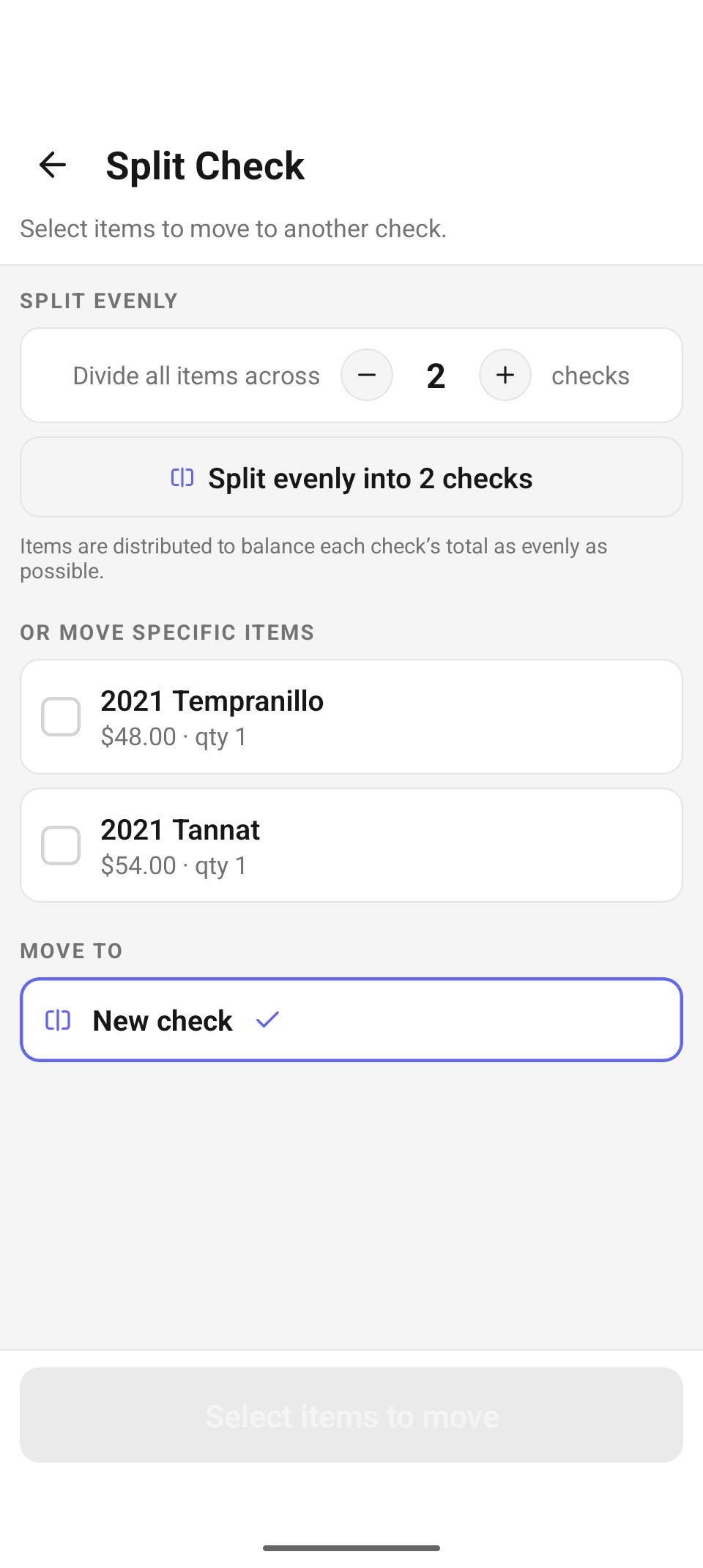
Split Check — the even-split stepper on top, item selection and the Move to target below (New check selected).
Split evenly
Set the number of checks with the − / + stepper — from 2 up to 12 — and tap "Split evenly into N checks". As the hint says, "Items are distributed to balance each check's total as evenly as possible." — the split is by whole items, not by dividing dollar amounts, so each resulting check remains a real, independently payable check. A confirmation reports the result ("Split into 2 checks.") and returns you to the check.
Move specific items
For an uneven split — one guest takes the bottle, the rest settles separately:
- Under OR MOVE SPECIFIC ITEMS, tick the lines to move. A multi-quantity line grows a stepper so you can move only part of it (e.g. 2 of 4 glasses).
- Under MOVE TO, pick the destination: New check (the default), or any other open check on the same table — each listed with its party name and running total. (Checks not tied to a table can only split to a new check.)
- Tap Move N items. On success — "Items moved" — choose Open new check to jump straight to the destination check, or Back.
One guard: selecting every line with New check as the target stops you — "Moving all items into a new check will leave this check empty. Select fewer items, or move to an existing check instead."
Each resulting check is then charged on its own through the normal payment flow — different tenders per check included.
Discounts & Comps
Discount opens the Discounts & Comps sheet over the check. Everything in it runs through the shared incentive engine, so any change recomputes the check's totals immediately — an applied discount shows as a green "Discount on check −$X.XX" row at the top of the sheet and as the Discount line on the receipt.
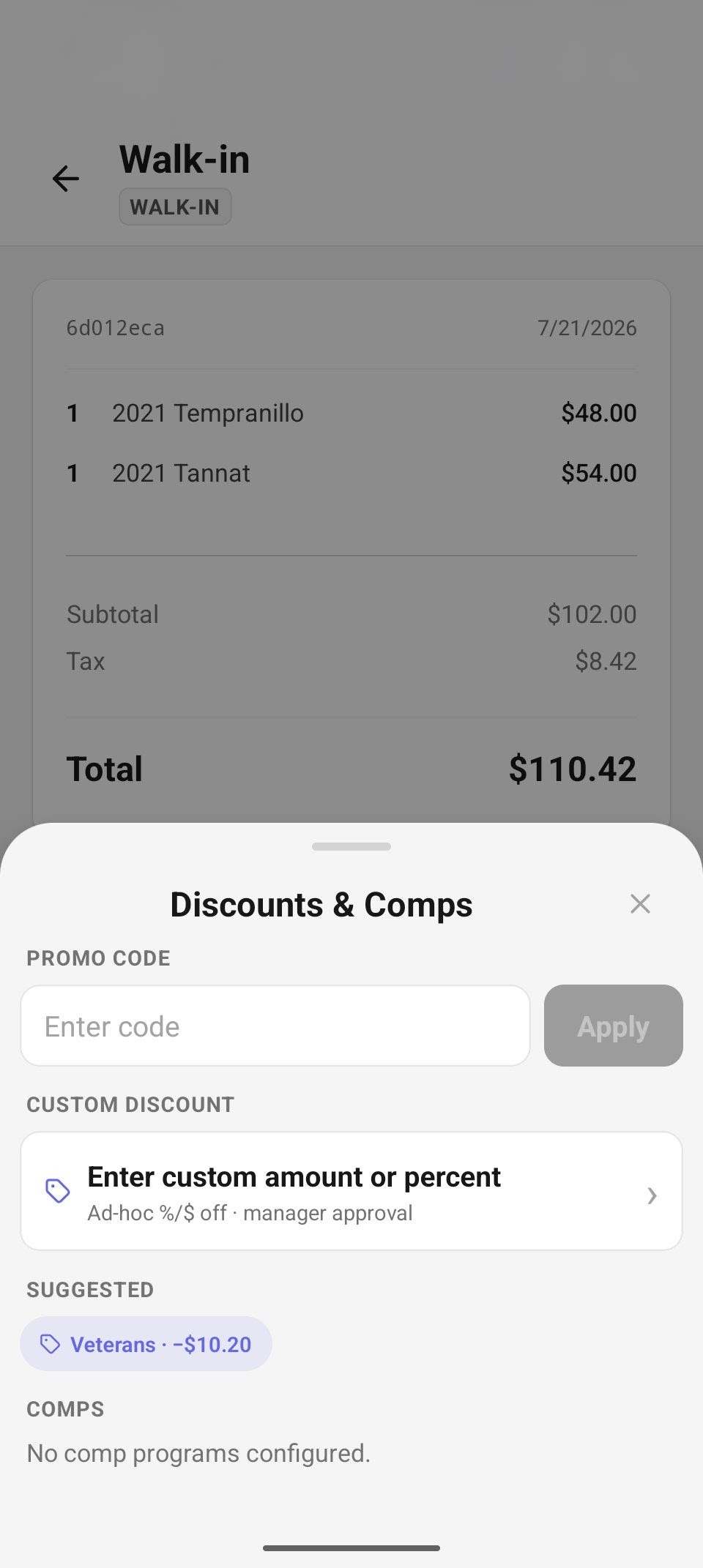
Discounts & Comps — promo code, custom discount, and a suggested code-less discount chip.
The sheet's sections:
- Pending approval — only when something is waiting on a manager (see approvals).
- Promo code — type a code and tap Apply. The field clears after each apply so a code can't be accidentally re-submitted.
- Custom discount — an ad-hoc discount; the row itself says what to expect: "Ad-hoc %/$ off · manager approval". Tapping it opens a form with a Percent (%) / Amount ($) toggle, the value, an optional Max discount dollar cap (percent mode only), and a required reason. Validation: "Enter a percent between 1 and 100.", "Enter an amount greater than $0.", "A reason is required."
- Suggested — one-tap chips for discounts this check already qualifies for. Chips show the name and the estimated saving ("Veterans · −$10.20"). Two kinds appear here: public-code programs (applied by their code for you) and code-less VIP suggestions — programs targeted at the attached guest, prefixed "VIP ·", which apply directly with no code at all.
- Comps — your configured comp programs, each described by its value ("100% off", "$15.00 off (max $25.00)"). Every comp requires a reason ("e.g. service recovery, VIP guest…") before Apply Comp. With none configured: "No comp programs configured."
Applied incentives can be removed from the sheet (the trash icon) — removal of a manager-level incentive is itself manager-gated.
Manager approval & thresholds
Whether a discount applies instantly or waits on a manager is decided server-side, per program:
- A discount within its program's approval threshold applies immediately.
- A discount that pushes the check over the program's threshold is recorded but held — the sheet notices "Sent for manager approval — approve it below." and the item appears under Pending approval as "−$X.XX · awaiting approval" with an Approve button and a remove (trash) button.
- Comps and custom discounts always take the manager path when the signed-in user lacks the incentive-activation right.
Approving (or applying a manager-level action directly) opens the Manager approval PIN pad — "A manager must enter their PIN to approve." Staff PINs are 4–6 digits. The check is permission-aware: only a PIN belonging to someone whose role can approve discounts clears it; anything else gets "Incorrect PIN. Try again." The action that triggered the PIN is retried exactly as entered once the PIN clears — nothing needs re-typing.
Approval thresholds themselves are configured on each program in the web admin — see Discounts at the register.
Anything left pending at the register also lands in the Manager tile's approval queue, where a manager can approve or decline it later without standing at the check.
Reference
| Control | Where | What it does |
|---|---|---|
| − / + stepper | Split Check | Number of checks for an even split (2–12). |
| Split evenly into N checks | Split Check | Distribute all items to balance totals. |
| Line checkboxes + steppers | Split Check | Pick items (and partial quantities) to move. |
| New check / table checks | Split Check | Destination for moved items. |
| Apply (promo code) | Discounts & Comps | Redeem a typed code against the check. |
| Suggested chips | Discounts & Comps | One-tap qualified discounts, incl. code-less VIP programs. |
| Apply Comp | Discounts & Comps | Comp with required reason; manager-gated. |
| Apply Discount (custom) | Discounts & Comps | Ad-hoc %/$ off with required reason; manager-gated. |
| Approve / trash | Pending approval | Clear or remove a held discount (PIN pad for the approval). |
Troubleshooting
| You see | It means / do this |
|---|---|
| No Split button on the check | The check has only a single quantity-1 line — there's nothing to split. |
| "Moving all items into a new check will leave this check empty." | Deselect at least one line, or pick an existing table check as the target. |
| "Sent for manager approval — approve it below." | The discount crossed its program's threshold. Approve it in Pending approval or from the Manager hub. |
| "Incorrect PIN. Try again." | The PIN was wrong — or belongs to someone whose role can't approve discounts. |
| "No comp programs configured." | Comps haven't been set up for this company — create programs in the web admin. |
| "Could not split evenly" | The server rejected the split (e.g. the check changed underneath). Reload the check and retry. |
Related
- Orders — the check detail these tools operate on.
- Payments — charging each split check.
- Manager — the pending-approvals queue.
- Discounts at the register — programs, codes, and thresholds in the web admin.