Products & inventory
Everything you sell — at the register, on the storefront, in club releases
— lives in the Catalogue at /admin/catalogue ("What you have,
where it is, and how much of it is already promised."), and its stock
lives in Inventory at /admin/inventory. High-value write-offs pause in
the approvals queue at /admin/inventory/approvals until a second
pair of eyes signs off.
Who can use it
- Browse products and stock —
products.read(every staff role). - Create, edit, and publish products —
products.create,products.update,products.publish: Managers and Admins only. - Adjust inventory —
inventory.adjust(Managers and Admins). - Approve write-offs —
inventory.approve(Managers and Admins). Approvers withoutcompany.updatemust be a different person than the submitter ("Approver must be a different user than the submitter"); default Managers and Admins holdcompany.updateand may self-approve.
The catalogue
/admin/catalogue (Catalogue) lists your products in a table
under two tabs, Products and Audit. The columns are Product,
Type, Brand, State, Where, On hand, Reserved and
Available; click a column heading to sort. A product row can carry a
Club badge (released to club) or a Sample badge. Expanding a row
shows its stock per location and what is held against it, with a View
in the ledger link to the inventory movements.
Search with "Search name or SKU…". The Filter button opens the filters: Product type, State, Brand and Location, plus Club eligibility (All products, Club eligible, Not club eligible) and Collection. Each filter you apply shows as a chip you can remove, and Clear all resets them.
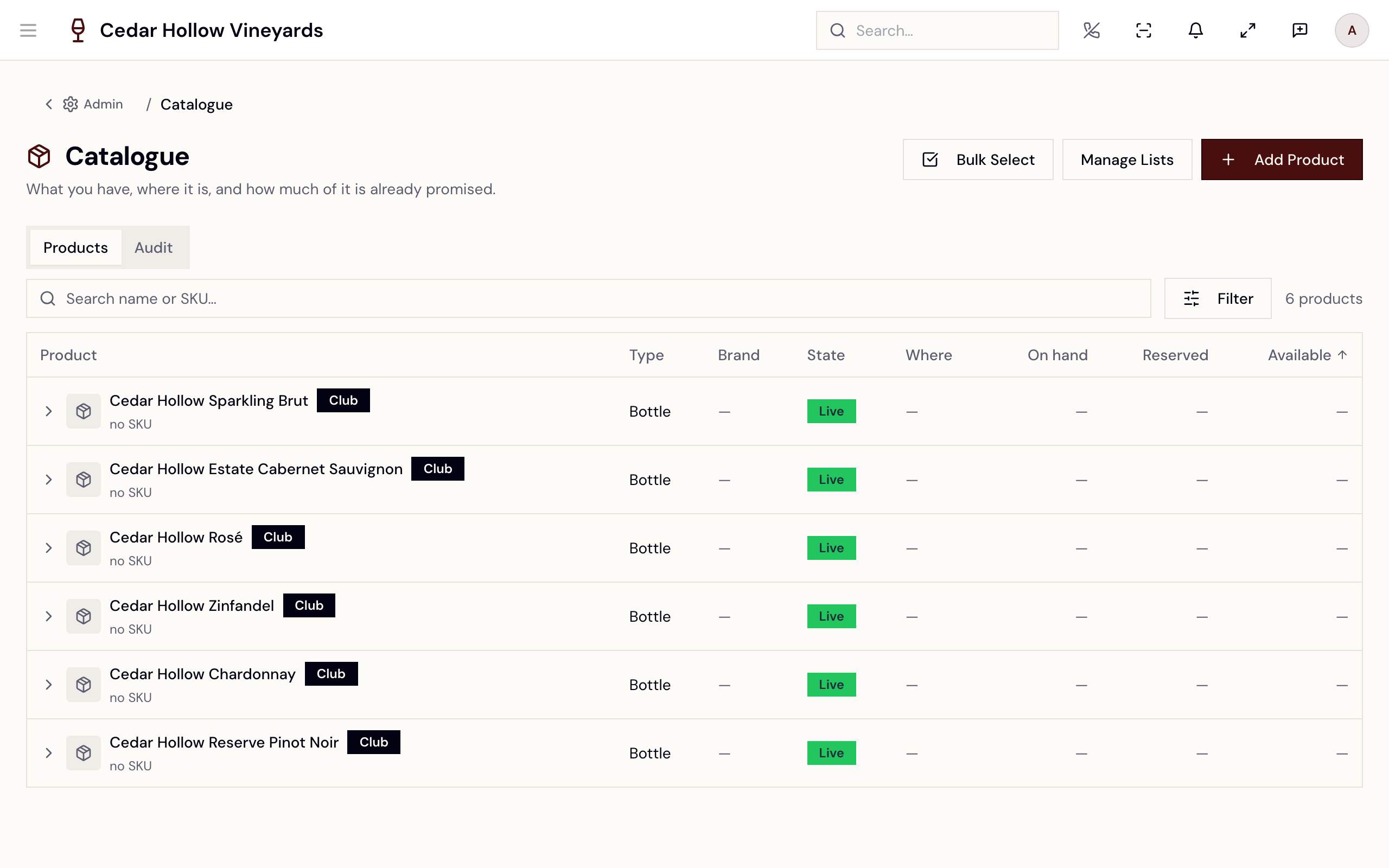
The Catalogue — the product table, filters, and bulk club eligibility.
Header actions: Add Product, Manage Lists (the shared attribute lists, below), and Bulk Select, which adds checkboxes and a bulk bar — Mark as Club Eligible / Remove Club Eligibility — the switch that feeds the release wizard's Bottle Selection. Exit Bulk Mode puts the table back.
Create a product
Add Product (/admin/catalogue/new — "Choose a product type to
get started.") starts from a type card: Wine (sub-types Bottle /
Case), Merchandise, Food, Tasting, Bottle-to-Glass,
Promotion, Event ("Ticketed events and gatherings"), Gift
Card, or Package ("Bundled products sold together"). Then:
- Product Name (required — e.g. "2022 Cabernet Sauvignon Reserve") and an optional Brand.
- Tax classification: Tax Category (Wine, Food, General Merchandise, Non-Taxable) — or, with TaxJar connected, a Tax Code ("Override the automatic tax code used for TaxJar tax calculation").
- Brand Availability — Available to all brands or Specific brands.
- Optionally Add opening inventory — a location and an Opening quantity, recorded as an audited initial-stock adjustment. If that part fails you'll see "Product created, but opening stock failed" — "You can record the adjustment from the Inventory page."
Create Product (toast: "Product created") drops you into the editor.
The product editor
Opening a product from the catalogue takes you to its editor at
/admin/catalogue/products/:productId. The header shows the product
type, a Published or Draft badge, and the Publish /
Unpublish button (toasts: "Product published", "Product
unpublished"). The sections are listed after the state notes below.
What state a product is in
The catalogue's State column shows one value per product, and it is what decides whether the product can be seen and bought online. The register works on a different rule — see The till does not read the state below.
| State | Customers see it | Can be bought online | How it gets there |
|---|---|---|---|
| Draft | No | No | A new product, or one you Unpublish |
| Live | Yes | Yes | Publish in the editor header |
You may also see Unavailable (shown to customers, cannot be bought) or Retired (off sale and hidden) in the State column and its filter. The editor has no control for choosing either of them; Publish and Unpublish move a product between Draft and Live.
The state control in the product builder, which is not switched on by default.
This picture shows an earlier version of this screen. The steps on this page are current.
The till does not read the state
Everything above is the online rule. The POS does not consult a product's state or whether it is published — it offers whatever is active and sits in a collection bound to the register's cart profile. A Draft wine that has been put into a till collection can be rung up and sold today, even though no customer can buy it on the website.
That is deliberate, not a bug: it is how a wine can be poured in the tasting room before it is ready to go live online.
If you need a wine to stop selling in the room as well, remove it from the till's collection. Unpublishing alone only closes the web channel.
The editor sections
The product editor — Basics through Wine Details, with the publish toggle.
- Basics — name, description, SKU (e.g. "CAB-2022-750"), Taxable, Requires Kitchen, Alcohol Product ("Requires age verification before purchase"), and club eligibility.
- Pricing & Variants — Retail Price ($) and Cost ($) per variant in the Variants & Costs table (Variant, SKU, Price, Cost, GP%, Override). Cost is your COGS; GP% is computed for you. Deleting a variant warns: "Deleting it will remove its pricing data permanently. This cannot be undone."
- Wine Details — Bottle Size (mL) (quick picks from "187ml (Split)" to "3L (Double Magnum)"; "Required before publishing."), Vintage (or Non-Vintage (NV)), Classification (Red, White, Rosé, Sparkling), Varietals with percentages (warned when they don't total 100%), Appellation, ABV (%) (required before publishing), Designation, Tasting Notes, and Series / Tier.
- Media — drag-and-drop images and video ("JPEG, PNG, WebP, GIF, MP4, WebM • up to 10 MB. Recommended 2:3 portrait — videos upload without cropping."), with drag-to-reorder. Imported media from upstream catalogs is read-only: "Edit them in the source system."
- Inventory — the per-location stock grid (On hand, Reserved, Available, Value), a Low stock threshold ("Items at or below this on-hand count are flagged Low Stock. Leave blank to use the system default of 5."), an Adjust stock button, and an Adjustment History sub-tab.
- Collections and Brand Availability — which collections the product sits in, and which brands can sell it.
With the Commerce7 integration connected, synced cost changes don't overwrite yours silently — the variants table flags "Cost changes pending review" with the incoming "C7:" value, and you either accept it ("Accept C7 value & unlock") or keep your manual override locked.
Shared attribute lists
Manage Lists opens /admin/catalog/attributes (Catalog
Attributes — "Manage suggestion lists for product attribute values.").
These are the pick lists behind the editor's autocompletes, organized by
type tab: Wine (Appellation, Designation, Closure,
Vineyard — the varietal list is built in and is not edited here),
Food (Allergen, Dietary Tag, Kitchen Station, Visibility
Tag), Merchandise (Category, Material, Vendor,
Color, sizes, and more), Tasting, B2G, Gift Card, and
Package. Values can be reordered, deactivated, and scoped Global
or per-Brand ("Showing brand-specific and global values.").
Inventory
/admin/inventory (Inventory) is the per-location stock ledger,
with tabs for Inventory, Movements, Transfers, Counts,
Receiving, Valuation, and Audit, and KPI cards for Total
SKUs, Locations, Low Stock, and On-Hand Value.
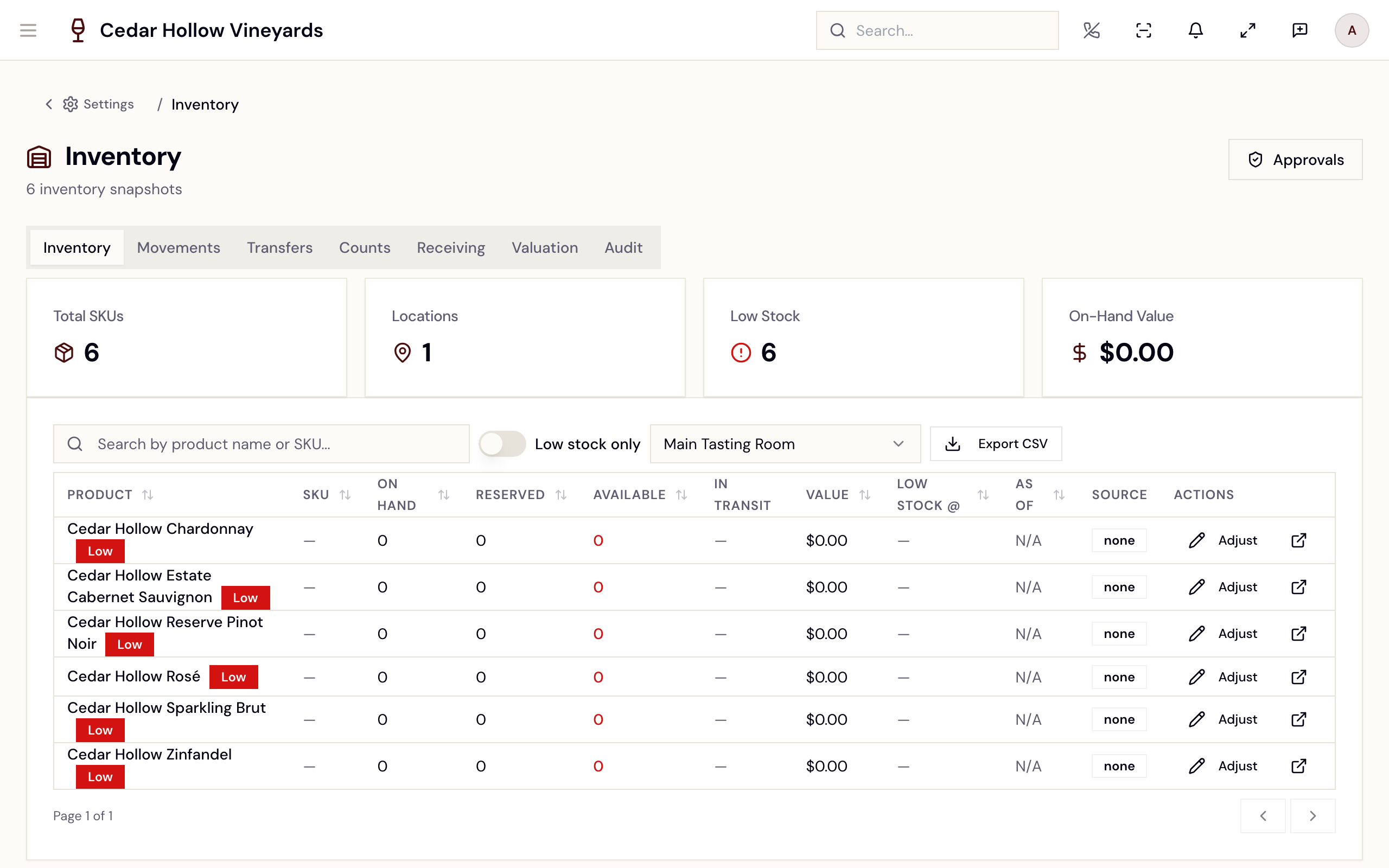
Inventory — per-location stock with low-stock flags and Adjust actions.
The main table shows Product (with a red Low badge at or below
the threshold), SKU, On Hand, Reserved, Available, In
Transit, Value, Low Stock @, As Of, and Source — plus a
per-row Adjust action (locked without inventory.adjust — "Inventory
Adjust permission is required"). Search, a Low stock only switch, a
location picker, and Export CSV round out the toolbar.
Record an adjustment
Adjust opens Adjust stock:
- Pick the Location and a Reason — Count correction, Breakage / damage, Comp / sample, Theft / shrinkage, Transfer out, Transfer in, Return to vendor, or Restock / receiving.
- Pick the Mode — Adjust by (delta) or Set to (absolute) — enter the Quantity and an optional note.
- Record adjustment. Small adjustments apply instantly — "Inventory updated successfully". Big write-offs queue instead (below) — the dialog warns you first, e.g. "…exceeds the … auto-approval cap. This will be queued for approval — on-hand will not change until approved."
Commerce7-sourced items carry an extra caution: "This item is sourced from Commerce7. Local adjustments may be overwritten on the next sync."
The Transfers tab moves stock between locations: New transfer (product, Origin, Destination), then the receiving location confirms with Receive — rows track Sent, Received, In transit / Received status, and any variance.
The approvals queue
High-value write-offs — comps, theft, breakage, and count corrections
above your auto-approval cap — don't touch on-hand immediately. They wait
at /admin/inventory/approvals (Inventory Approvals —
"High-value write-offs (comps, theft, breakage, count corrections)
waiting for sign-off."). Pending items show a banner on the Inventory
page ("…waiting for approval and have not yet changed on-hand counts."
with Review queue →) and a badge on the header bell.
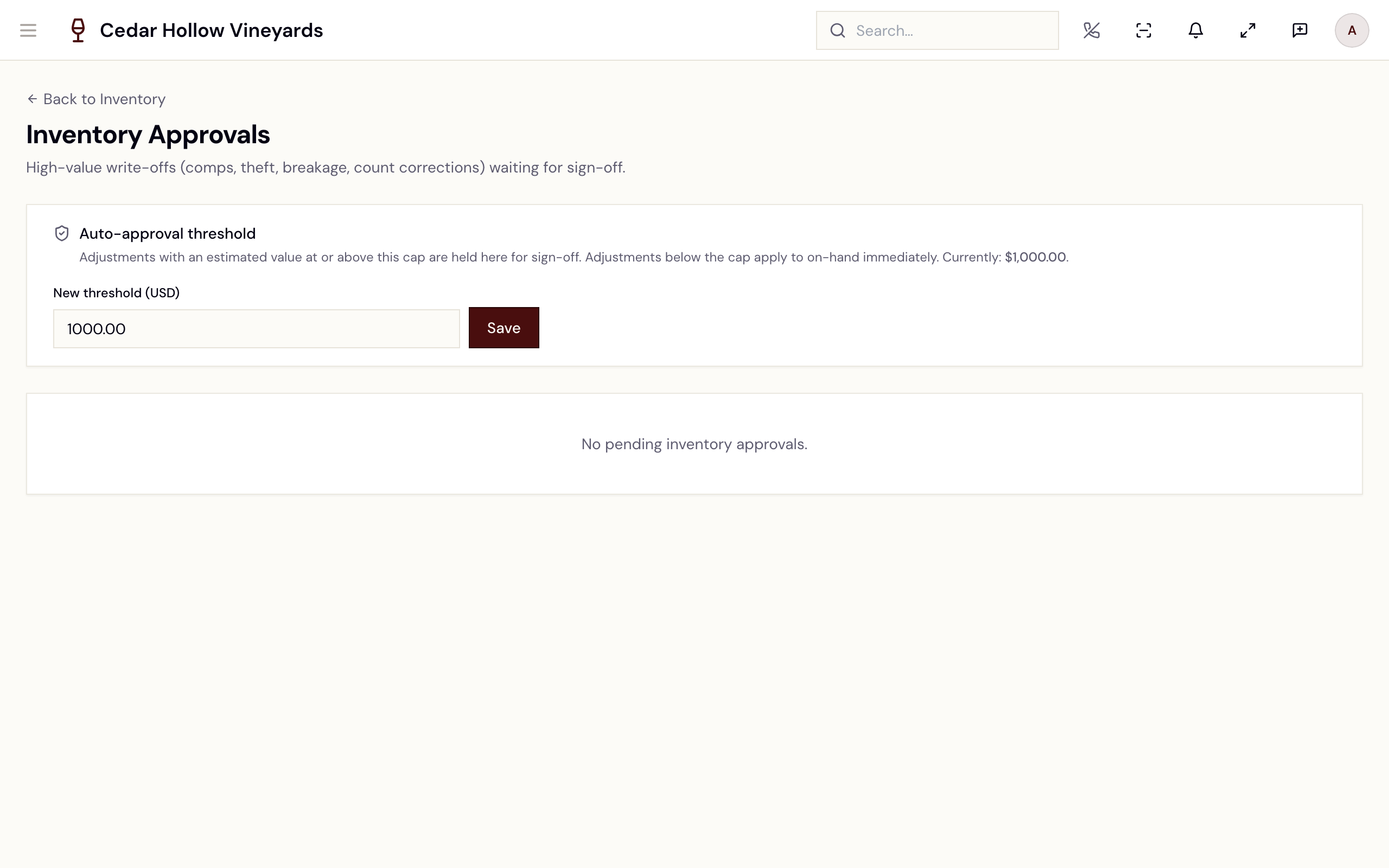
Inventory Approvals — pending write-offs with Approve and Reject.
- The Auto-approval threshold card sets the cap — "Adjustments with
an estimated value at or above this cap are held here for sign-off.
Adjustments below the cap apply to on-hand immediately." The default is
$1,000; changing it needs
company.update, and "New cap applies to future adjustments." - Each pending row shows the product, reason, location, quantity, value,
and submitter, with Approve and Reject:
- Approve — "Approving will apply the adjustment to on-hand inventory… This is auditable." Toast: "Inventory adjustment applied."
- Reject — "Rejecting will close this request without changing inventory…" Notes are required to reject. Toast: "Adjustment was not applied to inventory."
- Approvers who don't hold
company.updatecan't approve their own submission; holders ofcompany.update(default Managers and Admins) may — small teams often need to both submit and approve.
An empty queue reads "No pending inventory approvals."
Reference
| Control | Where | What it does |
|---|---|---|
| Add Product | Catalogue header | The type-first create flow at /admin/catalogue/new. |
| Bulk Select | Catalogue header | Bulk Mark as Club Eligible / Remove Club Eligibility. |
| Manage Lists | Catalogue header | Shared attribute pick lists at /admin/catalog/attributes. |
| Publish / Unpublish | Product editor header | Moves the product between Draft and Live. |
| Filter | Catalogue toolbar | Filters by product type, state, brand, location, club, collection. |
| Adjust (stock) | Inventory row | The reason-coded adjustment dialog (needs inventory.adjust). |
| Export CSV | Inventory toolbar | Downloads the current stock view. |
| New transfer | Transfers tab | Moves stock between locations; Receive confirms arrival. |
| Approve / Reject | Inventory Approvals | Applies or discards a queued write-off (needs inventory.approve). |
| Auto-approval threshold | Inventory Approvals | The cap above which write-offs queue (default $1,000). |
Troubleshooting
- "Required before publishing." — wine products must have a bottle size and ABV before Publish will take.
- "Percentages total N% (should be 100%)" — the varietal blend doesn't add up; fix the percentages.
- The Adjust button is a lock icon — "Inventory Adjust permission is required"; ask a Manager or Admin.
- An adjustment "submitted for approval" hasn't changed on-hand — that's by design; it applies only when it's approved in the queue.
- "Approver must be a different user than the submitter" — your role
has
inventory.approvebut notcompany.update; have another approver (or a Manager/Admin) take it. - Stock keeps reverting on a Commerce7 item — the sync owns that item's counts; the adjust dialog warns "Local adjustments may be overwritten on the next sync."
- "No products are currently marked as 'Released to Club'…" (in the release wizard) — use the catalogue's club-eligibility toggles first.
Related
- Your online storefront — publishing products and collections to the shop.
- Orders & fulfillment — how reserved and picked stock leaves the building.
- Releases & shipments — committing inventory to a club release.
- Take an order (POS) — the register's stock pills and inventory detail modal.
- Reports — the On-Hand Inventory Value KPI.