Daily operations
Operations (/operations) is the manager's floor-oversight hub — the
header says it plainly: Operations · Floor Oversight. A tab bar runs
across the top: Overview, Announcements, Staff Tasks, Cash
Drawer, Approvals, and Performance. Two more pages hang off the
Overview's toolbar buttons: the Daily Sheet and Operations Settings.
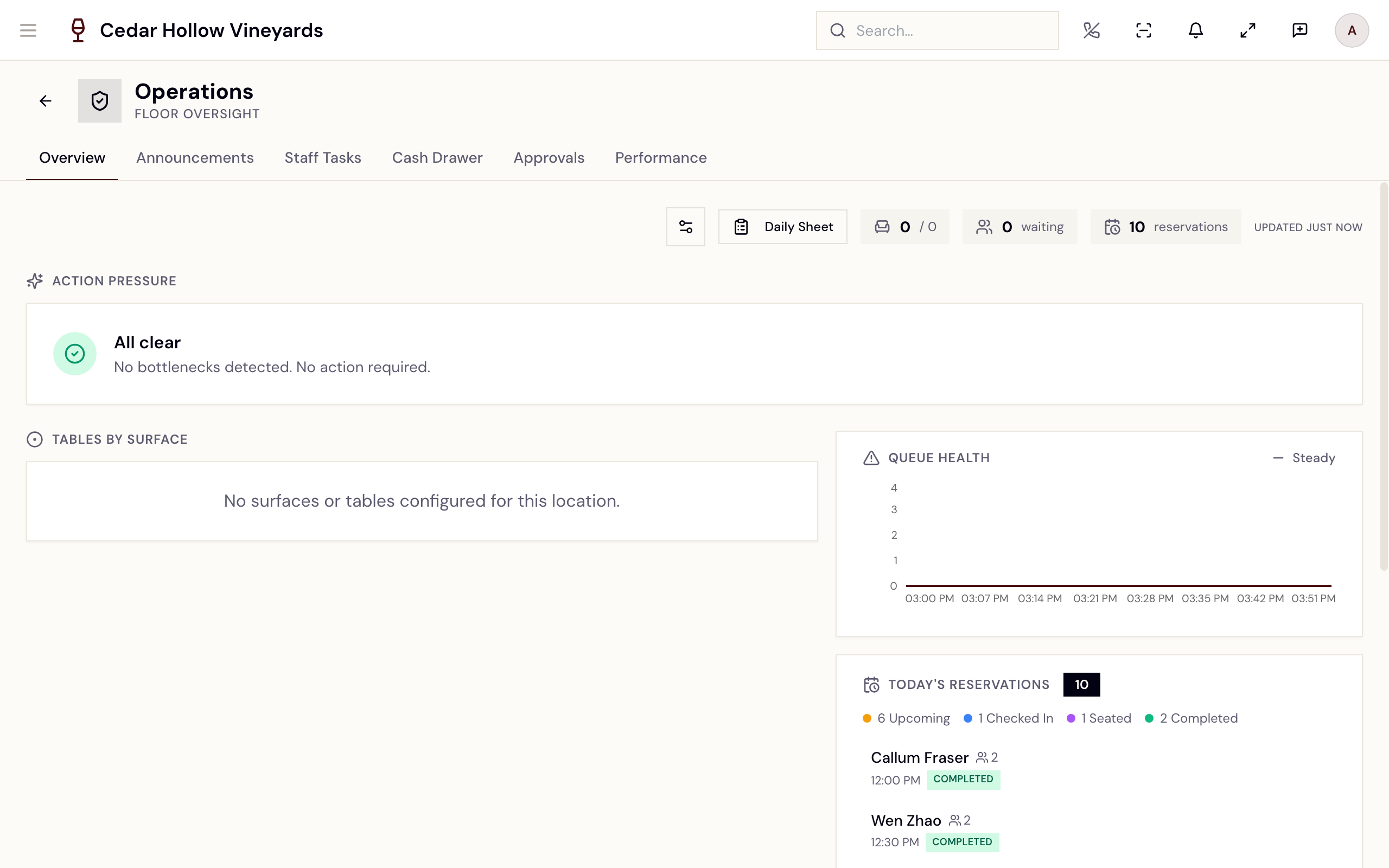
The Operations Overview — Action Pressure, Tables by Surface, and the live right-hand column.
Who sees what
Each tab is gated by its own permission, so different roles see different tab bars:
| Page | Permission | Who has it |
|---|---|---|
| Overview (live dashboard) | operations.read | Manager, Admin |
| Announcements | announcements.manage | Manager, Admin |
| Staff Tasks | — (any signed-in staff) | Everyone |
| Cash Drawer | cash_drawer.read | Manager, Concierge, Admin |
| Approvals | incentives.activate | Manager, Admin |
| Performance | reports.daily_sales | Manager, Admin |
| Daily Sheet — view | — (any signed-in staff) | Everyone |
| Daily Sheet — edit | operations.daily_sheet.edit | Manager, Concierge, Admin |
Cash handling splits further: opening, closing, and cash drops
(cash_drawer.open / .close / .drop) are held by Manager,
Concierge, and Admins; Paid Out (cash_drawer.paid_out) is
Manager/Admin only — large paid-outs additionally require a manager PIN.
The Overview
The Overview polls every 30 seconds. The toolbar carries a settings button, a Daily Sheet button, and live chips — occupied tables out of total, parties waiting, the day's reservation count, and an "Updated …" stamp.
- Action Pressure — Avero's bottleneck feed. Each card is ranked HIGH / MEDIUM / LOW with suggested actions; you can dismiss a card (it stays hidden for the configured cooldown). All quiet reads "All clear" — "No bottlenecks detected. No action required."
- Tables by Surface — every seating area with its table-state counts and the day's lead chip. A seating area with no lead shows an amber "No lead" button ("No lead assigned — set one on the Daily Sheet") that jumps you there.
- Queue Health — a live sparkline of waiting vs. occupied with a Rising / Falling / Steady trend label.
- Today's Reservations — the day's bookings summarized as Upcoming / Checked In / Seated / Completed / Overdue.
- Approvals & Overrides — recent overrides plus a Review approvals
button with a live pending count (visible with
incentives.activate).
The Daily Sheet
/operations/daily-sheet is the run-of-day: goals, leadership, staffing
by seating area, and the day's reservation manifest — everything the pre-shift
huddle needs on one page. Anyone can read it; editing needs
operations.daily_sheet.edit. Move days with the date button and chevrons
(a Today button appears when you've wandered off today). The reservation
book's Actions → Print Reservations lands here too, on the book's
selected date.
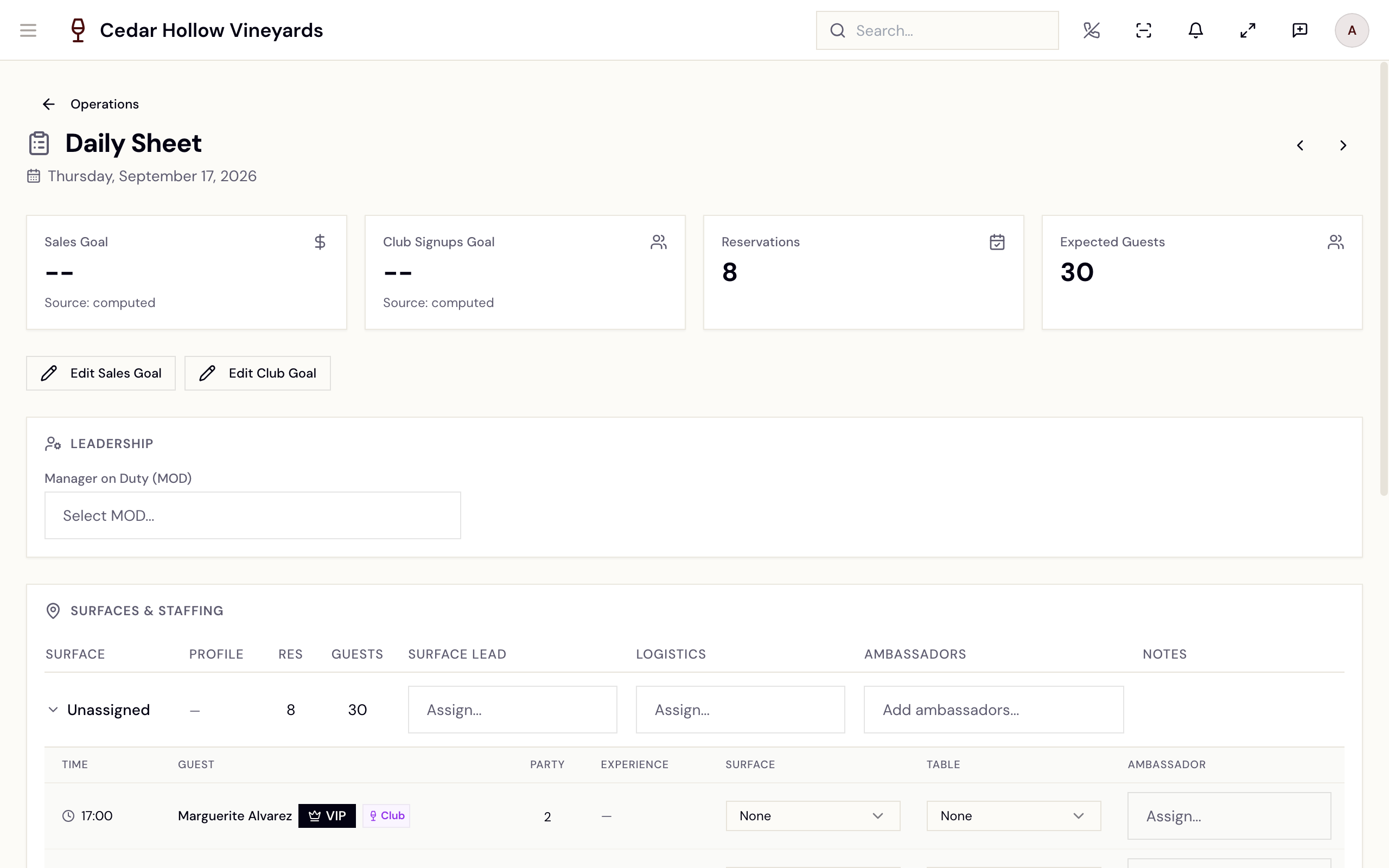
The Daily Sheet — the KPI strip on top, then Leadership, Seating areas & staffing, Notes, and Events.
This picture shows an earlier version of this screen. The steps on this page are current.
Goals
The KPI strip shows Sales Goal, Club Signups Goal, Reservations, and Expected Guests. Goals come from your goal engine, but the day can be overridden: Edit Sales Goal / Edit Club Goal open an override card whose Save stays disabled until you enter a reason ("Reason for override (required)"). Overridden days carry a "Sales Goal Overridden" / "Club Goal Overridden" badge with an × to clear it. Toasts confirm — "Goal override saved", "Override cleared".
Where the Sales Goal number comes from
The Source line under the tile tells you which basis was used. The engine takes the same day last year for this location, and falls back to a trailing average of recent days when that day has nothing. It then applies your year-over-year growth target and day-of-week weights (both in Settings → Your business → Goals and departments).
Two things about that history are worth knowing, because they changed:
- Only money that was actually collected counts. An order that was placed but never paid — a declined club card, for instance — contributes nothing to the basis, and neither does a canceled order. Previously every order counted regardless, so uncollected money was quietly raising this year's target. Goals computed after this change are lower and correct; nothing was lost.
- A refund reduces the day it was issued on, not the day of the original sale. Refund a March order in May and March's history is untouched. Refund it the same day and the two net together. A day whose refunds exceeded its sales shows as a negative basis, which is the honest figure rather than a zero.
This makes the Sales Goal basis net of refunds, unlike most revenue reporting — see Revenue counts money that was actually collected, where a refunded order still counts as collected.
Leadership, staffing, and the manifest
- Leadership — set the Manager on Duty (MOD) from the staff picker.
- Seating areas & staffing — one row per seating area: Seating area / Service layout / Res / Guests / Seating area lead / Logistics / Ambassadors / Notes. Expanding a seating area reveals its reservation manifest (Time / Guest / Party / Experience / Seating area / Table / Ambassador) with VIP, Club, and allergy badges. Assigning a reservation's seating area, table, or ambassador here saves straight onto the reservation ("Reservation updated").
- Service layout — the layout each seating area runs on this date. Left
alone it shows the usual one, marked (usual) or (season); pick
another and the row gains a Today chip. It reads "No service
layouts" when the area has none. Changing it needs
floor.sections.manage(Manager and Admin) and saves straight away. See Floor & seating. - Notes ("Shift notes, special instructions...") and Events ("Scheduled events, tastings, private parties...") — free-text cards for the shift.
Save with the header Save button or the sticky Save Daily Sheet at the bottom — "Daily sheet saved".
Cash Drawer
/operations/cash-drawer — "Cash Drawers" — "Manage cash drawer
sessions, drops, and reporting" — has three tabs: Active Drawers,
History, and Daily Report.
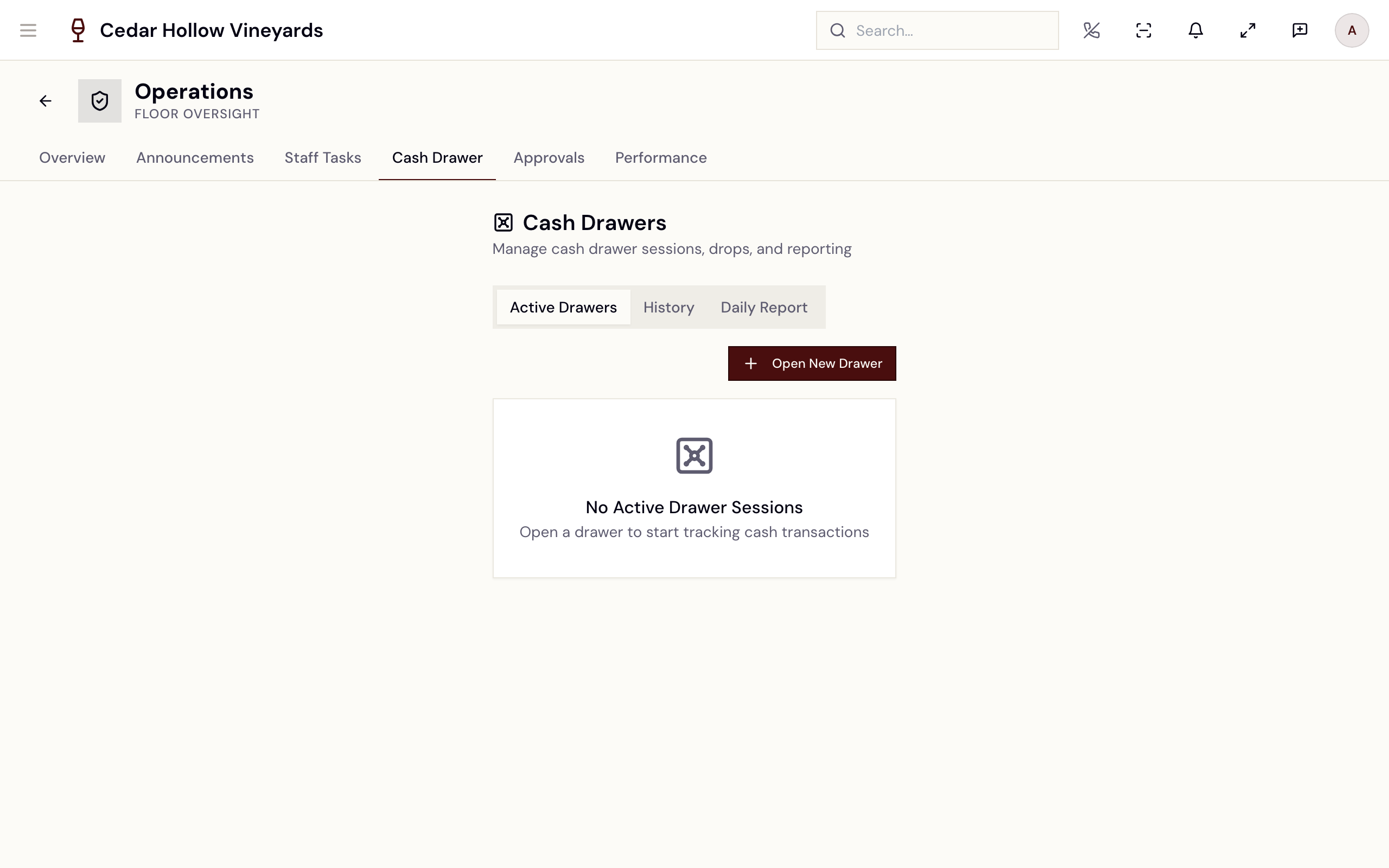
Cash Drawers — the Active Drawers tab with a session card and its actions.
Open a drawer
Tap Open New Drawer (needs cash_drawer.open). The Open Cash
Drawer dialog — "Enter the opening float and optionally assign to a
seating area." — takes a Drawer Name (optional) ("e.g. Main Register,
Bar Drawer"), an optional Seating Surface, an optional assignee
("Me — I'm running this drawer"), and the Opening Float. Multiple
drawers can be open at once — one per register or area.
During the shift
Each active session card shows Opened By, Opened At, Opening Float, and the live Expected Balance, plus an event log (Show Events). Cash sales and refunds post to the drawer automatically; two buttons record manual movements:
- Cash Drop — "Remove cash from the drawer and record the reason." When a drawer runs heavy, Avero nudges you: "Cash exceeds threshold ($500.00). Consider a cash drop."
- Paid Out — "Record a cash paid-out from the drawer." — amount, reason, and recipient. Over the threshold, a "Manager Authorization Required" dialog asks for a manager PIN ("This action requires a manager PIN for approval."; a wrong code gets "Invalid PIN").
Close and reconcile
Close Drawer opens "Close Cash Drawer" — "Count the cash in the drawer and enter the actual amount." — showing the expected figure. Count the drawer, enter the single Actual Cash Count, and close. The result toast is your reconciliation: "Drawer closed" — "Balanced!" when the count matches, otherwise the difference, e.g. "Over/Short: +$3.50". An over/short is recorded, not blocked — the History tab keeps every session with its float, close, and over/short.
Daily Report
Pick a date and read the day's cash position as five tiles — Cash Sales, Cash Refunds, Cash Drops, Paid Outs, Net Cash Expected — plus Active Drawer Balances for drawers still open.
Announcements
/operations/announcements (needs announcements.manage — Manager and
Admin) is where company-wide announcements are written and managed; filter
tabs show All / Draft / Published / Archived.
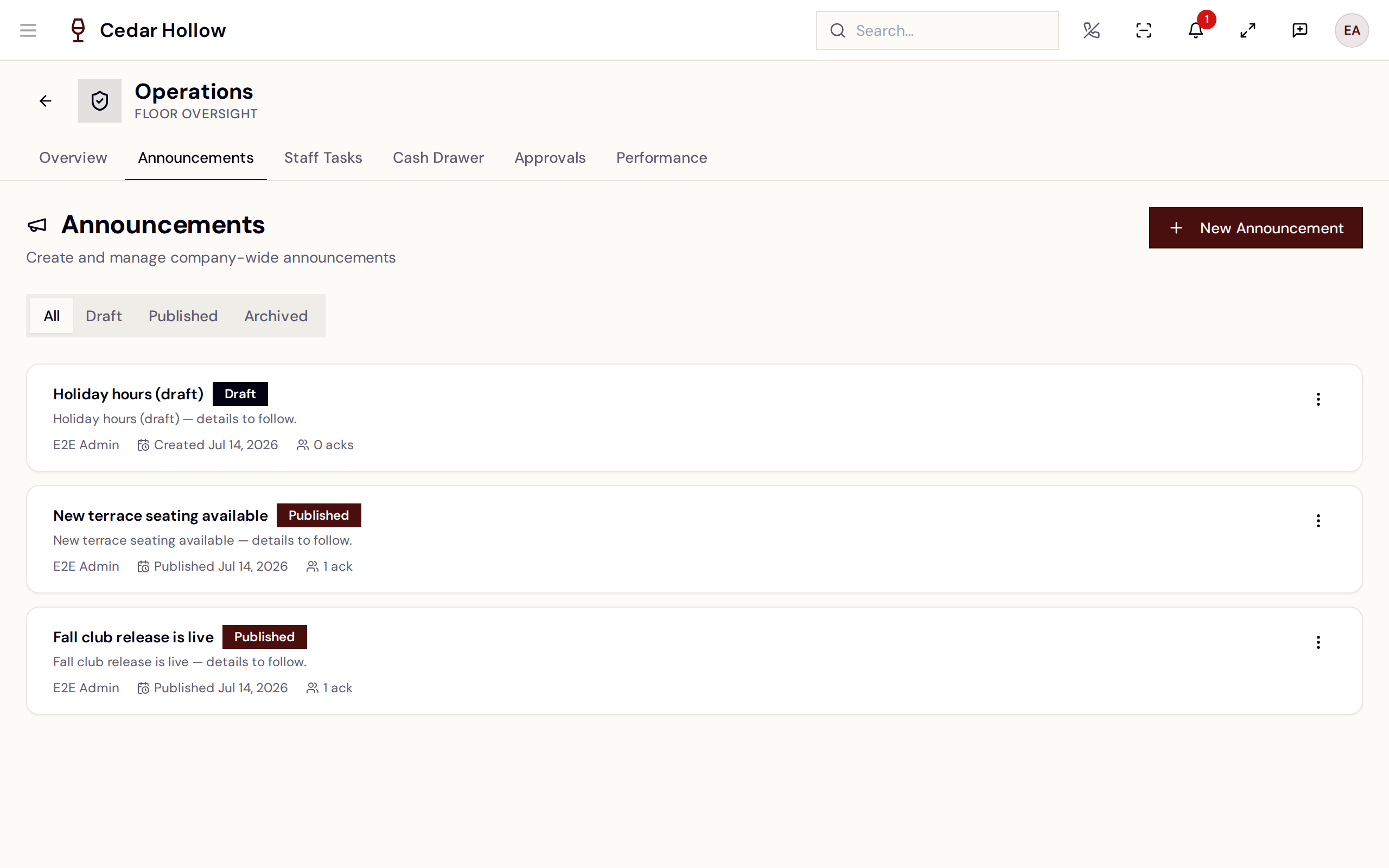
Announcements — status filters, published notices, and per-row acknowledgement counts.
- Tap New Announcement — "Create a new company-wide announcement."
- Fill Title and Body, optionally an Expiry Date (optional).
- Leave Publish immediately on and hit Publish, or turn it off and Save as Draft. Drafts can be published later from the row menu.
Rows show the author, published/created date, expiry, and how many staff have acknowledged ("3 acks"). Row actions: Edit, Publish, Archive, and — for drafts only — Delete ("Are you sure you want to delete this draft announcement? This action cannot be undone.").
How staff acknowledge
There's no acknowledge button on this page. Every published, unexpired announcement is shown to each staff member once, at sign-in, in the "Welcome Back" splash — "Here's what you need to know before getting started." — alongside their open tasks. Tapping Got it records their acknowledgement; the count on the announcement row ticks up.
Staff Tasks
/operations/staff-tasks tracks internal to-dos. Everyone sees their
own tasks; creating, editing, deleting, and filtering by assignee need
tasks.manage (Manager and Admin).
- New Task — "Create a new task and assign it to a team member." — takes a Title, optional Description, a required Assign To (active staff only — "Staff must have an active account (not invited) to be assigned tasks."), and an optional Due Date.
- Filter by All / Open / Completed; managers get an assignee filter.
- The assignee (or any manager) checks a task off with the row's checkbox; open tasks past their due date carry a red Overdue badge.
- Open tasks also greet the assignee in the sign-in Welcome Back splash, under My Tasks.
Approvals and Performance
- Approvals (
/operations/approvals, needsincentives.activate) — "Comps, refunds, and voids awaiting a manager's approval — approve or decline." Each pending item is typed Comp, Refund, or Void with Approve / Decline buttons. Discount approvals are covered in Discounts at the register. - Performance (
/operations/performance, needsreports.daily_sales) — team standings across People / Seating areas / Locations for Today / Week / Month, with Value / guest, Net sales, Club signups, and Guests served ("Guests are an estimate."). Staff see their own numbers on My Performance instead.
Operations Settings
/operations/settings (editable with locations.update — Manager and
Admin) tunes the Overview's alerting: Overstay Thresholds (minutes
before a visit is flagged low/medium/high), Queue Pressure Thresholds
(waiting parties per pressure level), and Dismiss Cooldown (how long a
dismissed alert stays hidden). A separate Reservation Reminders panel
(needs reservations.update) configures guest reminder emails/SMS and
no-show win-back messages, with a Reminder Report of the results.
Reference
| Control | Where | What it does |
|---|---|---|
| Daily Sheet button | Overview toolbar | Opens the run-of-day sheet. |
| Edit Sales Goal / Edit Club Goal | Daily Sheet | Overrides the day's goal — reason required. |
| Manager on Duty (MOD) | Daily Sheet → Leadership | Names the day's MOD. |
| Save Daily Sheet | Daily Sheet | Saves goals, staffing, notes, and events. |
| Open New Drawer | Cash Drawer | Starts a session with an opening float. |
| Cash Drop / Paid Out | Drawer card | Records cash out (paid-outs can require a manager PIN). |
| Close Drawer | Drawer card | Count-and-reconcile — reports Balanced! or Over/Short. |
| New Announcement | Announcements | Draft or publish a company-wide notice. |
| Got it | Sign-in splash | How staff acknowledge announcements. |
| New Task | Staff Tasks | Creates and assigns a to-do with a due date. |
| Approve / Decline | Approvals | Clears pending comps, refunds, and voids. |
Troubleshooting
- A tab is missing from your Operations bar — tabs are permission-gated (see Who sees what); your role doesn't hold that tab's permission.
- "No active drawer session found" — you tried to close (or drop from) a drawer that's already closed. Check the Active Drawers tab.
- "Invalid PIN" on a paid-out — the PIN must belong to a Manager or Admin with a PIN set (PINs are set in Settings → People and access → Team).
- "Cash exceeds threshold…" — not an error; the drawer is heavy. Record a Cash Drop.
- The Daily Sheet won't save — editing needs
operations.daily_sheet.edit; without it the sheet is read-only. - "No surfaces or tables configured for this location." — the Overview needs a floor plan; see Floor & seating.
- A goal override won't save — the reason field is required; Save stays disabled until it's filled in.
Related
- Reservations & availability — the book whose Print action opens the Daily Sheet.
- Floor & seating — the live floor the Overview watches.
- Settle a check & take payment — where the cash that lands in the drawer comes from.
- Discounts at the register — the comps that show up in Approvals.
- Reports — deeper reporting beyond the daily view.