Integrations
Integrations (/admin/integrations — "Connect external services
and manage data sources") is the control plane for everything Avero
talks to: payments (Stripe), tax (TaxJar), accounting (QuickBooks),
messaging (Slack, Resend, RedChirp, Klaviyo), warehouse shipping (FORT
WMS), and data imports (Commerce7).
Who can use it
- View the catalog and connection status —
integrations.read(Manager, Admin). - Enable / disable an integration and run Stripe onboarding —
integrations.update(Manager, Admin). - Enter or change credentials and settings —
integrations.configure(Admin only).
The Integration Catalog
The landing view is the Integration Catalog ("Browse all available integrations by category"): tiles grouped under category headings — Finance, E-Commerce, Payments, Shipping, Communications, Marketing, and more — filterable by status (All Statuses / On / Off / Errors / Planned) and category.
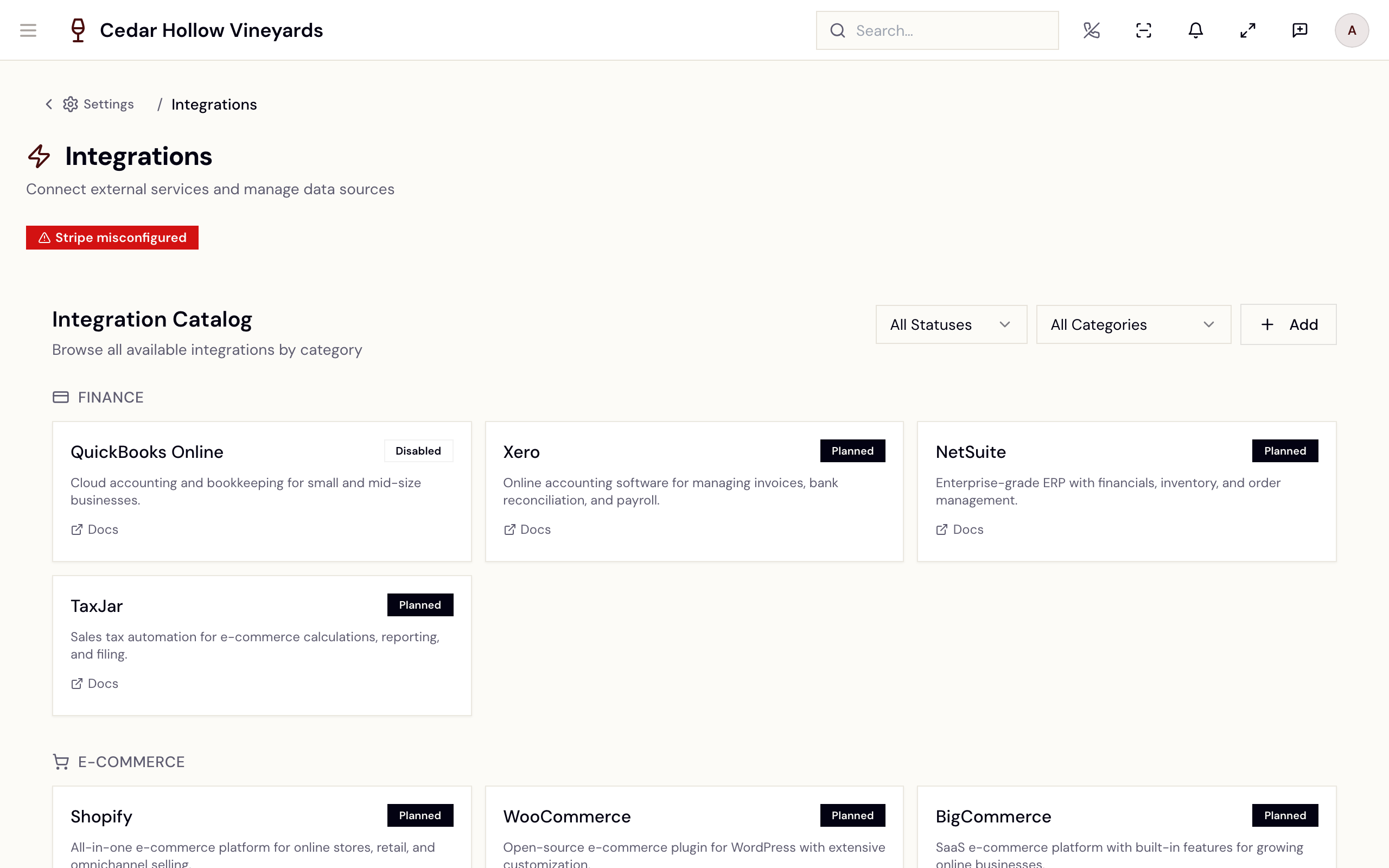
The Integration Catalog — tiles grouped by category with status badges.
Each tile shows the integration's status badge — Planned, Not Configured, Configured, Verified, Disabled, or Error — an ON badge when it's enabled for your winery, and a Platform Managed or Hybrid line when Avero holds some or all of the credentials.
Opening a tile shows the detail view: an Enabled switch, a connection card (Connected / Not Connected), a Test Connection button, and a Configuration Settings tab driven by that integration's own fields. Secret fields carry a Secret badge and render masked with a show/hide toggle; Save Configuration stores them in Avero's encrypted credential vault. Platform-managed integrations state it outright: "Credentials for this integration are managed at the platform level and cannot be modified by tenants."
Many catalog entries (Shopify, FedEx, Xero, NetSuite, and others) are Planned — "This integration is planned for a future release." Only the integrations documented below have working connect flows today.
Stripe
The Stripe tile redirects to its own page, /admin/integrations/stripe
(Stripe Payments — "Manage your Stripe Connect integration"). The
header badge summarizes where you stand: Not Enabled, Onboarding
Required, Pending Verification, or Connected & Ready.
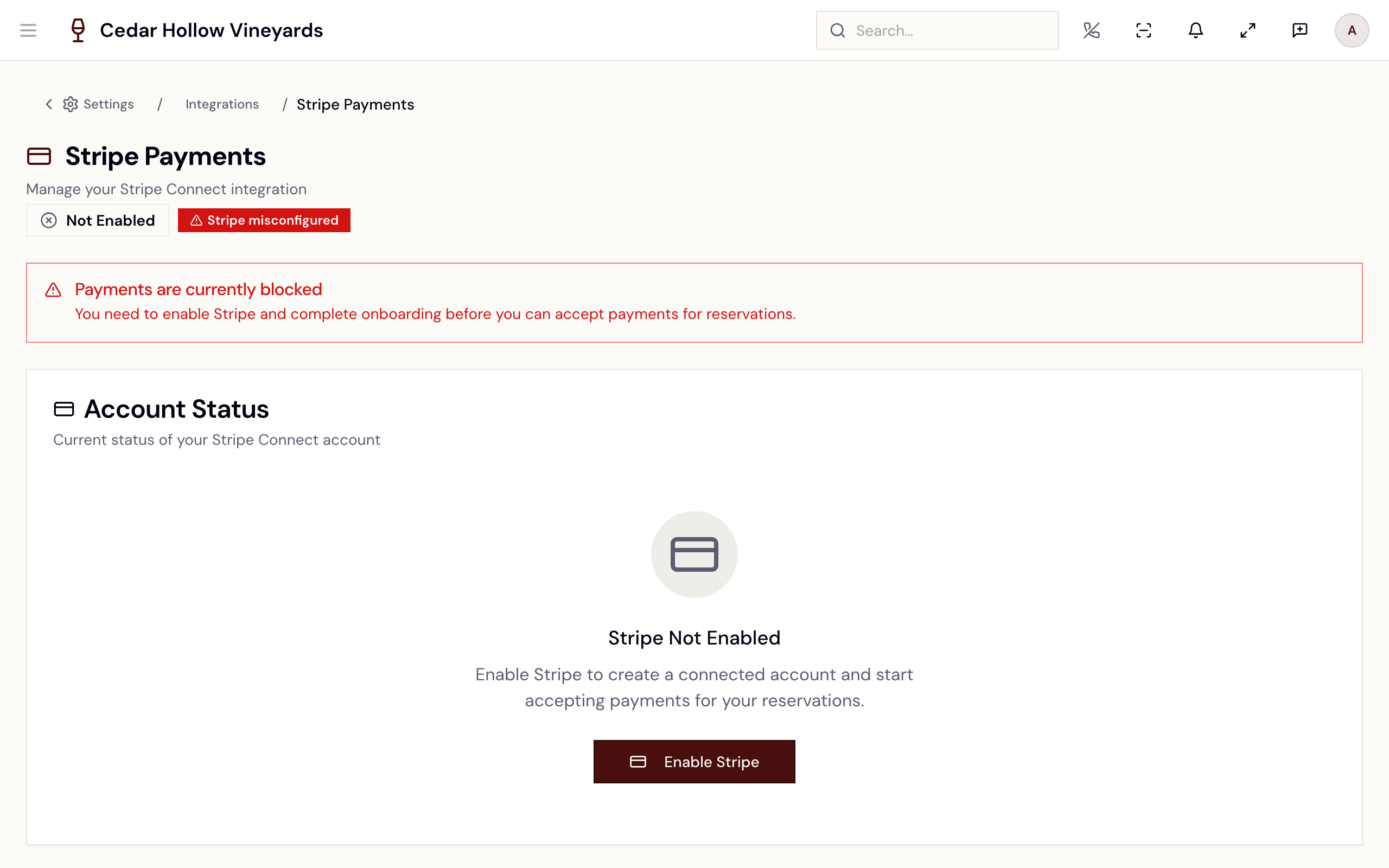
Stripe Payments — account status, capabilities, and onboarding actions.
- Enable Stripe creates your connected account ("Your Stripe Connect account has been created. Proceed with onboarding to start accepting payments.").
- Start Onboarding (later Resume Onboarding) hands you to Stripe's hosted flow; you return to a status page and land back here.
- The Account Capabilities tiles must all go green — Charges ("Can accept payments"), Payouts ("Can receive funds"), and Details ("Information submitted").
- When Stripe wants more, the Requirements card lists it, with a Resolve in Avero flow; Refresh Status re-syncs, and Open in Stripe opens your hosted Stripe dashboard.
Fully connected reads: Ready to Accept Payments — "Your Stripe account is fully connected. You can now create payment links for reservations." Until then, an alert warns "Payments are currently blocked". Where the money then shows up is Payments & refunds.
TaxJar
TaxJar calculates sales tax and powers the
Tax & Compliance dashboard. From the
TaxJar tile, Set Up TaxJar opens the wizard at
/admin/integrations/taxjar/setup — five steps: Overview, API
Key, Address, Nexus, Activate.
- Overview lists what you'll need: your TaxJar API Key, your Business Origin Address, and your Nexus States. "You can save your progress at any time and return later to finish setup."
- API Key — pick the Environment (Sandbox (Testing) or Production (Live)), paste the key, and Test Connection until it shows Connection verified (the wizard won't proceed without a test).
- Address — the ship-from address used for calculations.
- Nexus — check every state where you're registered to collect.
- Activate — review, then Activate TaxJar ("TaxJar has been
connected and enabled.") and land on
/admin/tax.
AutoFile enrollment is not part of this wizard — the tax dashboard's AutoFile tab still reads AutoFile Coming Soon.
QuickBooks Online
The QuickBooks card walks two steps: Configure OAuth Credentials (Client ID and Client Secret on the Configuration tab) and Connect to QuickBooks (OAuth). Once connected you get Test Connection / Disconnect, a Token Health card (access/refresh token state, last refresh, last API call), a copyable Webhook Endpoint, and tabs for Account Mapping, Reconciliation, Sync Settings, Sync History, and Products.
Two states to know: if authorization lapses the card flips to "QuickBooks Online — Re-authorization Required" with a Reconnect to QuickBooks button; and you can't enable syncing before mapping accounts — "Please map the following accounts before enabling QuickBooks Online…".
Club revenue posts in two stages
A wine-club release is collected and earned at two different moments, and Avero posts each one separately rather than collapsing them:
- At the charge — the member's card clears and the order is recorded as paid. This is the date that drives tax, because the tax base is when the money was collected.
- At the recognition event — the wine actually goes. This releases the deferred-revenue liability into income.
Between the two, a club order is legitimately paid but not yet recognised: collected and taxable, not yet earned. That is the normal state of a release between the charge and the truck, not a stuck record.
Recognition fires once. A redelivered carrier webhook, a re-run shipment, or a manual retry cannot restate the date, and an accounting failure never blocks the shipment — the wine ships and the posting is retried.
Which event counts is meant to vary by the terms you sell on: under FOB shipping point control passes at shipment, under FOB destination at delivery. Avero carries both, but there is no Settings control for it yet — every winery is on the default, shipment. If you sell on destination terms, tell your accountant that club revenue is being recognised when the wine leaves rather than when it arrives.
Messaging: Slack, Resend, Klaviyo, RedChirp
- Slack — Connect to Slack runs OAuth in a popup; connected state shows the workspace name with Send Test Message and Disconnect, and the Configuration tab picks a Default Notification Channel. If the popup is blocked: "Popup was blocked. Click the link below to authorize:" → Open Slack Authorization.
- Resend — transactional email. The Send Test Email card sends to any address and tracks it Queued → Sent → Delivered, with honest failures ("Test email bounced — the address … could not be reached.").
- Klaviyo — a four-step guide: Generate Private API Key ("In Klaviyo: Settings → API Keys → Create Private API Key. Select events:write and metrics:read scopes."), Enter Credentials, Test Connection, Create Klaviyo Flow.
- RedChirp — SMS. Four steps: Configure Credentials (choose Platform (Avero-managed) or Tenant (your credentials) mode), Set Organization ID, Test Connection, Select Transactional Bulk Message, plus an SMS backfill card once connected.
Commerce7 imports
Migrating or syncing from Commerce7 runs through External Data
Sources (/admin/integrations/external-data-sources — "Connect
provider tenants to Avero Brands for managed imports."), a card in the
catalog's Data Import section.
Add Connection asks for the Brand, the Commerce7 Tenant
ID (e.g. my-winery), and an optional Nickname. Two more optional
fields, Commerce7 App ID and Commerce7 App Secret, give this
connection its own key: enter both, or leave both blank to use the shared
Commerce7 credential. Test Connection, then
Save. A Connected row's Configure badge opens Commerce7
Continuous Sync ("Configure multi-entity data synchronization") with
Sync Now, per-entity incremental syncs, and reservation-type →
experience mapping; Commerce7 Insights charts the synced data.
Warehouse shipping (FORT WMS)
/admin/integrations/fort (FORT WMS Integration) configures the
warehouse handoff: most wineries only enter their Seller Code —
"The FORT endpoint and API credentials are configured at the platform
level." — plus a Postback Webhook with Rotate Secret, product
mappings at /admin/integrations/fort/products, and a health dashboard
at /admin/integrations/fort/health. The operational side is covered in
Orders & fulfillment.
AI Sommelier
One more setup page hangs off the catalog: the AI Sommelier
(/admin/integrations/sommelier — "Configure your storefront's AI
sommelier." — master switches, an Emergency pause, persona, and
monthly budget).
Taking calls inside Avero is not available yet: the phone controls in the app header are hidden for every role, so staff cannot go on call. This guide will cover voice setup when it is released.
Reference
| Control | Where | What it does |
|---|---|---|
| Enabled switch | Integration detail header | Turns the integration on or off for your winery. |
| Test Connection | Detail view / setup guides | Verifies the saved credentials against the provider. |
| Save Configuration | Configuration tab | Stores credentials in the encrypted vault. |
| Enable Stripe / Start Onboarding | Stripe page | Creates and verifies your Stripe Connect account. |
| Set Up TaxJar | TaxJar card | Opens the five-step TaxJar wizard. |
| Add Connection | External Data Sources | Links a Commerce7 tenant to an Avero brand. |
| Sync Now | Commerce7 Continuous Sync | Triggers a full or per-entity import. |
| Rotate Secret | FORT → Postback Webhook | Regenerates the webhook secret (old URL stops working). |
Troubleshooting
- "Payments are currently blocked" — Stripe onboarding is incomplete; Resume Onboarding and check the Requirements card.
- A tile shows "Error" — open it and read the Last Error card, then Test Connection after fixing credentials.
- "Re-authorization Required" on QuickBooks — "Your QuickBooks authorization has expired or been revoked. Orders and refunds are not being synced." — click Reconnect to QuickBooks.
- TaxJar wizard won't advance past the key step — "Please test the connection before proceeding." — run Test Connection first.
- "No Commerce7 connections configured" — "Click 'Add Connection' to get started."
- You can see settings but can't save them — saving credentials needs
integrations.configure, which only Admins hold; Managers can view and enable/disable.
Related
- Payments & refunds — where Stripe money lands once connected.
- Settings — the Tax & Compliance dashboard TaxJar unlocks.
- Orders & fulfillment — the shipments FORT WMS carries.
- Your online storefront — the storefront the AI Sommelier lives on.